Posts Tagged 'OSB'


Service Bus 12c – Creating Pipeline Template

In this post, you will learn how to create Pipeline Templates in Service Bus 12c.

A Pipeline Template defines general shape or pattern of your message flow. We use Service Bus project XYZCustomer shown below for the demonstration purpose and we intended to create proxy service performing CRUD operations on objects like Customer.
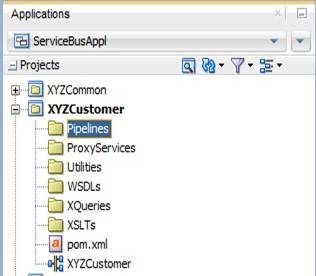
clip_image002

Note: You can create new folders by navigating to File -> New -> From Gallery -> General -> Folder.

Right click Pipelines folder and select New -> Pipeline Template.

clip_image004

Give a meaningful name. Here we are using name CustomerPipelineTemplate.


clip_image006


Click Next. In this screen, you can choose service type depending on your requirement. Here we want to create WSDL based proxy service, so choose Service Type as WSDL SOAP as shown below.
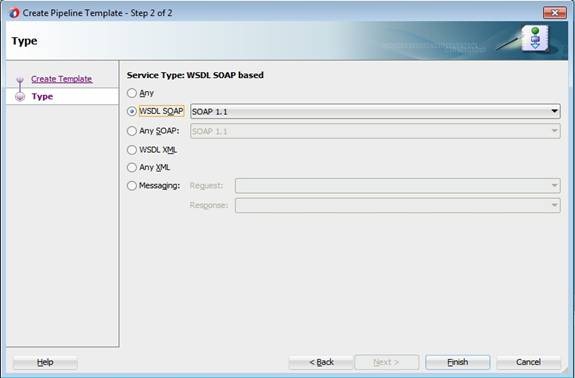
clip_image008

Click Finish and verify that new Pipeline Template is created and opened in a separate tab as shown below.
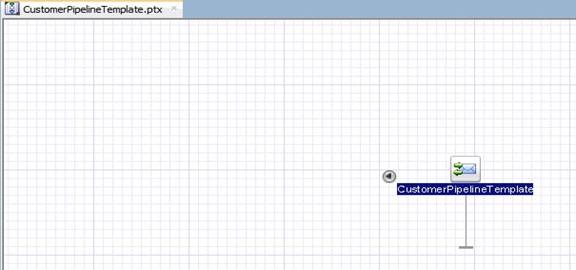
clip_image010

Pipeline templates are the right candidates to keep common logic or enforce pattern of message flow to be followed across Proxy services. Typically, you may want to perform following common activities for different operations that your Proxy Service supports.

  • Validation of payload against schema
  • Routing to a business service (e.g: CustomerServiceBS)
  • Error Handling

Along with above functionality, your Pipeline Template needs to have nodes like Operational branch, Pipeline Pair, Stages etc…

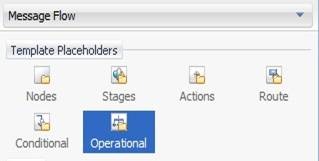
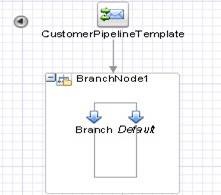
When consumers call Proxy Service, it has to take different execution paths based on operation called. The Service Bus provides Operational Branch node serving this purpose. So drag Operational from Template Placeholders onto pipeline template where yellow circle is shown.


Note: All Nodes or activities used in message flow for Pipeline or Pipeline template are available in Components -> Message Flow under different sections. If you don’t see Components window, get it by selecting Window -> Components.
clip_image012

clip_image014

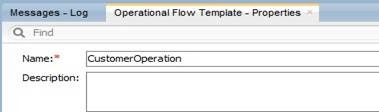
Click BranchNode1 and set name as CustomerOperation in Properties tab as shown below. As a best practice, always give meaningful labels for Nodes and other activities (wherever applicable).
clip_image016

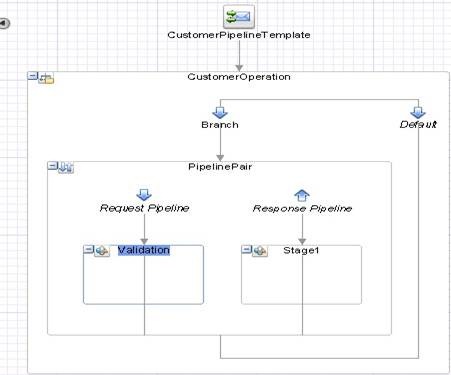
Now drag Pipeline Pair from Nodes into Branch and give name as PipelinePair and rename Stage1 node in Request Pipeline to Validation in Properties tab.  Now your pipeline template should look like below.
clip_image018

Service Bus provides Validate activity to do payload validation against schema. So drag Validate activity into Validation stage from Message Processing.

clip_image020

In Properties tab, set Location property value as body and other properties as shown below. Here you will not select any schema or WSDL for validate activity as it’s just template and we will not have any payload available.

clip_image022

There may be additional validations to be performed while designing message flow in concrete Pipelines which requires a place holder. So drag Actions into Validation stage as shown below from Template Placeholders.
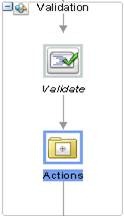
clip_image024

Delete Stage1 in Response Pipeline by selecting Delete option on right click. Also you may need to create several Stage nodes in your concrete Pipeline’s message flow. So create a place holder for the same in your template. Drag Stages into pipeline after Validation stage and in Response Pipeline from Template Placeholders. Now your pipeline pair node should look like below.
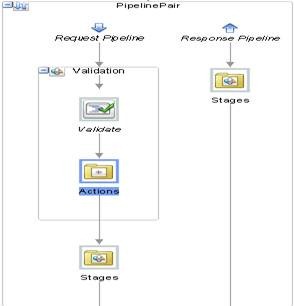
clip_image026

Routing node always depicts end of your message flow and you will not be able to place any other activities after this node. So drag and place Route after PipelinePair from Template Placeholders and set name as Route in Properties tab. Observe Actions placeholder which allows user to place any type of activity while designing message flow for your concrete pipelines.
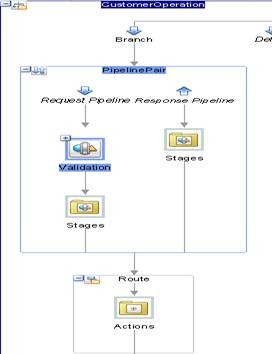
clip_image028

Error handling is another aspect of message flow where you may want to follow similar approach for all Proxy Services. So drag Error Handler onto CustomerPipelineTemplate from Nodes. And in Properties tab, set name as ErrorHandler for Stage1 as shown below.

clip_image030

We will see Error Handling in detail in separate post. For the time being, you can drag Actions placeholder into ErrorHandler stage.

With this, you are done with Pipeline Template and can proceed with creation of Pipelines using this template.

Service Bus 12c – Deploying and Testing

During development, you may often deploy and test your Business and Proxy services to verify that you are able to send request and receive response as expected. And typically, if the service provider is external to your organization, you have to configure your business service to use HTTP proxy server.

Note: HTTP Proxy Server is a global resource to be created in Service Bus Application and can be attached to business service in Advanced Settings of Transport Details tab.

In Service Bus 12c, you can use either Integrated or Standalone WLS to test business/proxy services.

Integrated WLS:

Right click business/proxy service and select Run.

clip_image002

If Default Domain does not exist, JDeveloper will prompt for credentials to create Integrated WLS. Enter credentials click OK to start server.

clip_image004

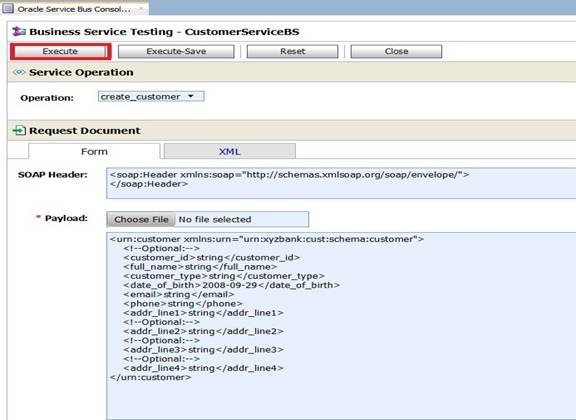
Once the server starts, Test Console is opened as shown below. This Test Console shows all available operations (If it’s based on WSDL), Request Document section (to enter payload), Transport section (to enter transport headers) and Attachments section.

clip_image006

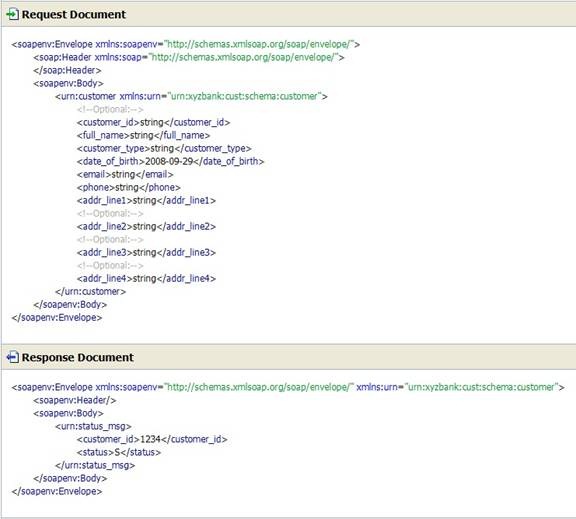
Click Execute and observe that you are able to send request and receive response as shown below. You can use Back to modify payload and repeat your test scenarios.

clip_image008

Standalone WLS:

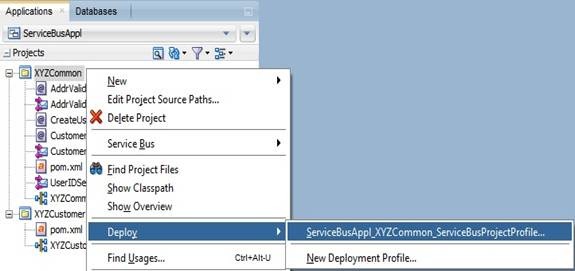
You can also deploy your service bus project to standalone WLS from JDeveloper and test from sbconsole. Right click XYZCommon project and choose Deploy as shown below.
clip_image010

Finish deployment using steps shown below.

clip_image012

clip_image014

clip_image016

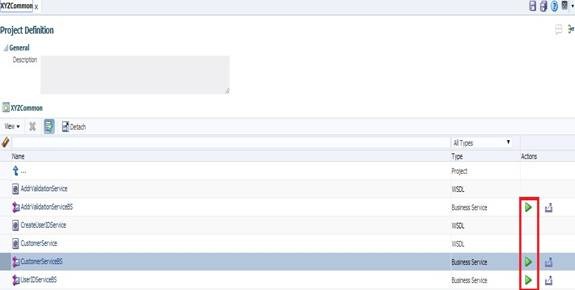
Once deployment is done, login to sbconsole using http://host:port/sbconsole. Clicking arrow icon (highlighted below) will bring up the same Test Console shown earlier.

clip_image018

Another option is exporting your projects as Configuration Jar and deploy to either Integrated or Standalone WLS. To do this, right click XYZCommon project and select Export as shown below.

clip_image019

Select Service Bus Resources option as shown below.

clip_image021

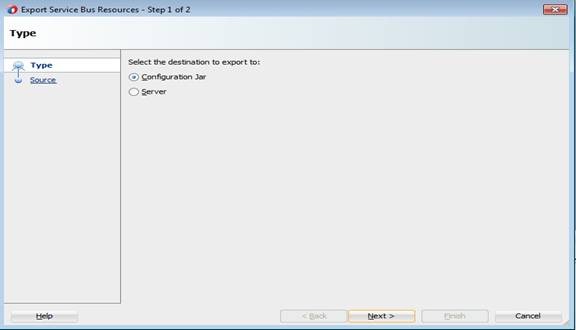
Select Configuration Jar as destination.

clip_image023

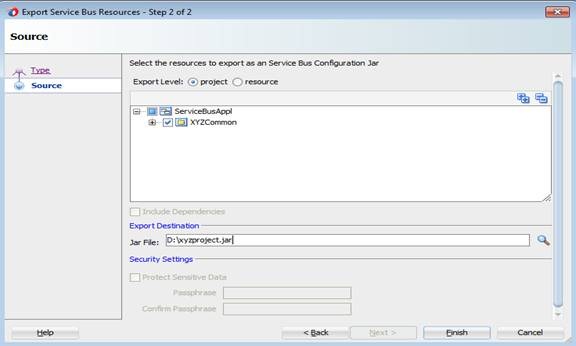
Click Next. Give Jar file name including file system path as shown below and click Finish.

clip_image025

Open sbconsle. Create new session by clicking Create to import configuration jar.

clip_image026

Click Import icon in Resources tab.

clip_image028

Select configuration jar using Choose File button as show below.

clip_image030

Click Next. Accept defaults and click Import.

clip_image032

Click Close on confirmation screen and verify new project is shown as below in Resources tab.

clip_image034

Click Activate and confirm the session so that your changes will be effective.

clip_image035

clip_image037

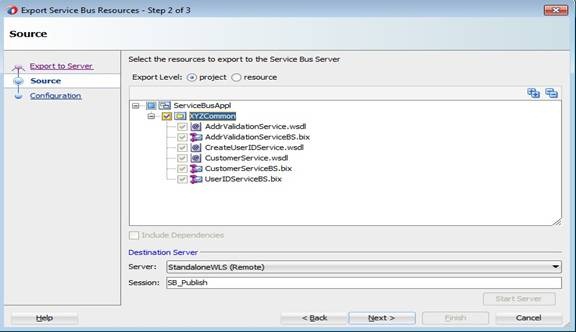
Similarly, you can export service bus project directly to server by choosing Server as shown below in Export Service Bus Resources window shown earlier.

clip_image039

Click Next and choose Destination Server as shown below.

clip_image041

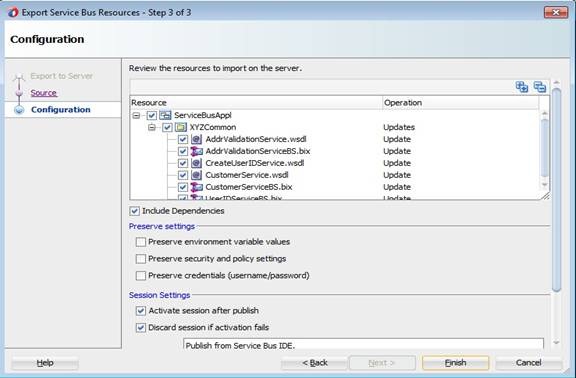
Click Next. Accept defaults and click Finish. Once export is successful, you can launch sbconsole and test your business and proxy services as shown above.

clip_image043

Note: Developer can choose any of the above options for deploying and testing business/proxy services.

Service Bus 12c – Creating Business Services

In Service Bus, Business Services provide abstraction layer and take care of communication with Service Providers. In this post, you will see different ways of creating Business Service in Service Bus project using JDeveloper based on a WSDL. And for the demonstration purpose, we will consider the Service Bus project and WSDLs shown below.

biz1

Method 1:

Right click Service Bus project and select New -> Business Service.

clip_image002

Give a meaningful name for Business Service as shown below.

clip_image004

Click Browse WSDLs icon (shown above) and choose CustomerService WSDL as shown below.

clip_image006

Click OK to go back to Create Business Service wizard.

biz5

Method 2:

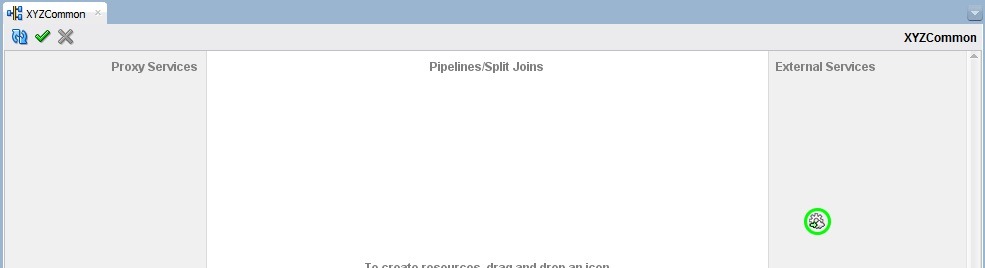
Open the Service Bus overview file (file with same name as your project) and drag HTTP adapter into from Components –> Service Bus –> Technology –> HTTP into External Services swim lane to bring up Create Business Service wizard as shown below.

adapter1

overview1

biz2

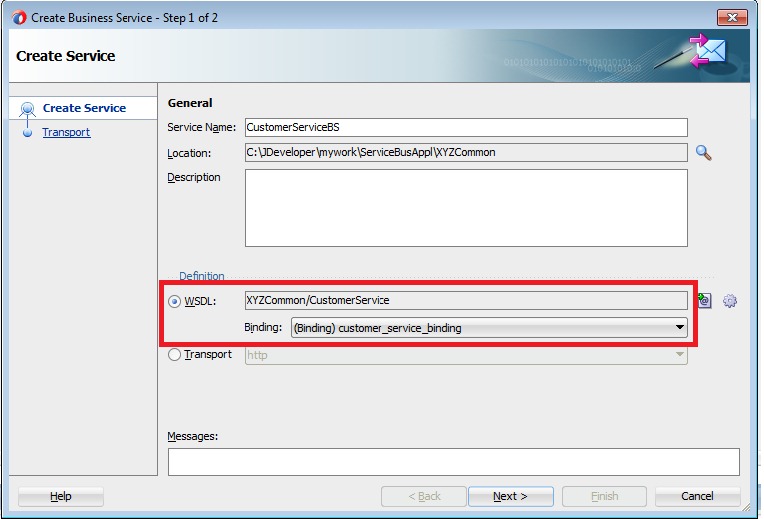
Give meaningful name for Business Service and click Next. Select the option WSDL and choose WSDL as shown in previous method by clicking Browse WSDLs icon.

biz3

biz4

Method 3:

Right click WSDL in Service Bus project and select Service Bus –> Generate Business Service as shown below.

wsdlbiz

Verify that Create Business Service wizard has come up showing WSDL and binding selected.

wsdlbiz1 

And the following steps are common irrespective of the above methods you choose to create Business Service.

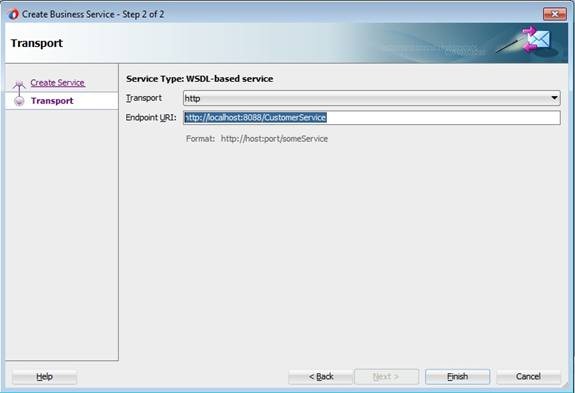
Click Next and enter Endpoint URI of the service.

clip_image008

Click Finish to bring up a new tab showing CustomerServiceBS.bix.

clip_image010

Service Bus 12c – A Hands-on Tutorial

I published a Service Bus 12c Tutorial considering the use case described in my previous blogs. The Tutorial is available for download here and would like to know your valuable comments. The WSDLs and other material used in this tutorial can be downloaded from here.

By the time you finish this tutorial, you will learn:

  • Creating Service Bus Application, Project, Proxy and Business services.
  • Working with resources like WSDL, XSD, XSLT, XQuery etc.
  • Sharing Service Bus resources across Service Bus projects to enable reuse and modularity.
  • Creating Pipeline Templates, Pipelines and using nodes like Pipeline Pair, Stage, Routing and Operational Branches.
  • Using Domain Value Maps (DVM) for storing configuring properties and using them in message flow.
  • Creating Service Accounts and using them in message flow at Runtime.
  • Enriching the messages using intermediate Service callouts in Pipelines.
  • Routing messages to business services using Service Callout, Routing and Routing Table.
  • Working with Split-Joins.
  • Using Service error handlers in Pipelines.
  • Securing Proxy service using OWSM.
  • Deploying and Testing Proxy and Business services.

OSB 11g – A Hands-on Tutorial

I published a OSB11g tutorial considering the use case described in my earlier blog posts. The tutorial can be accessed from here as I am not sure on how to place it in OTN. I would like to know your valuable comments on this. The WSDLs and other material used in this tutorial can be downloaded from here.

Database Polling in OSB – Part IV

In this final post of this series, we will look at remaining polling strategies in ACTION from OSB perspective. Based on my past experience, I would say these are the less frequent used polling strategies (Of course, you should not consider this as granted though).

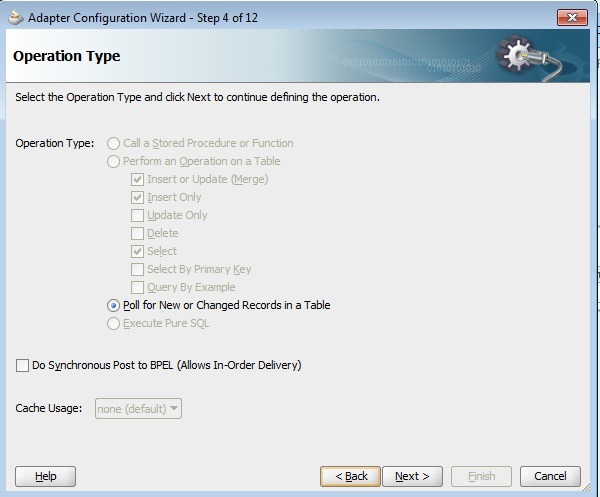
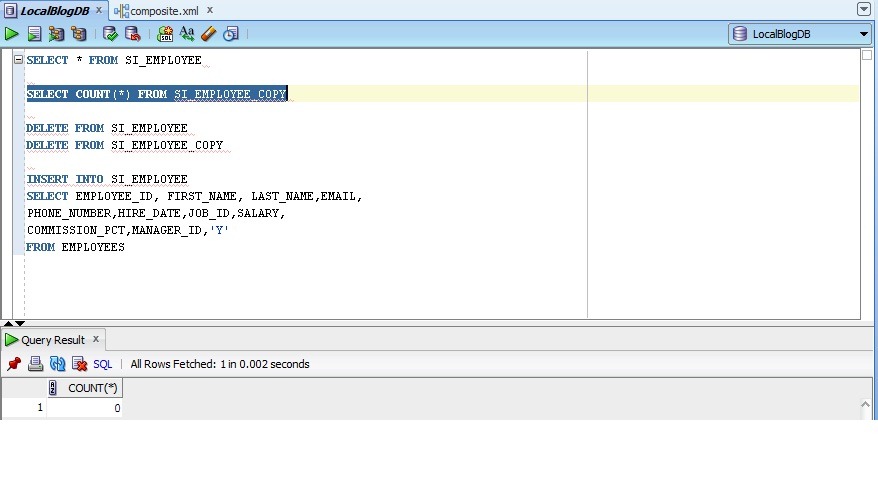
All 3 strategies highlighted in the below screenshot are based on simple principle and can be used if we have any running sequence or date in the source table. Every time the row gets updated/inserted a new running sequence or date used in the respective table column.

poll strats. Once the polling is done, this running sequence can be stored external to the source table. So next time, when the polling happens it will be always that running sequence column value > stored value.

The only difference in these strategies is where we store the value that is used for polling query. In ‘Update a Sequence Table’ polling strategy, we use external table in same DB to store the value .  In ‘Update an External Sequencing Table on a different Database’ polling strategy, we use external table in different database altogether. We can have a single global table that can be used for this purpose. In ‘Update a Sequencing File’ polling strategy, we use the a file in server file system to store the value rather than DB tables. This file will reside in SOA server file system.

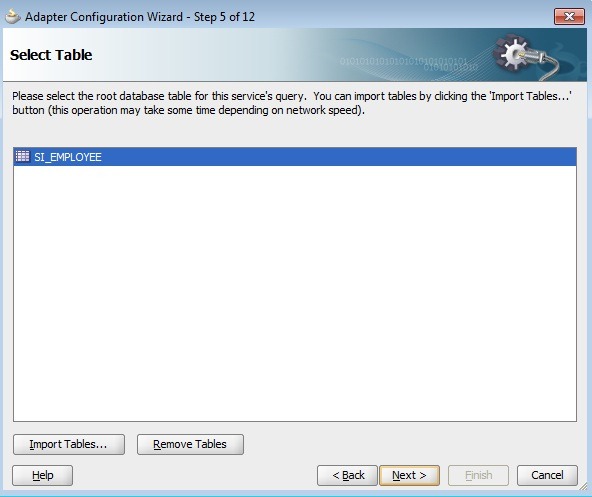
For this post also, the use case remains same where we migrate the data from SI_EMPLOYEE (source table) to SI_EMPLOYEE_COPY (target table). I will demonstrate using only one of these strategies as all 3 are similar. We will use EMPLOYEE_ID column as the sequence i.e. every time we insert a sequence value in this column every time we insert a new record (it does not make sense for the update scenario, then we can add update_date as the column and follow this strategy).

Create a new table to store running sequence with following table definition

CREATE TABLE SI_POLL_TAB(TABLE_NAME VARCHAR2(30), SEQ NUMBER);

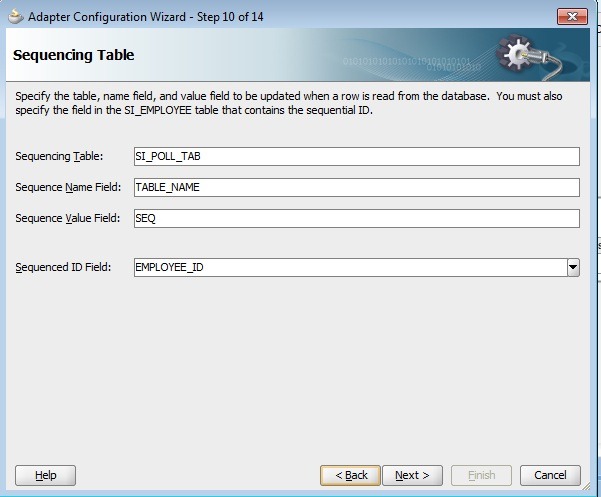
Create DB adapter files in JDeveloper by selecting the polling strategy ‘Update a Sequence Table’ as shown above. Click on Next and enter the values as shown below.

Seq Table

Click on Next, observe Polling SQL and After Read SQL statements.

poll sql

Finish the DB adapter wizard, import the related files into OSB project and create a proxy service from the JCA file and complete the message flow to route the polled data to business service.

proxyservice

Now deploy configuration jar to OSB server and also disable all other proxy services polling on same DB table. Now do the insertion of a single row with using the following statement.

insert into si_employee(EMPLOYEE_ID, FIRST_NAME, LAST_NAME,EMAIL, PHONE_NUMBER,HIRE_DATE,JOB_ID,SALARY,COMMISSION_PCT, MANAGER_ID)
select EMPLOYEE_ID,FIRST_NAME,LAST_NAME,EMAIL,PHONE_NUMBER, HIRE_DATE, JOB_ID,SALARY,COMMISSION_PCT,MANAGER_ID
from employees where employee_id = 100

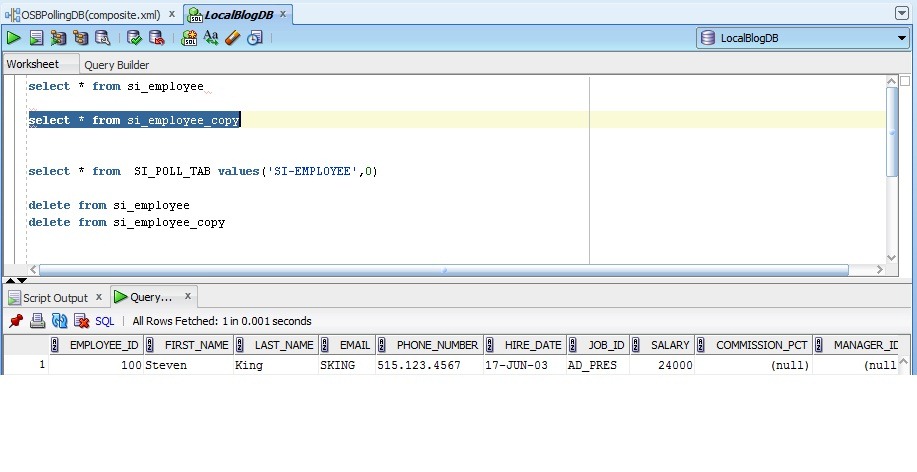
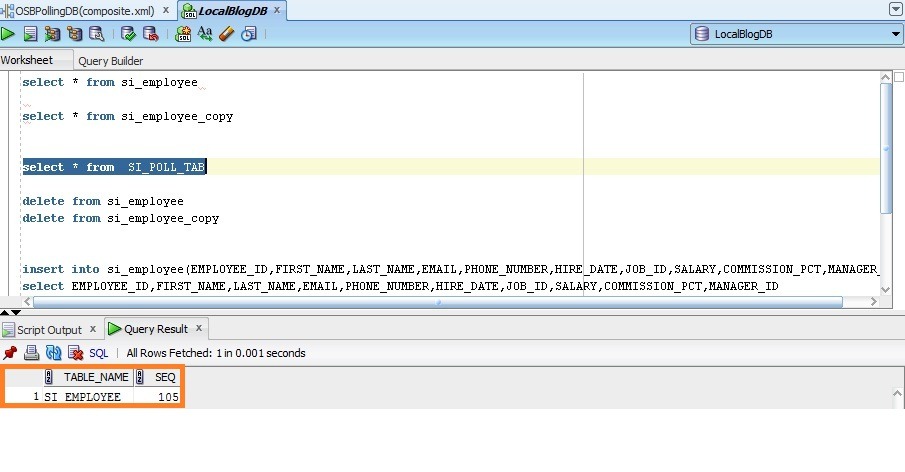
After polling interval, verify that target table is populated this row along with SI_POLL_TAB.

insertion1 

poll tab

Repeat this by inserting more number of records.

insert into si_employee(EMPLOYEE_ID, FIRST_NAME, LAST_NAME,EMAIL, PHONE_NUMBER,HIRE_DATE,JOB_ID,SALARY,COMMISSION_PCT, MANAGER_ID)
select EMPLOYEE_ID,FIRST_NAME,LAST_NAME,EMAIL,PHONE_NUMBER, HIRE_DATE, JOB_ID,SALARY,COMMISSION_PCT,MANAGER_ID
from employees where employee_id between 101 and 105;

insertion2

poll tab1

In case of ‘Update an External Sequencing Table on a different Database’, we also have to specify Data Source to connect to an external table in different DB as shown below. Except this, everything remains same as  discussed above.

external table

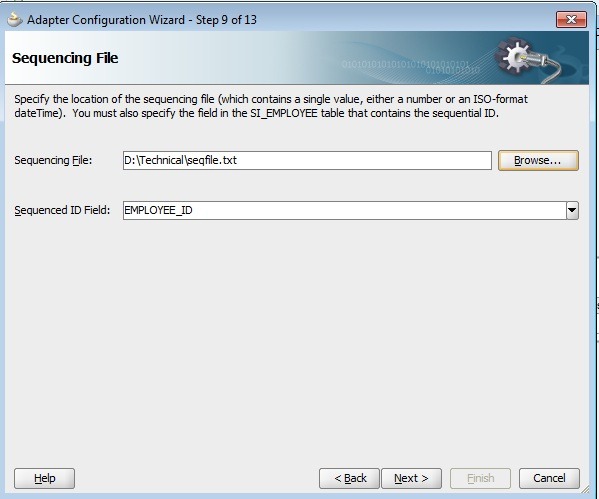
In case of ‘Update a Sequencing File’ polling strategy, we have to specify the location of file resides in SOA server as shown below. Except this, everything remains same as  discussed above. Make sure that file location is writable.

file

The updated configuration jar can be downloaded from here.

Database Polling in OSB – Part I

Most of us have used DB Adapter in BPEL to perform operation in database. One of the features that is widely used is database polling when working with database. OSB also supports JCA DB adapter since it’s initial release in 11g. In a series of posts, i will show you different polling strategies in ACTION from OSB perspective.

I had used a use case of migrating data (smaller volume) from SI_EMPLOYEE table (source) to SI_EMPLOYEE_COPY (target) using DB adapter in OSB for this demo. And JDeveloper 11.1.1.6 and OSB 11.1.1.6 are used for this demo.

This post assumes that reader has basic understanding of working with DB Adapter in BPEL, OSB and using JDeveloper and Eclipse IDEs.

Create Business Service:

This business service merges the rows into target table using DB adapter. So create DB adapter files in JDeveloper by selecting the merge operation.

InsertDBOperation

In the next step of the wizard, select target table and finish the DB wizard to create all necessary files (.JCA, mappings, properties, WSDL and XSD). Import all of these files into Eclipse IDE and create business service from JCA file.

BusinessService

The JCA properties from configuration file can be verified and modified from the JCA transport tab of the business service.

JCA Transport

Delete Polling Strategy:

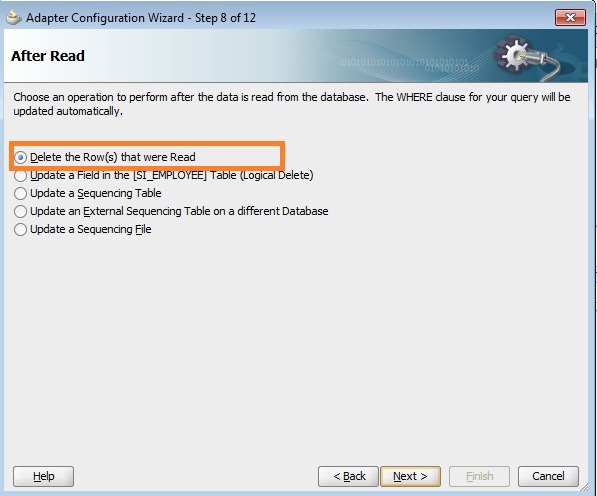
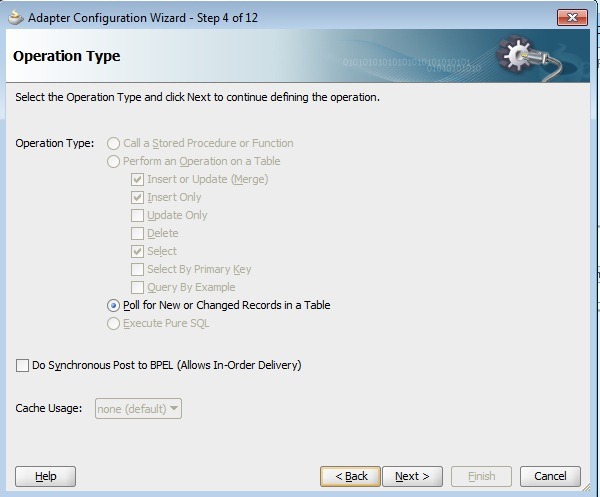
Create DB adapter files in JDeveloper by selecting Poll operation, source table and the polling strategy (After Read) as ‘Delete the Row(s) that were Read’.

Poll

table

AfterReadDelete

Import all of these files (JCA, mappings file, properties file, WSDL and XSD) into Eclipse IDE and create proxy service from .JCA file. Also the JCA properties can be verified in ‘JCA Transport’ tab including the polling strategy and the polling interval (60 sec in this scenario).

eclipsepoll

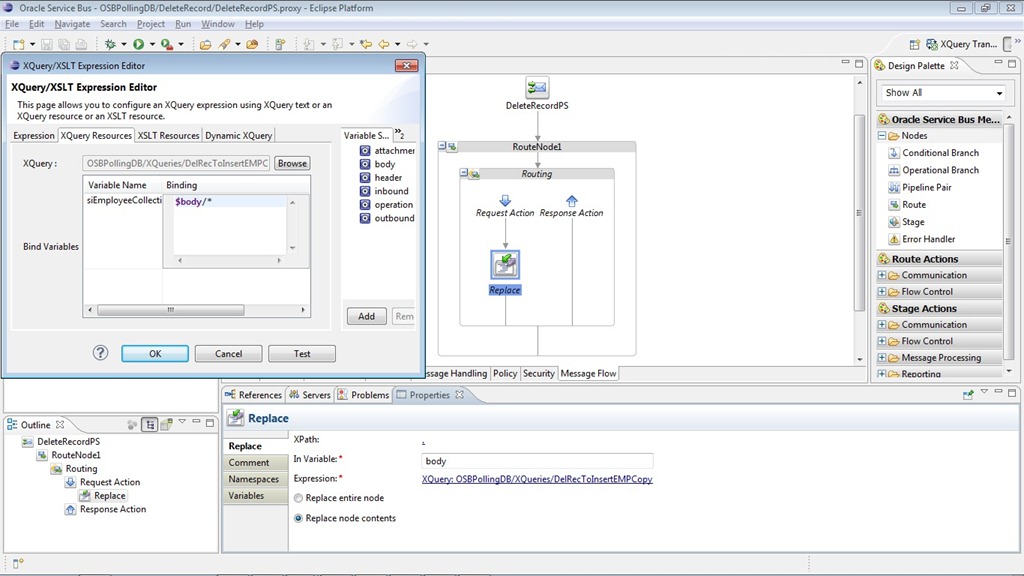
Complete the message flow in proxy service by adding Routing and Replace activity to transform $body as required by business service.

xquery

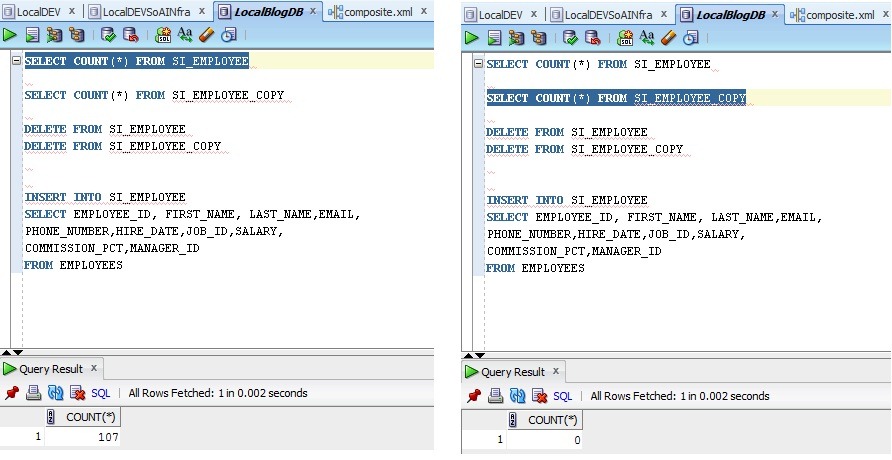
Deploy OSB project. Now insert a few rows in source table. Verify that polling happens and target table is populated with records and also the records got deleted from source table.

Before Polling:

b4poll

After Polling:

aftrpoll

Logical Delete Polling Strategy:

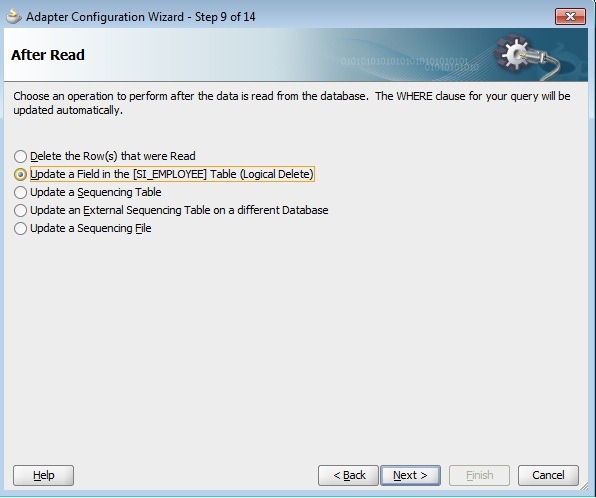
In this polling strategy, a column in the table is marked with particular value to designate the logical delete thus avoids DB adapter to pick it up the same record again and again. Currently our table does not have any column for this purpose, so add a column ISACTIVE VARCHAR2(1) in source table.

Create DB adapter files in JDeveloper by selecting Poll operation, source table and the polling strategy (After Read) as ‘Logical Delete’.

Poll

table

logdelete

Enter ‘Read Value’ as ‘N’ and ‘Unread Value’ as ‘Y’ so that DB adapter would only poll active records.

logdeleteac

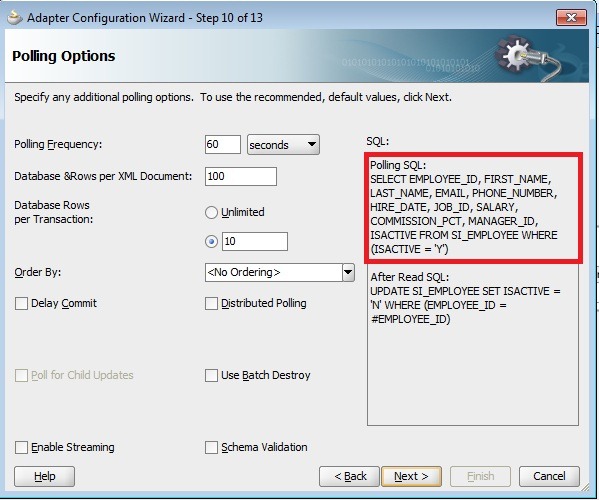
In the next step of DB wizard, one can verify SQL statement used for polling and finish the wizard.

pollsql

Import all of these files (JCA, mappings file, properties file, WSDL and XSD) into Eclipse IDE and create proxy service from .JCA file. Also the JCA properties can be verified in ‘JCA Transport’ tab including the polling strategy and the polling interval (60 sec in this scenario).

logdelete1

Complete the message flow in proxy service by adding Routing and Replace activity to transform the payload as required by business service.

logdelete2

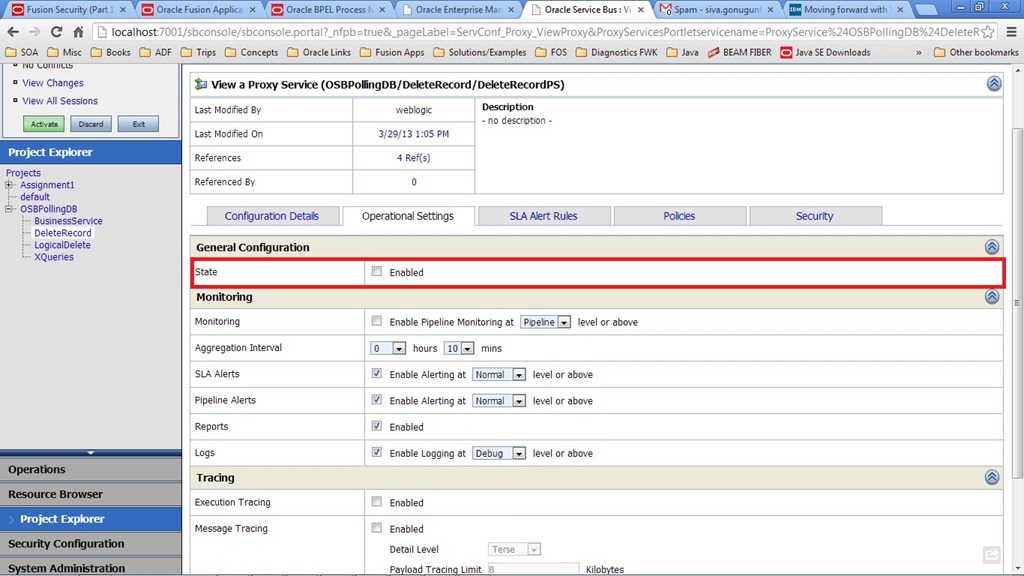
Deploy OSB project and disable the proxy DeleteRecordPS so that only our new proxy service will poll DB table.

disable

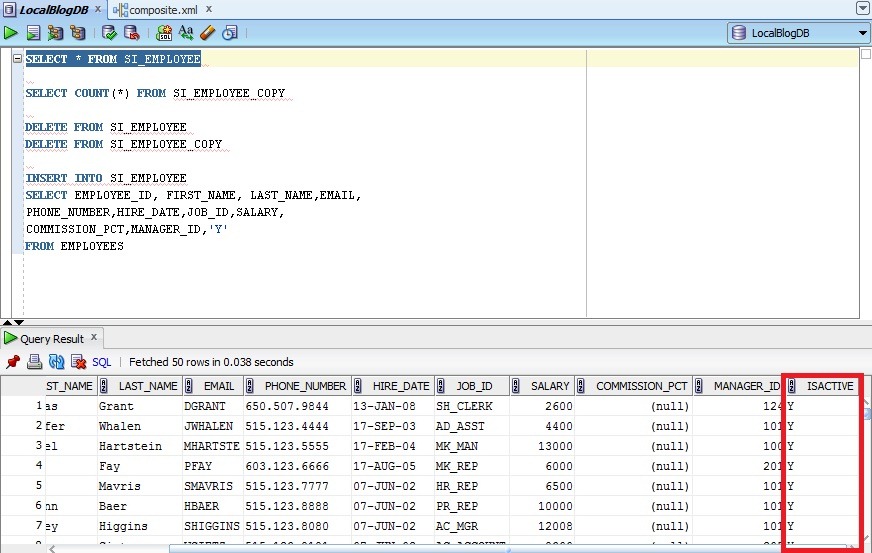
Insert a few rows in source table with value ‘Y’ for ‘ISACTIVE’ column.Verify that polling happens and target table is populated with records and also the records in source table are marked with value ‘N’.

Before Polling:

activewithY

withzero

After Polling:

withN

with107

The configuration jar of this demo OSB project can be downloaded from here.

OSB 11.1.1.6 Documentation Update..

OSB 11.1.1.6 documentation gave the following long waited update on usage of OWSM policies to use with SwA and the same can be found in the link.

Notes:

Oracle Service Bus does not support attaching OWSM policies on proxy/business services that process messages with MIME attachments, including message protection policies with SwA (SOAP with Attachments) properties enabled. Using OWSM policies with MTOM-enabled services is also not supported.

Release 11.1.1.7 supports WS-Security with MTOM and SwA and new features are summarized here.

TIBCO JMS from OSB – Issue

In the post, we have seen the required setup to be done in OSB to connect to remote TIBCO JMS queues. In OSB 11.1.1.3, we observed an issue while connecting to remote queues with the following error, though the correct username and password has been provided in foreign JMS server.

     invalid username/password.

Following are the workarounds we have done to overcome this issue:

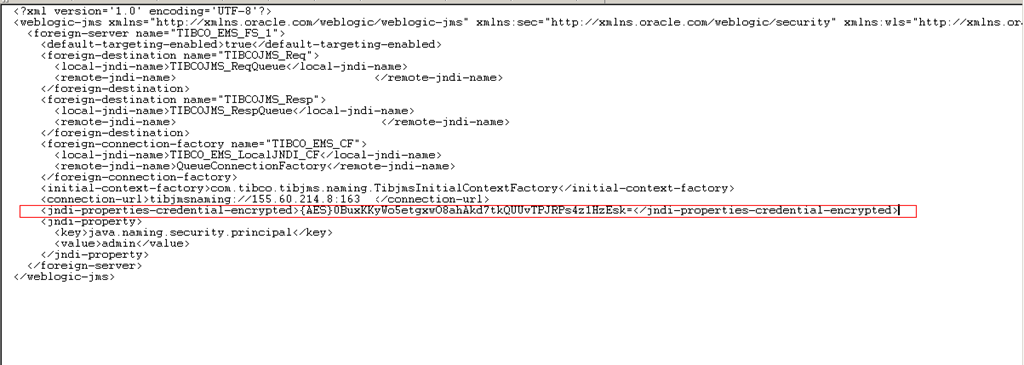
  • Navigate to $DOMAIN_HOME/config/jms folder and open the xml file related to the JMS module. Replace the encrypted password highlighted in below screenshot with literal password text. I don’t recommend this workaround. Following it up with Oracle technical team by logging SR also would not yield any solution in the limited time we had.

                        TIBCO JMS Module

  • The issue is resolved automatically after upgrading OSB to 11.1.1.4 version.

Connecting to TIBCO JMS from OSB

One of the common integration scenarios is reading or writing messages to TIBCO JMS queues. In this post, we will go through the required setup for connecting to TIBCO JMS queues from OSB.

To connect to the queues hosted in remote server, following is the common design pattern. The message will be inserted into local queues which will be pushed on to remote TIBCO JMS queue automatically by WLS.

OSB -> Foreign JMS Queue in local WLS -> Actual Remote TIBCO JMS Queue

As we know that we always use the JMS queue in the context of connection factory in OSB, we need to create the following artefacts in our OSB WLS.

  • Foreign Server
  • Connection Factory
  • Foreign JMS Queues
  • Foreign JMS Module to store above artefacts

Keep the Tibjms.jar in $DOMAIN_DIR/lib directory which contains the connection factory class that we will create as part of this setup. Depending on requirements you may want to the following other TIBCO related jars.

Tibcrypt.jar

Tibjmsapp.jar

Tibjmsadmin.jar

Tibrvjms.jar

Setup in OSB WLS Console:

Navigate to Services -> Messaging -> JMS Modules and click on Next to create the JMS module.

         clip_image002

Enter the JMS module name and click on Next.

          clip_image004

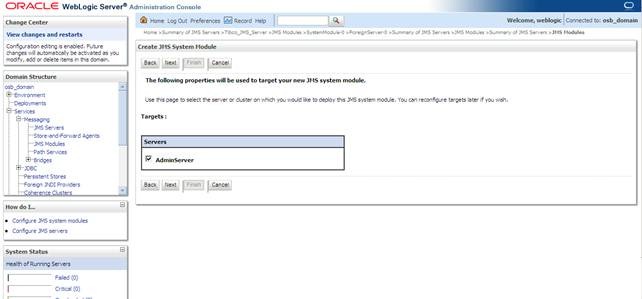
Select the server to deploy the JMS module to and click on Next.

         clip_image006

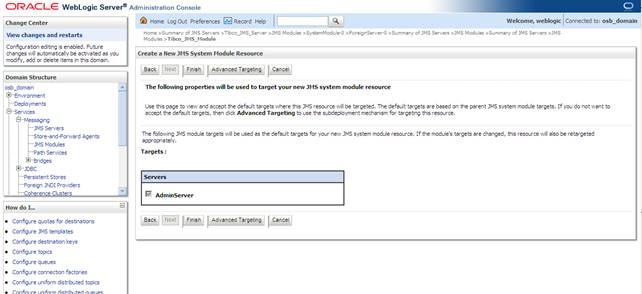
          clip_image008

Click on Finish button and navigate to JMS module that we created by clicking on it as shown below.

          clip_image010

We need to create the required connection factory and queues within this JMS module. The first step is creating the foreign server. So click on New button and select foreign server as shown below and click on Next button.

         clip_image012

Enter meaningful name for foreign Server and click on Next button to proceed to next screen.

         clip_image014

Select the Admin server or other available server to deploy this JMS server so that it can be accessible and click on Finish button.

         clip_image016

Verify the foreign server is created and visible in Summary of Resource sections as shown below.

         clip_image018

Click on newly created foreign JMS server to bring up the following screen. And this is the screen where we enter the remote host name and related credentials hosting the TIBCO JMS queues that we want to connect to.

         clip_image020

Enter the values for these fields as shown below and click on Save button. And the context factory class used here is present in the Tibjms.jar that we put in the server class path.

JNDI Initial Context Factory: com.tibco.tibjms.naming.TibjmsInitialContextFactory

JNDI Connection URL : tibjmsnaming://<remote hostname>:port

                                    : ssl://<hostname>:port (if SSL enabled at remote host)

JNDI Properties Credentials : <<password to connect to remote TIBCO server>>

Confirm JNDI Properties Credentials : Re enter the password

JNDI Properties :

java.naming.security.principal=<<username to connect remote TIBCO server>>

com.tibco.tibjms.naming.security_protocol=ssl (if ssl enabled)

com.tibco.tibjms.naming.ssl_enable_verify_host=false (if ssl enabled)

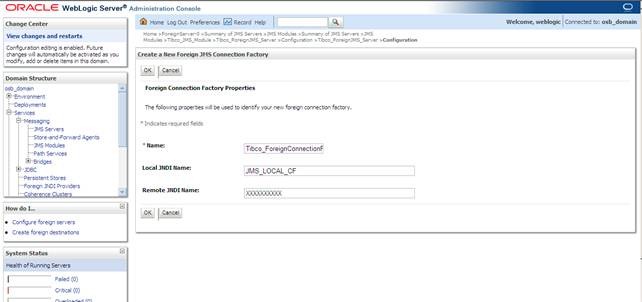
Now Click on Connection Factories tab and click on New button to create the connection factory Enter the meaningful name for the connection factory and unique local JNDI name. Remote JNDI is the JNDI of the connection factory defined in remote TIBCO server. Click on OK once all the required details have been entered.

        clip_image022

Now Click on Destinations tab and click on New button to create the queues. Enter the meaningful name for the queue and unique local JNDI name. Remote JNDI is the JNDI of the JMS queue defined in remote TIBCO server. Click on OK once all the details have been entered. Create as many queues as required in the same way.

       clip_image024

Now We are done with the required setup. If you have a requirement of pushing the messages TIBCO JMS then create business service with JMS transport and give the url as shown below. If you have a requirement of polling the JMS queue then create a proxy service with JMS transport and give the url as shown below.

jms:///<<JNDI of local connection Factory>>/<< JNDI of local queue>>


Pages

Enter your email address to subscribe to this blog and receive notifications of new posts by email.

Join 196 other subscribers

Enter your email address to follow this blog and receive notifications of new posts by email.