Posts Tagged 'OSB'


Using the Service Accounts in OSB

Very often, when we want to connect to some external FTP/SFTP or JMS servers  or for that matter even for some of the HTTP services we need to authenticate our self before initiating the conservation. The same case applies to OSB proxy and business services as well. To facilitate this OSB has provided a feature of Service Accounts.

Service Account is nothing but an OSB resource that allows us to specify the ‘User Name’ and ‘Password’ for the target server that we want to connect through proxy or business service. The OSB proxy and business service creation wizards provides the option to include this service account resource wherever applicable depending on the transport.

OSB provides 3 types of service accounts and the behavior is like below:

  • Static: The specified credentials will be encoded in outbound request.
  • Pass-through: The specified credentials in the custom token will be used for outbound WS-Security Username Token authentication.
  • Mapping: The credentials mentioned in the inbound request will be mapped to other credentials that are remote.

The Service Account can be used during the design time or at the runtime in the message flow of the proxy service.

Using Service Account in Design Time:

In this section we will have a look at how to use the service account in the design time while creating the business service.

1) Create a simple proxy and route it to the business service.

2) Create a new Service Account resource as shown in the following screenshot.

                       clip_image002[4]

3) Enter the Service Account name as TestSA and click on Finish button.

                       clip_image002[6]

4) As mentioned earlier, the service account can be of 3 types which are represented by ‘Resource Type’ in the following screenshot. Select the resource type as ‘Static’ and enter the username and password fields that we need to connect to HTTP or FTP or JMS server.

                          clip_image002[8]

5) Now go to HTTP Transport configuration page in the business service as shown in the below screenshot. Modify the Authentication to ‘Basic’ and observe that Service Account field became mandatory.

                            clip_image002[10] 

6) Click on ‘Browse’ button and select the Service Account ‘TestSA.sa’ as shown in the below screenshot. In the same way we can use the service account when the transport is selected as FTP, JMS etc.. and both proxy and business services can make use of the Service Accounts.

                             clip_image002[12]

7) Click on OK and save the business service and now you can start testing the business service that accepts these credentials in the request.

                              clip_image002[14]

Using Service Account in Run Time:

If we want to use the service account in the message flow of the proxy service, use the following XQuery function

          fn-bea:lookupBasicCredentials(‘ServiceAccount/TestSA’);

The above XQuery function results into the following output when used in any of the OSB activities.

<con:UsernamePasswordCredential xmlns:con="http://www.bea.com/wli/sb/services/security/config"&gt;

              <con:username>Username</con:username>

              <con:password>Password</con:password>

</con:UsernamePasswordCredential>

So the following XPath expressions will fetch you the username and password that can be used wherever we want, where varSA represents the variable that store the above XQuery function result.

          $varSA/con:username/text()

          $varSA/con:password/text()

Sharing Resources in Oracle Service Bus

In Oracle Service Bus world, all the artifacts are called the OSB resources. In a typical SOA environment, there will be a need to share the different resources across the projects. The resources can be anything like WSDLs, XSDs, Proxy, Business service etc..

This post talks about sharing these resources across different projects in OSB development environment. OSB has the concepts of Configuration Project and OSB Project that can be used to organize different artifacts.

We cannot create all kinds of resources in the OSB Configuration Project. For example creating WSDL or XSD in configuration project will give the error. We can only create the Global Resources like Proxy Server, JNDI Provider and SMTP Server. All these resources that can be created in the OSB Configuration Project can be accessed from different OSB projects present in the Configuration Project.

To  share other resources, we can create a common OSB Project and keep all the resources in this project. The following screenshots shows that WSDL and Business Service created in CMNIntegrationProject being used in OSBProject2.

                   image

                   image

Like the ones shown in the above screenshots we can use all the resources that are created in common project from other projects. This is possible because all the resources will be referenced from the OSB project. Observe the project name inclusion in WSDL path which is making this sharing possible. The same behavior can be seen from OSB console as well.

Creating the Weblogic Domain for OSB

We are done with the OSB installation and RCU components that are required OSB (if we want to use OWSM). We have to create the domain so that we can deploy the OSB components. This post quickly explains on how to create the WLS domain. As mentioned earlier we are talking about the creation in Windows 7 environment.

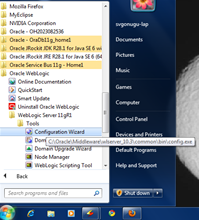
1) Go to your WLS  installation and open the configuration wizard as shown below.

image

2) This brings up the following screen where we have the options to create the new domain or extend the existing domain. Choose the option ‘Create a new Weblogic domain’.

image

3) The screen shows the different products can be configured in the new domain. Select the ‘OWSM extension’ if you are planning to use the security policies for your OSB services. Select the ‘Single Server Domain Topology’ option, if you want just the Admin Server or select ‘All Domain Topologies’ if you want both Admin and Managed Servers to be created.

image

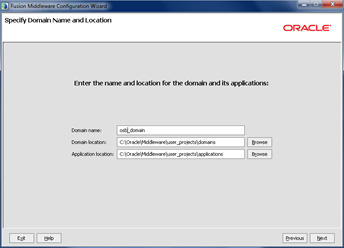
4) Enter a meaningful name for the domain to create and retain the default values for others.

image

5) Enter the admin password for the weblogic user and click on Next.

image

6) Select the JDK installation in the next screen and proceed to the next screen to provide the authentication related information for the component schemas. Enter credentials for schemas DEV_MDS as its given during the RCU installation.

For OSB JMS Reporting provider, you can use the internal derby database that comes with the Weblogic or you can use the DEV_SOAINFRA schema as shown below.

image

7) Proceed with the next screen where the testing of schema will be done using the credentials we entered. If there is an issue with the credentials you will get an error here. So you can go back to the previous screen and modify the credentials or fix the issues with database connectivity.

image

8)  Click Next twice to go to the final screen and click on Create button to finish the domain creation process.

image

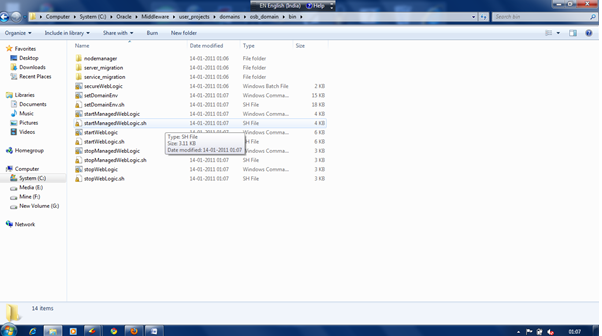
9) To start the server, go to the file system location where the domain has created as shown in the below screenshot. To start the admin server, just right click on startWeblogic.bat file and choose ‘Run as administrator’.

image

10) We can verify the running of OSB server by accessing the URLs as given below.

:/console" target=_blank>http://<hostname>:<port>/console — To access WLS admin console

h:/sbconsole" target=_blank>http://<hostname>:<port>/sbconsole –-To access the OSB console


Pages

Enter your email address to subscribe to this blog and receive notifications of new posts by email.

Join 196 other subscribers

Enter your email address to follow this blog and receive notifications of new posts by email.