Archive Page 11

JDeveloper 11g Issue

Today, i faced an issue while creating the Database Connection for one of the ADF Application. Following is the error that i have got and because of this i did not see the file connections.xml getting created.

java.net.URISyntaxException: Illegal character in path at index 39: file:/C:/DOCUME~1/sivakumar_g01/Local Settings/Temp/credstore-jps-config7177642620278163914.xml]

Over here, i want to reiterate the solution that i found after doing google. The solution is modifying the TEMP environment variable to a path that does not contain spaces. The link discuss on the same.

TIBCO JMS from OSB – Issue

In the post, we have seen the required setup to be done in OSB to connect to remote TIBCO JMS queues. In OSB 11.1.1.3, we observed an issue while connecting to remote queues with the following error, though the correct username and password has been provided in foreign JMS server.

     invalid username/password.

Following are the workarounds we have done to overcome this issue:

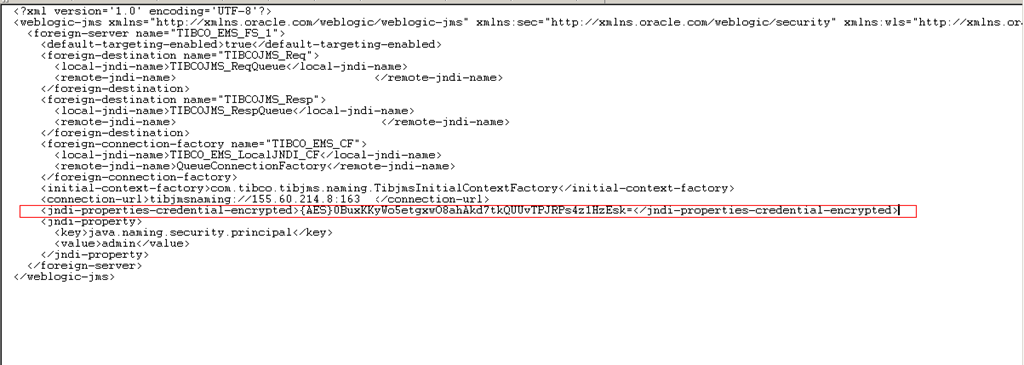
  • Navigate to $DOMAIN_HOME/config/jms folder and open the xml file related to the JMS module. Replace the encrypted password highlighted in below screenshot with literal password text. I don’t recommend this workaround. Following it up with Oracle technical team by logging SR also would not yield any solution in the limited time we had.

                        TIBCO JMS Module

  • The issue is resolved automatically after upgrading OSB to 11.1.1.4 version.

Connecting to TIBCO JMS from OSB

One of the common integration scenarios is reading or writing messages to TIBCO JMS queues. In this post, we will go through the required setup for connecting to TIBCO JMS queues from OSB.

To connect to the queues hosted in remote server, following is the common design pattern. The message will be inserted into local queues which will be pushed on to remote TIBCO JMS queue automatically by WLS.

OSB -> Foreign JMS Queue in local WLS -> Actual Remote TIBCO JMS Queue

As we know that we always use the JMS queue in the context of connection factory in OSB, we need to create the following artefacts in our OSB WLS.

  • Foreign Server
  • Connection Factory
  • Foreign JMS Queues
  • Foreign JMS Module to store above artefacts

Keep the Tibjms.jar in $DOMAIN_DIR/lib directory which contains the connection factory class that we will create as part of this setup. Depending on requirements you may want to the following other TIBCO related jars.

Tibcrypt.jar

Tibjmsapp.jar

Tibjmsadmin.jar

Tibrvjms.jar

Setup in OSB WLS Console:

Navigate to Services -> Messaging -> JMS Modules and click on Next to create the JMS module.

         clip_image002

Enter the JMS module name and click on Next.

          clip_image004

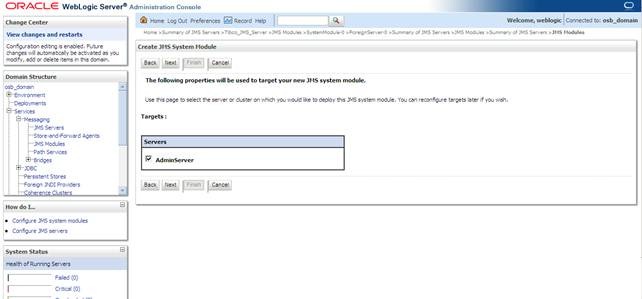
Select the server to deploy the JMS module to and click on Next.

         clip_image006

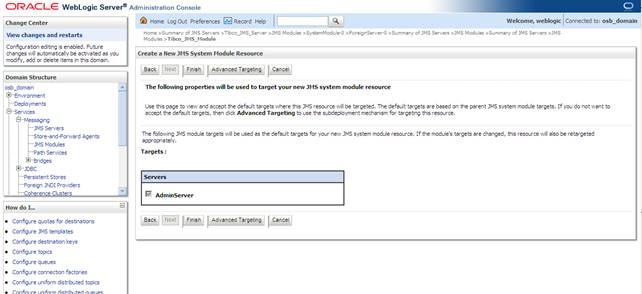
          clip_image008

Click on Finish button and navigate to JMS module that we created by clicking on it as shown below.

          clip_image010

We need to create the required connection factory and queues within this JMS module. The first step is creating the foreign server. So click on New button and select foreign server as shown below and click on Next button.

         clip_image012

Enter meaningful name for foreign Server and click on Next button to proceed to next screen.

         clip_image014

Select the Admin server or other available server to deploy this JMS server so that it can be accessible and click on Finish button.

         clip_image016

Verify the foreign server is created and visible in Summary of Resource sections as shown below.

         clip_image018

Click on newly created foreign JMS server to bring up the following screen. And this is the screen where we enter the remote host name and related credentials hosting the TIBCO JMS queues that we want to connect to.

         clip_image020

Enter the values for these fields as shown below and click on Save button. And the context factory class used here is present in the Tibjms.jar that we put in the server class path.

JNDI Initial Context Factory: com.tibco.tibjms.naming.TibjmsInitialContextFactory

JNDI Connection URL : tibjmsnaming://<remote hostname>:port

                                    : ssl://<hostname>:port (if SSL enabled at remote host)

JNDI Properties Credentials : <<password to connect to remote TIBCO server>>

Confirm JNDI Properties Credentials : Re enter the password

JNDI Properties :

java.naming.security.principal=<<username to connect remote TIBCO server>>

com.tibco.tibjms.naming.security_protocol=ssl (if ssl enabled)

com.tibco.tibjms.naming.ssl_enable_verify_host=false (if ssl enabled)

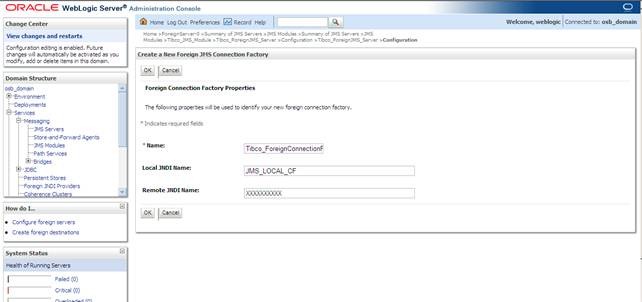
Now Click on Connection Factories tab and click on New button to create the connection factory Enter the meaningful name for the connection factory and unique local JNDI name. Remote JNDI is the JNDI of the connection factory defined in remote TIBCO server. Click on OK once all the required details have been entered.

        clip_image022

Now Click on Destinations tab and click on New button to create the queues. Enter the meaningful name for the queue and unique local JNDI name. Remote JNDI is the JNDI of the JMS queue defined in remote TIBCO server. Click on OK once all the details have been entered. Create as many queues as required in the same way.

       clip_image024

Now We are done with the required setup. If you have a requirement of pushing the messages TIBCO JMS then create business service with JMS transport and give the url as shown below. If you have a requirement of polling the JMS queue then create a proxy service with JMS transport and give the url as shown below.

jms:///<<JNDI of local connection Factory>>/<< JNDI of local queue>>

Using BAM Adapter in OSB

OSB has support for BAM adapter since 11.1.1.3 release. This post talks about creating a business service using BAM JCA adapter that can push data into BAM Active Data Cache for displaying in real-time dashboards or in BAM reports. Before actually proceeding further i want to thank my colleague who allowed  me to take shameless copy of her screenshots.

This post assumes basic understanding of BAM and data objects.

To use the JCA BAM adapter we have to create the necessary JCA, WSDL and other files in JDeveloper and get them into OSB project. This procedure is same irrespective of the JCA adapter that we want to use with OSB as the Eclipse environment does not have support for this.

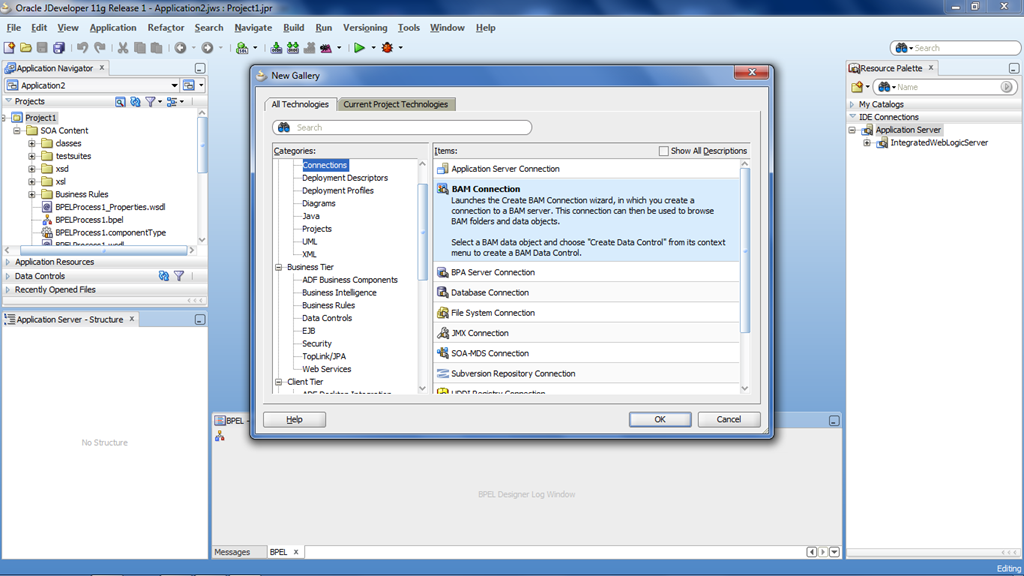
So the first step is creating BAM connection JDeveloper. To create BAM connection do File->New->Connections->BAM Connection.

                      image

Enter any meaningful name for BAM connection and click on Next.

                       image

Give the host name where the BAM server is hosted as shown in the following screenshot and click on Next.

                         image

In the next screen, do the Test Connection to make sure that Jdeveloper is able to connect to BAM server. This connection will be used in the BAM adapter wizard to select the required data object.

Now create a SOA project and drag the BAM adapter from Service Adapters section to External References section swim lane of the composite.xml to bring up adapter wizard as shown below.

                            image

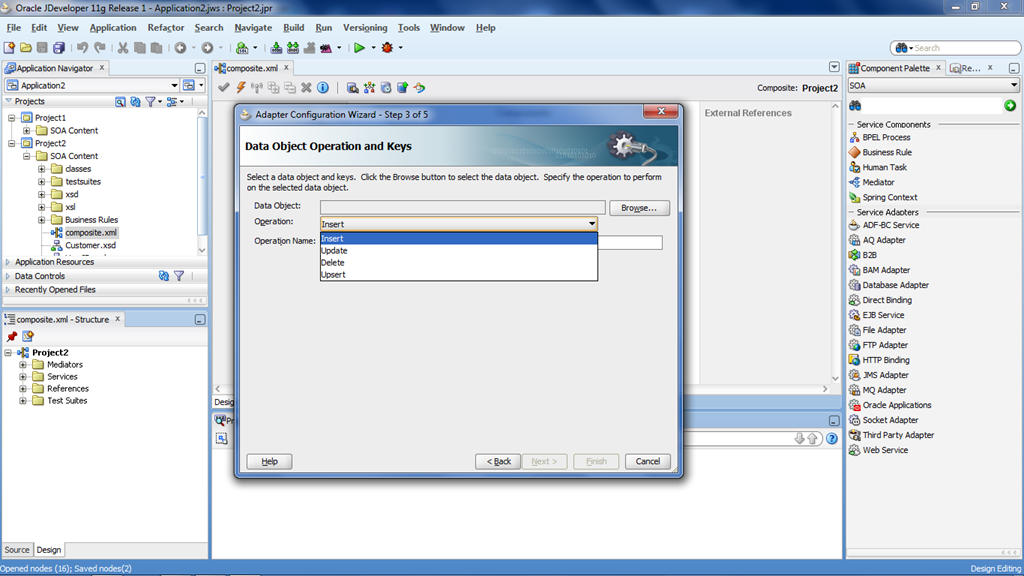
Enter the meaningful name and click on Next. Select the operation that has to be performed on BAM data object as shown below.

                            image 

Click on the Browse button which fetches all the data objects that are created as shown below.

                            clip_image002

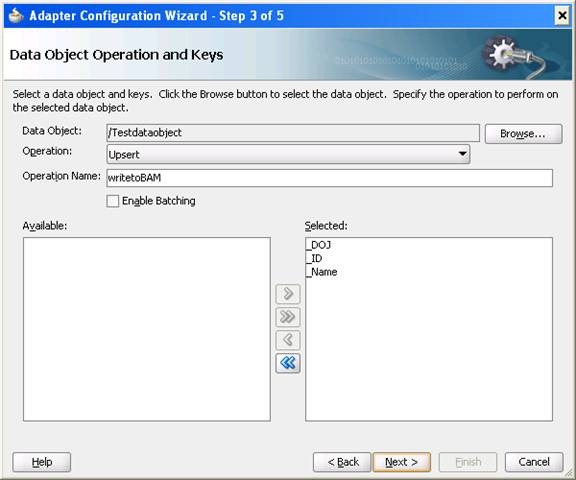
In my case, i have selected the operation ‘upset’ and ‘Testdataobject’. Select the columns from available list that have to be available to perform the selected operation from OSB.

                            clip_image004

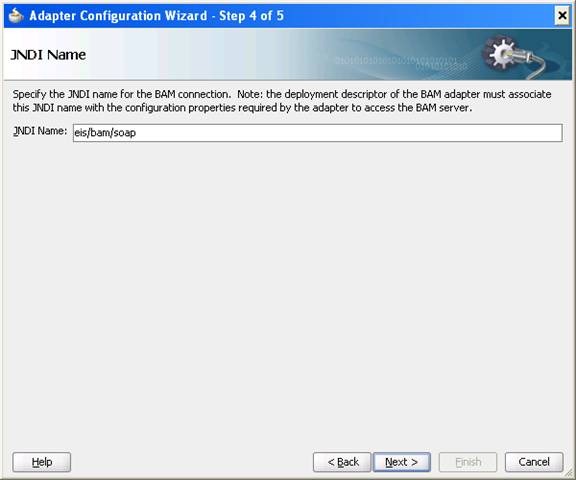
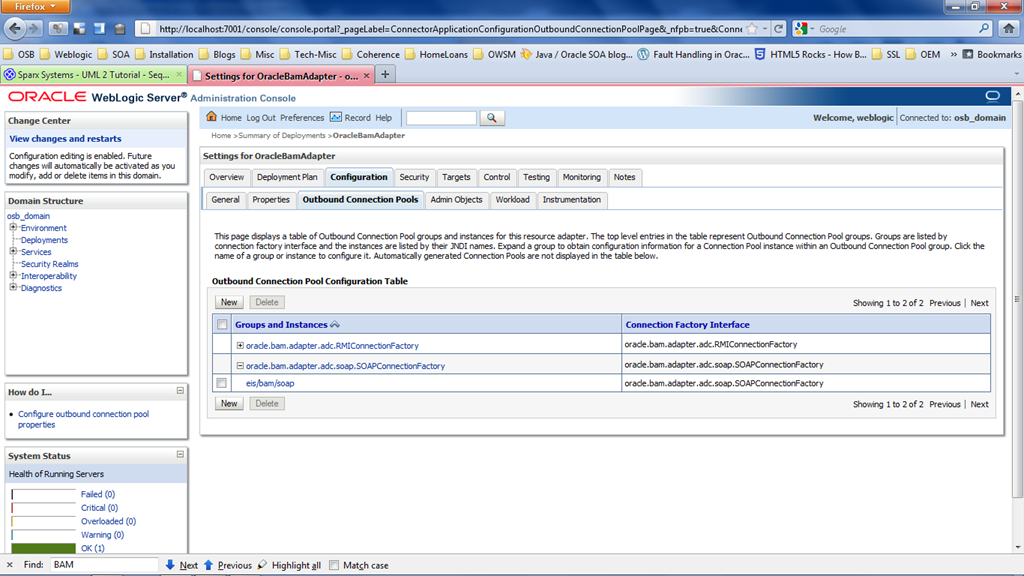
Click on Next which brings the screen to enter the JNDI name of the connection pool. This connection pool has to be created in the WLS admin console for BAM Adapter in OSB. Enter eis/bam/soap as JNDI value  and click on Next and Finish to complete the wizard.

                             clip_image006

After finishing this wizard, we can see the WSDL, JCA and XSD files getting created in our SOA project. Copy these files into an OSB project and do right click on JCA file and select Oracle Service Bus –> Generate Service to create the business service as shown below.

                                image

Make sure that you have done the following configuration in OSB WLS Admin console i.e. required for connecting to BAM server. Login to WLS Admin Console and go to Deployments->OracleBamAdapter. Click on Configuration –> Outbound Connection Pools which brings up the following screen.

                              image

Click on eis/bam/soap and enter the BAM server details as shown below.

                               image

Now run the above created business service and verify.

Oracle SOA Suite 11g–Windows 2003 issue

Recently when i tried to start the WLS sever after fresh installation, i have got the following error:

[WARN ][osal   ] could not enumerate processors (1) error=-1073738824
[WARN ][osal   ] Failed to init system load counters
The domain has both SOA and OSB managed servers in a machine where the OS is Windows 2003 server.
JRockit JVM is used while creating the domain.
After a little research found out that it’s one of the known issues when using the JRockit JVM on windows. 
The following link gives the workaround for this problem.
http://download.oracle.com/docs/cd/E15289_01/doc.40/e15066/knownissues.htm#CJAHCBDA
In my case, i just switched on  to Sun JVM by modifying setDomainEnv.cmd file.

Coherence in BPEL11g

After trying out with Result Caching feature in OSB, i tried to use the coherence in integration with BPEL to store and retrieve the frequently used data in cache. As OTN puts it, “Coherence provides replicated and distributed (partitioned) data management and caching services on top of a reliable, highly scalable peer-to-peer clustering protocol”. In this post, i want to explain the setup i tried with using SOA Suite 11.1.1.3. The weblogic 10.3.3 installer comes with coherence 3.5

Starting Servers

To use coherence in conjunction with BPEL, the servers have to be started in the following order:

    • Coherence server (cache-server.cmd)
    • Admin and SOA managed server.

Open cache-server.cmd file present in $FMW_HOME\coherence_3.5\bin and set the coherence_home variable as shown below. Replace $FMW_HOME with actual path as per your SOA suite installation.

       set coherence_home = $FMW_HOME\coherence_3.5

Open command window and issue the following commands to start the cache server.

    $<DOMAIN_HOME>\bin\setDomainEnv.cmd or set $JAVA_HOME

    set %PATH% = %JAVA_HOME%\bin;%PATH%

    cache-server.cmd

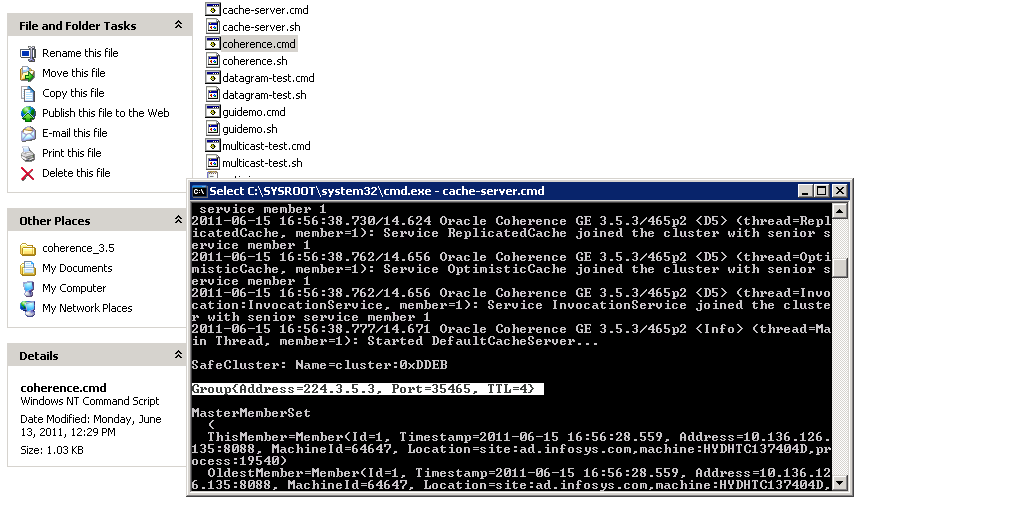
By default, multicasting is used for communication within coherence cluster. The multicast address and port will be visible in cache server start logs as shown below.
          image

In setDomainEnv.cmd file, modify EXTRA_JAVA_PROPERTIES variable to use above multicast address and port.

       image

In startWeblogic.cmd file, modify CLASSPATH variable to include coherence jar in server classpath.

SOA Composite Creation

We will create a simple BPEL process to demonstrate the use of coherence API to store and retrieve cache entries.

Create a sample SOA project in JDeveloper. Add coherence.jar to project libraries which can be found at location $FMW_HOME\coherence_3.5\lib. Create a BPEL process that accepts a string and returns another string.
        clip_image002

Create a java embedding activity with following code to verify whether the cache contains a value or not.

String cacheToken= ((oracle.xml.parser.v2.XMLElement) getVariableData ("varInput","payload","/client:process/client:input")).getFirstChild().getNodeValue();

//create new cache or to get the existing cache

NamedCache cache = CacheFactory.getCache("myCache");

//verify whether the key exists or not

setVariableData("valExists", cache.containsKey(cacheToken));

setVariableData("var1", cache.get(cacheToken));

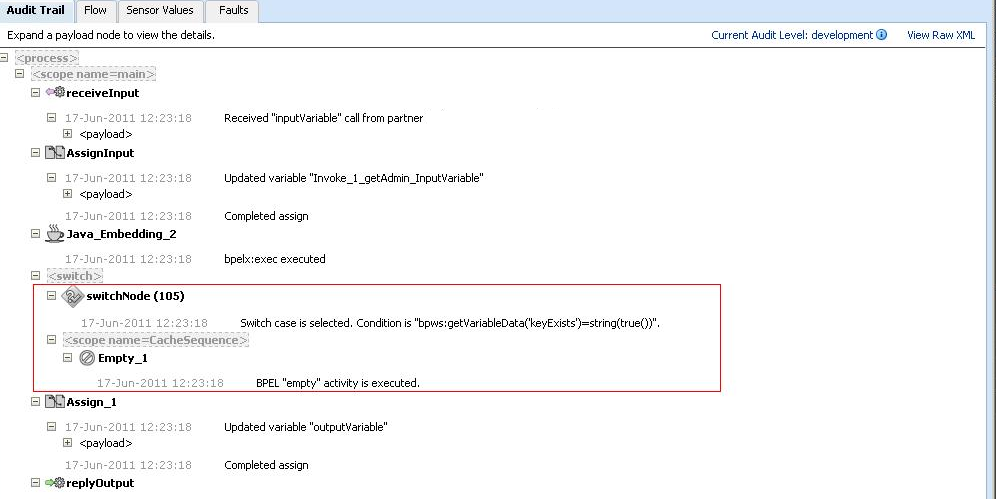
Create a switch case in BPEL flow to call the actual service if the cache value does not exist for the token used. The following expression can be used in the switch case.

      bpws:getVariableData(‘valExists’)=string(true())

If the value is retrieved from cache, copy the value stored in ‘var1’ variable to output variable and do reply from BPEL process. Otherwise store the value we have got from the actual service in cache by using another java embedding activity with following code.

String cacheToken= ((oracle.xml.parser.v2.XMLElement) getVariableData("varInput","payload","/client:process/client:input")).getFirstChild().getNodeValue();

String cacheValue= ((oracle.xml.parser.v2.XMLElement) getVariableData("InvokeOutputVariable","parameters","/ns1:getResponse/val")).getFirstChild().getNodeValue();

NamedCache cache = CacheFactory.getCache("myCache");

cache.put(cacheToken,cacheValue);

setVariableData("var1",cache.get(cacheToken));

Execution of BPEL:

When result is not in Cache:

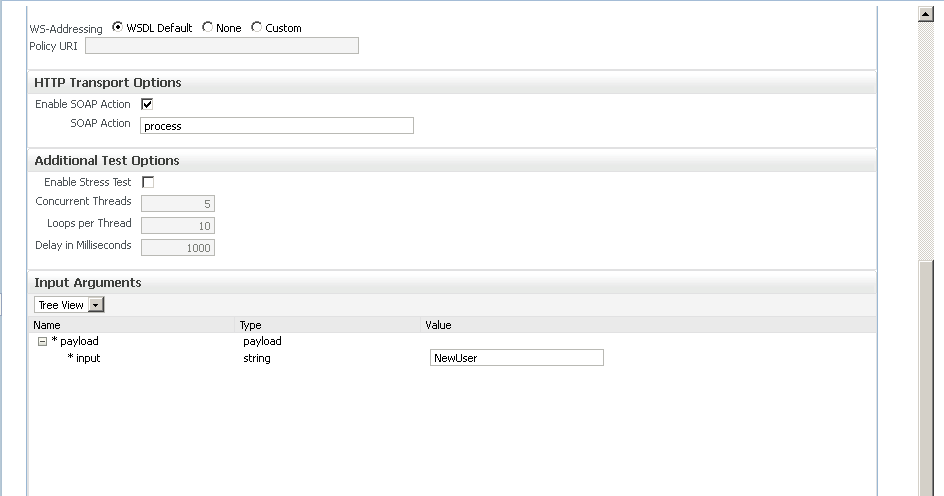
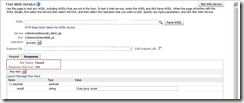
Run the BPEL by giving the value for ‘input’ element that does not exist in the cache currently. Here in this case, we are sending it as ‘NewUser’.

       image

         image

Observe that partner link has been called to get the result.

        image

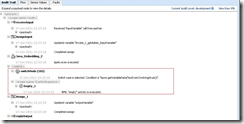
When result is in Cache:

          image

Observe that partner link is not called and the result is fetched from the cache as expected.
          image

Strategies to Flush/Refresh the Cache:

  • Create a configuration parameter or BPEL property to specify whether cache has to be cleared or not. Modify the above switch condition to include this OR condition so that the existing cache will be reset by fetching the value again by calling the partner link.
  • Restarting the coherence server.

Email Attachments with OWSM in OSB

We all know that OWSM policies can’t be used when MTOM is enabled for the proxy services. Looking at the note ID 1347447.1, it seems that we don’t have OWSM support even for SOAP with Attachments (SwA) as well.

Following is the solution given in the metalink note.

Solution

Use WS-SecurityPolicy or policies packaged in WebLogic Server (see http://download.oracle.com/docs/cd/E14571_01/web.1111/e13713/message.htm ) instead of OWSM.
Support for MTOM and SwA assertions with OWSM will be introduced in OSB 12

Managed Server Start issue

Getting the following error while starting the managed server. The admin server has been started successfully without any issues.
<13 Aug, 2011 10:58:41 PM IST> <Error> <Security> <BEA-090783> <Server is Runnin
g in Development Mode and Native Library(terminalio) to read the password secure
ly from commandline is not found.>

The issue has been resolved by setting WLS_USER and WLS_PW in startManagedWeblogic.cmd as shown below:

           image

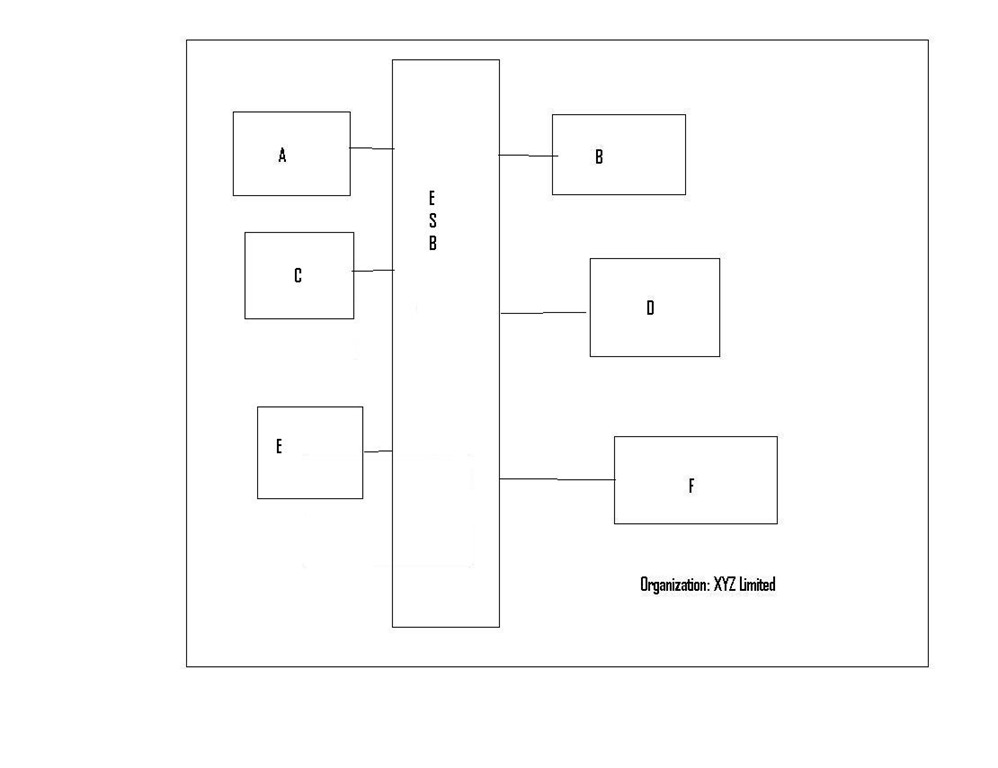
OSB Introduction

Recently, took help of following visuals to introduce OSB to an interested team comprising technical people of different levels. Just wanted to share the same.

               Systems

             PointtoPoint

            ESB

          OSB

Using FLWOR expressions in OSB

As Wikipedia defines FLWOR is an acronym: FOR, LET, WHERE, ORDER BY, RETURN. FLWOR is loosely analogous to SQL’s SELECT-FROM-WHERE. FLWOR expressions can be used in OSB.

If we are creating variables in assign actions for just intermediate XQuery expressions evaluation then ‘let’ can be used multiple assign actions into one to increase proxy service performance.

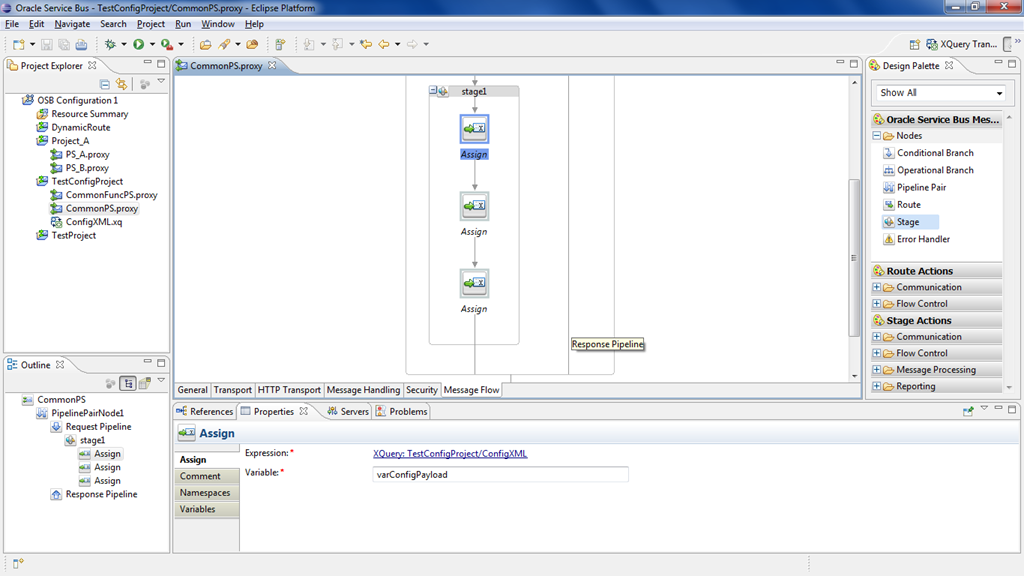
In the following screenshot, 1st assign action loads contents XQuery resource and stores it in ‘varConfigPayload’ variable. The 2nd assign action gets the proxy name sent in payload using ‘$body/Payload/ProxyName/text()’ and stores it in ‘varProxyName’ variable. And the 3rd assign activity uses ‘$varConfigPayload/ProxyService[@name=$varProxyName]/Flag/text()’ to get the value from XQuery resource and store it in ‘varFlagValue’ variable.

             image

Assume that variable ‘varProxyName’ is not used anywhere else, then we can combine the 2nd and 3rd assign actions by giving the expression as shown in below screenshot.

            image

This is how we can use the FLWOR expressions to combine multiple assign activities into one.


Pages

Enter your email address to subscribe to this blog and receive notifications of new posts by email.

Join 196 other subscribers

Enter your email address to follow this blog and receive notifications of new posts by email.