Archive for the 'OSB' Category


Using the Service Accounts in OSB

Very often, when we want to connect to some external FTP/SFTP or JMS servers  or for that matter even for some of the HTTP services we need to authenticate our self before initiating the conservation. The same case applies to OSB proxy and business services as well. To facilitate this OSB has provided a feature of Service Accounts.

Service Account is nothing but an OSB resource that allows us to specify the ‘User Name’ and ‘Password’ for the target server that we want to connect through proxy or business service. The OSB proxy and business service creation wizards provides the option to include this service account resource wherever applicable depending on the transport.

OSB provides 3 types of service accounts and the behavior is like below:

  • Static: The specified credentials will be encoded in outbound request.
  • Pass-through: The specified credentials in the custom token will be used for outbound WS-Security Username Token authentication.
  • Mapping: The credentials mentioned in the inbound request will be mapped to other credentials that are remote.

The Service Account can be used during the design time or at the runtime in the message flow of the proxy service.

Using Service Account in Design Time:

In this section we will have a look at how to use the service account in the design time while creating the business service.

1) Create a simple proxy and route it to the business service.

2) Create a new Service Account resource as shown in the following screenshot.

                       clip_image002[4]

3) Enter the Service Account name as TestSA and click on Finish button.

                       clip_image002[6]

4) As mentioned earlier, the service account can be of 3 types which are represented by ‘Resource Type’ in the following screenshot. Select the resource type as ‘Static’ and enter the username and password fields that we need to connect to HTTP or FTP or JMS server.

                          clip_image002[8]

5) Now go to HTTP Transport configuration page in the business service as shown in the below screenshot. Modify the Authentication to ‘Basic’ and observe that Service Account field became mandatory.

                            clip_image002[10] 

6) Click on ‘Browse’ button and select the Service Account ‘TestSA.sa’ as shown in the below screenshot. In the same way we can use the service account when the transport is selected as FTP, JMS etc.. and both proxy and business services can make use of the Service Accounts.

                             clip_image002[12]

7) Click on OK and save the business service and now you can start testing the business service that accepts these credentials in the request.

                              clip_image002[14]

Using Service Account in Run Time:

If we want to use the service account in the message flow of the proxy service, use the following XQuery function

          fn-bea:lookupBasicCredentials(‘ServiceAccount/TestSA’);

The above XQuery function results into the following output when used in any of the OSB activities.

<con:UsernamePasswordCredential xmlns:con="http://www.bea.com/wli/sb/services/security/config"&gt;

              <con:username>Username</con:username>

              <con:password>Password</con:password>

</con:UsernamePasswordCredential>

So the following XPath expressions will fetch you the username and password that can be used wherever we want, where varSA represents the variable that store the above XQuery function result.

          $varSA/con:username/text()

          $varSA/con:password/text()

Sharing Resources in Oracle Service Bus

In Oracle Service Bus world, all the artifacts are called the OSB resources. In a typical SOA environment, there will be a need to share the different resources across the projects. The resources can be anything like WSDLs, XSDs, Proxy, Business service etc..

This post talks about sharing these resources across different projects in OSB development environment. OSB has the concepts of Configuration Project and OSB Project that can be used to organize different artifacts.

We cannot create all kinds of resources in the OSB Configuration Project. For example creating WSDL or XSD in configuration project will give the error. We can only create the Global Resources like Proxy Server, JNDI Provider and SMTP Server. All these resources that can be created in the OSB Configuration Project can be accessed from different OSB projects present in the Configuration Project.

To  share other resources, we can create a common OSB Project and keep all the resources in this project. The following screenshots shows that WSDL and Business Service created in CMNIntegrationProject being used in OSBProject2.

                   image

                   image

Like the ones shown in the above screenshots we can use all the resources that are created in common project from other projects. This is possible because all the resources will be referenced from the OSB project. Observe the project name inclusion in WSDL path which is making this sharing possible. The same behavior can be seen from OSB console as well.

Creating the Weblogic Domain for OSB

We are done with the OSB installation and RCU components that are required OSB (if we want to use OWSM). We have to create the domain so that we can deploy the OSB components. This post quickly explains on how to create the WLS domain. As mentioned earlier we are talking about the creation in Windows 7 environment.

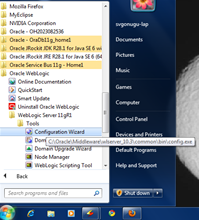
1) Go to your WLS  installation and open the configuration wizard as shown below.

image

2) This brings up the following screen where we have the options to create the new domain or extend the existing domain. Choose the option ‘Create a new Weblogic domain’.

image

3) The screen shows the different products can be configured in the new domain. Select the ‘OWSM extension’ if you are planning to use the security policies for your OSB services. Select the ‘Single Server Domain Topology’ option, if you want just the Admin Server or select ‘All Domain Topologies’ if you want both Admin and Managed Servers to be created.

image

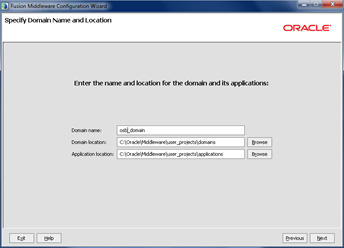
4) Enter a meaningful name for the domain to create and retain the default values for others.

image

5) Enter the admin password for the weblogic user and click on Next.

image

6) Select the JDK installation in the next screen and proceed to the next screen to provide the authentication related information for the component schemas. Enter credentials for schemas DEV_MDS as its given during the RCU installation.

For OSB JMS Reporting provider, you can use the internal derby database that comes with the Weblogic or you can use the DEV_SOAINFRA schema as shown below.

image

7) Proceed with the next screen where the testing of schema will be done using the credentials we entered. If there is an issue with the credentials you will get an error here. So you can go back to the previous screen and modify the credentials or fix the issues with database connectivity.

image

8)  Click Next twice to go to the final screen and click on Create button to finish the domain creation process.

image

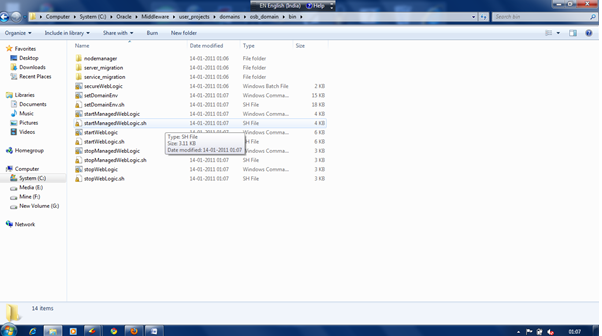
9) To start the server, go to the file system location where the domain has created as shown in the below screenshot. To start the admin server, just right click on startWeblogic.bat file and choose ‘Run as administrator’.

image

10) We can verify the running of OSB server by accessing the URLs as given below.

:/console" target=_blank>http://<hostname>:<port>/console — To access WLS admin console

h:/sbconsole" target=_blank>http://<hostname>:<port>/sbconsole –-To access the OSB console

Using Repository Creation Utility (RCU)

This post is in continuation to the previous post that talked out the OSB installation and setup of Dev environment  in Eclipse IDE. In this post, we will see the database dependency of OSB.

Much of the functionality provided with Oracle Service Bus (OSB) does not have any database dependency. Refer to the oracle blog post here that talks about the same. But there are 2 reasons why we need to look into database as well:

  • OSB Reporting functionality which is provided as one of the service monitoring features, needs database tables to store reporting data. By default, derby internal database is used for this purpose or we can configure to use any other schema during WLS domain creation.
  • And one of the major features included in OSB11g is integration with the Oracle Web Services Manager (OWSM). OWSM provides policy based security solution to secure the proxy services. These out of the box OWSM policies are provided in the metadata store (MDS) that requires a database. Refer to this link for more information on OWSM and FAQs at this link.

These required schemas can be installed into database using repository creation utility provided by oracle. Since we are using OSB11g (11.1.1.3) download the RCU 11.1.1.3.3 from think link. Different schemas that can be created using RCU can be found here. Since we are planning to use OWSM with our OSB installation, we will see  how to install this MDS using RCU.

If we want to use Oracle XE as a database, then we should update the database parameters once after the installation. Set the processes parameter to >=200 using the following instructions.
sqlplus sys/<your password>@XE as sysdba

SQL> show parameter session
SQL> show parameter processes
SQL> alter system reset sessions scope=spfile sid=’*’;
SQL> alter system set processes=200 scope=spfile;
SQL> shutdown immediate
SQL> startup
SQL> show parameter session
SQL> show parameter processes

Unzip the downloaded RCU zip file to any folder in the file system and call this as $RCUHOME. Run the file $RCUHOME/rcuHome/rcu.bat that brings up the below screen with options Create and Drop. We can use same utility to drop the existing schemas as well.

          image

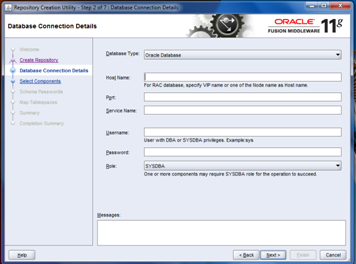
Click on Next to bring up the next screen and give the installed database details.

           image

Click on Next. At this stage the database compatibility check will happen and the following error will be shown if the database is incompatible. As we can the database version should be equal to or higher than 10.2.0.4.0 in 10g or 11.1.0.7.0 in 11g.

            image

If the compatibility check is successful, we will get the following screen with successful message after checking the prerequisites.

            image

Click OK on check prerequisites and proceed to next screen where different schema components can be selected. Give the new prefix as DEV (or some other value you are comfortable with) and select metadata services if we just want OWSM. And select SOA Infrastructure component if you are planning to install SOA Suite as well. So select all these and observe the schema owner column.

            image

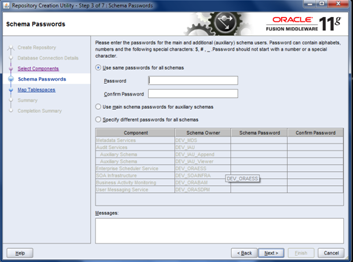
Click Next and click on OK, once another prerequisites step is also over. Proceed to the next screen where we can mention the password for each schema that we want to create. Based on preference, we can give the same password to all the schemas or different password for each different schema.

            image

Click on Next and where we can create the required tablespaces for all the schemas that we selected including default and temporary table spaces. We can click on Manage tablespaces if we want to modify any of the default properties.

             image

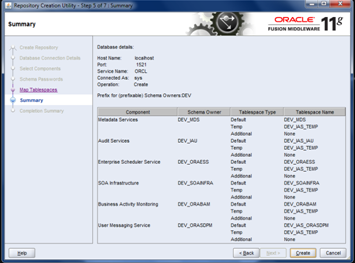
Click on Next and click on OK in the popup that comes up to create all the tablesapces as mentioned in the previous step. Click on Create in this screen to create all the table spaces.

             image

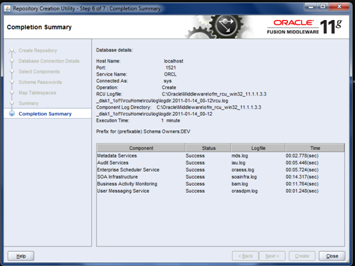
Once everything is successfully completed, we can see the following screen with completion details.

             image

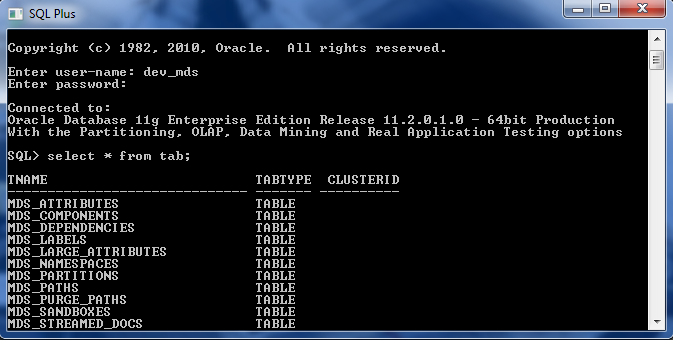
To verify the successful schema installation, we can go to sql plus screen and login with the respective schema user name and password. For example, the following screen shows the login is successful to DEV_MDS schema and also able to see all the tables.

             image

Oracle Service Bus 11g (OSB) Installation

Back again, after a long long long time!!! Lot of things happened over this period and i got into completely different technology i.e. Oracle Fusion Middleware. Currently working on Oracle Service Bus(OSB) and BPEL, so thought of sharing whatever i had learnt and learning.

This post talks about the OSB 11g installation that i tried in my Windows 7 machine. Oracle has got this product into their kitty after BEA acquisition, which was known as Aqua Logic Service Bus (ALSB) earlier. After the acquisition of BEA, Oracle had rebranded ALSB as Oracle Service Bus (OSB). OSB 10.3 is the initial and official release (in 2008) by Oracle. The next version of OSB 11g (11.1.1.3) is released in the last year and the latest release of OSB is 11.1.1.4 released before 2 or 3 weeks.

The following are the prerequisites for OSB11g installation:

  • WebLogic Server 10.3.3
  • 64-bit JDK – If we are using generic installer for WLS
  • Oracle Enterprise Pack for Eclipse (OEPE)
  • Repository Creation Utility (RCU) – If we want to create domain with OWSM extension

WebLogic Server (WLS) Installation:

The WLS 10.3.3 can be downloaded from this link. In this link, we can see the installers for 32-bit JVM for both windows and Linux and also a generic installer. If you are using 32-bit machines download and install the exe “Oracle WebLogic Server 11gR1 (10.3.3) + Coherence + OEPE – Package Installer”, that contains WLS and OEPE. For 64-bit machines download the generic installer.

We will go through the installation with the use of some screenshots:

1) Click on the jar file download that brings up the following screen.

                      wls1

2) Click on Next to create a new middleware home by entering the location

                     wls2 

3) Click on Next twice and choose the install type as Typical and proceed to JDK selection screen.

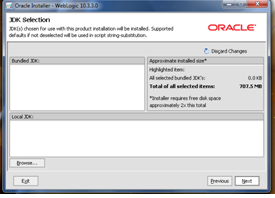
                     wls3 

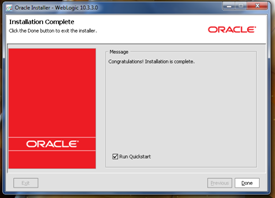
4) The generic installer does not ship with any JDK as you see in above screenshot, so install the 64 bit JDK from this link and select this location for local JDK. Click on Next till the final screen of the installation process and you will see the following screen once the installation is completed.

                    wls4

OEPE Installation:

Since generic installer of WLS does not have the OEPE, we have to install the OEPE separately. Download OEPE of Galileo version from this link for 64-bit platform and unzip this in the same location as middleware home  as shown below:

                    oepe1

OSB 11g Installation:

We will see how to install the RCU in next post and will proceed with the installation of OSB 11g. Download OSB 11.1.1.3 from the link, unzip it and click setup.exe in Disk folder that brings up the following screen and enter the 64-bit JDK location.

                    osb1

1) Click on Next that brings up the following screen. Here you can observe that WLS and OEPE are prerequisites for OSB development. Since we already installed these, proceed to next step by clicking on the Next.

                    osb3

2) In the next screen, Select the install type as ‘Typical’ and click on Next twice that brings up the following screen, where we need to specify the Middleware home along with the locations of WLS and OEPE. These locations will be defaulted on choosing the middleware home, otherwise browse the locations manually.

                     osb4

3) Click on Next to review the install summary and click on Install. The following Installation Completed screen will come up once the installation is done successfully.

                     osb5

With this, we are finished with the OSB installation.

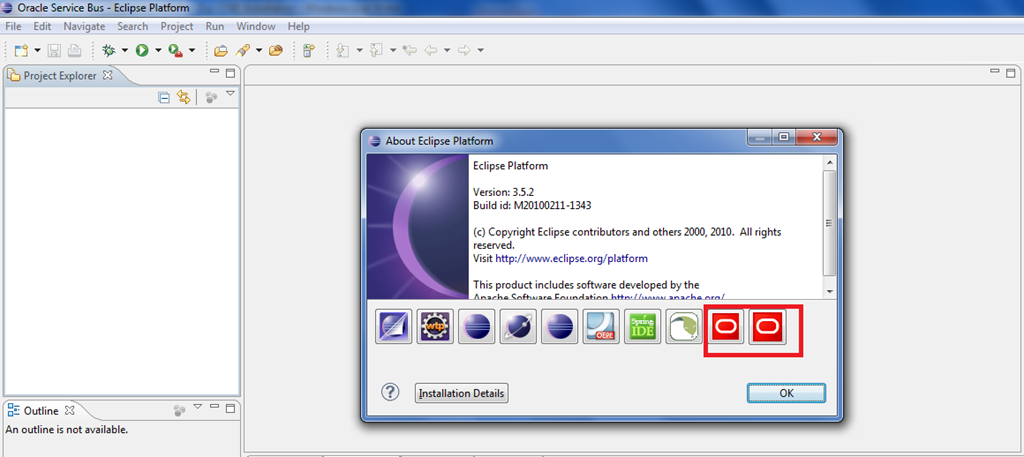
The development platform for OSB is Eclipse. To verify the OSB related plug-ins installation, open Eclipse and select Help –> About Eclipse Platform. The last two icons as shown in the below screenshot indicates that OSB related plug-ins are installed and Eclipse is ready for the OSB services development.

                      eclipse1

Notes:

Though OSB is installed successfully, sometimes the OSB related plug-ins will not be visible in Eclipse IDE. To resolve this issue, try reinstalling OSB again and also make sure that the file ‘oracle.osb.ide.link’ has the entry pointing to your OSB installation directory like  path=C:/Oracle/Middleware/Oracle_OSB1 and the file can be found in the location $MW_HOME/<<OEPE Install dir>>/dropins.

OSB 11.1.1.6 Update:

Recently installed OSB 11.1.1.6 in windows 7 OS and found that some of the links mentioned above are no longer valid. So furnishing the same for user reference below:

JDK Download (JDK6 is certified for OEPE use): http://www.oracle.com/technetwork/java/javase/downloads/index.html

OEPE Download:

http://www.oracle.com/technetwork/developer-tools/eclipse/downloads/index.html

http://www.oracle.com/technetwork/developer-tools/eclipse/downloads/oepe-archive-1716547.html

And for the compatible OEPE you can have a look at the post.

Latest SOA Suite Download:

http://www.oracle.com/technetwork/middleware/soasuite/downloads/index.html

And another difference I found during the OSB installation is invoking the setup.exe file. I had to click the setup.exe file located in Disk1\install\win64 (after unzip) to bring the screen to enter JDK location as shown in the above screenshots.

Issue in opening Eclipse:

If you come across the error saying ‘Unable to locate Java SE Environment’, make sure that correct javaw.exe file is being referenced to invoke the eclipse. Otherwise, add the following in the properties of the shortcut which is javaw location in your machine.

-vm "C:\Program Files\Java\jdk1.6.0_41\bin\javaw.exe"


Pages

Enter your email address to subscribe to this blog and receive notifications of new posts by email.

Join 196 other subscribers

Enter your email address to follow this blog and receive notifications of new posts by email.