Posts Tagged '12c'


SOA 12c–Retrying ESS Job Request

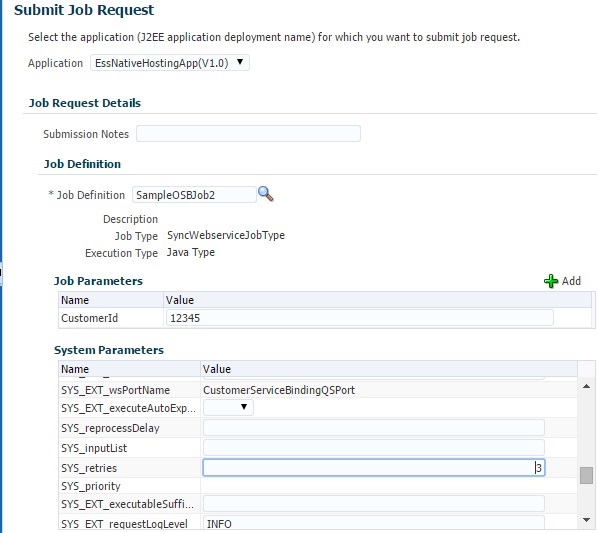
ESS provides the retry functionality through System Parameter SYS_retries and retry happens when a system error occurs during processing of ESS job request. By default, the value is 0 which means no retries will be performed.

We can set the value or override this property while submitting the request as shown below or can add this parameter at design time in JDeveloper.

retry

Click OK and you can observe this in Parameters section as shown below.

param

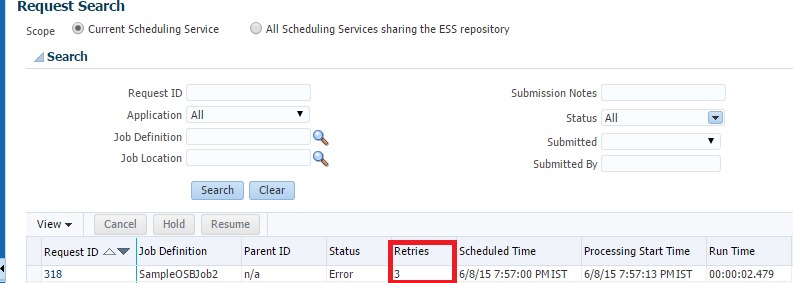
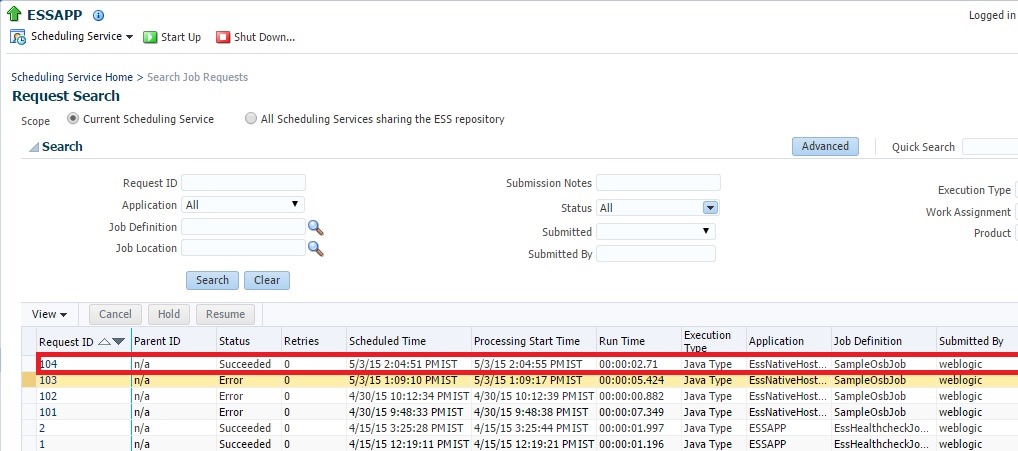
You can observe the number of retries performed in Request Search page by navigating to ESSAPP –> Job Requests –> Search Job Requests as shown below.

retry1

SOA 12c–Creating ESS Job Set metadata

Often, we may have to run multiple jobs to finish some functional process. ESS lets you do this using Job Set where we can add multiple jobs as steps in the metadata and submit them as single unit. We can also specify the relationship among these steps either as Serial or Parallel.

Job Set also allows another Job Set to be included so that a parallel job set can have a Serial Job set and vice versa so that more more complex Job Sets can be created.

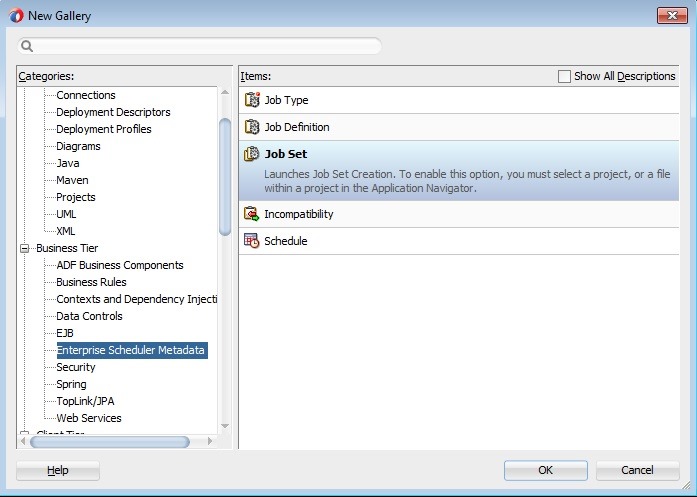
To create Job Set, select File –> New –> Enterprise Scheduler Metadata –> Job Set.

jobsetnew

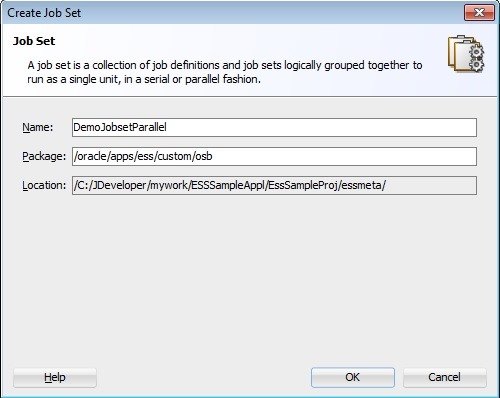
Give a meaningful name and use the same package as used in previous post.

jobsetnew1

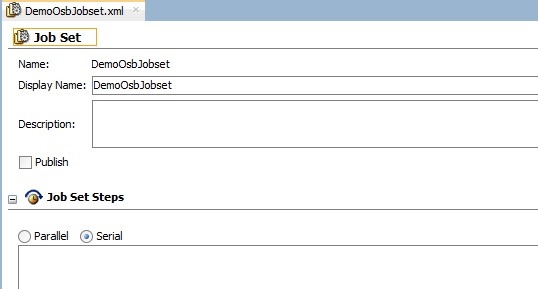
Click OK and you can observe new Job Set shown in Project Explorer and a new tab is opened.

explrjobset

jobsetsteps

Let us create Serial Job Set at first. Click + in the Job Set Steps option to add jobs. We can also specify any System Application properties at each step using the respective tabs shown below.

step1

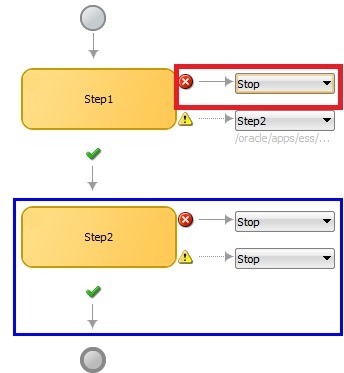
Now your Job Set Steps visual diagram look like below. After the execution, each job step can assume any of the statuses Success, Warning and Error represented by icons in below screenshot. Here, you can define relationship of steps with other steps based on the status. So the following diagram depicts that Job Set execution to stop on occurrence of Error or Warning and proceed to next step (if any) on Success.

step1graphic

Similarly add another step as shown below.

step2

step2graphic

Now modify the relationships of Step1 as shown below.

step1and2

Now save your changes and deploy to ESS server using the steps mentioned in previous post.

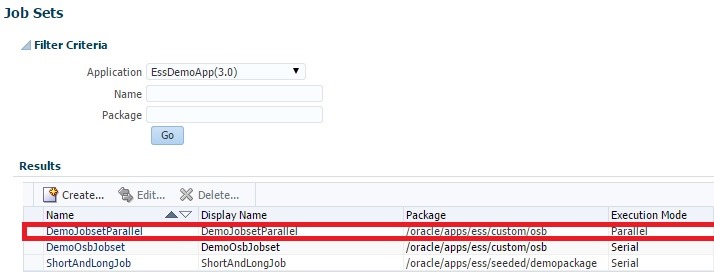
To view the newly created Job Set in EM console, navigate to ESSAPP –> Job Metadata–> Job Sets and do search for EssNativeHostingApp as shown below.

emjobsetview

Navigate to ESSAPP –> Job Requests –> Submit Job Request and submit Job Set as shown below.

submitjobset

submitjobset1

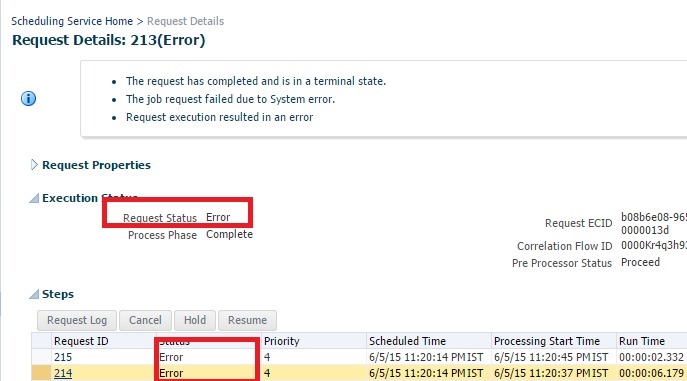
Run this Job Set when the service is down so that we can see it’s behavior when an error occurred during execution. Observe that both of the steps are resulted into an error as shown below.

jobsetstatus

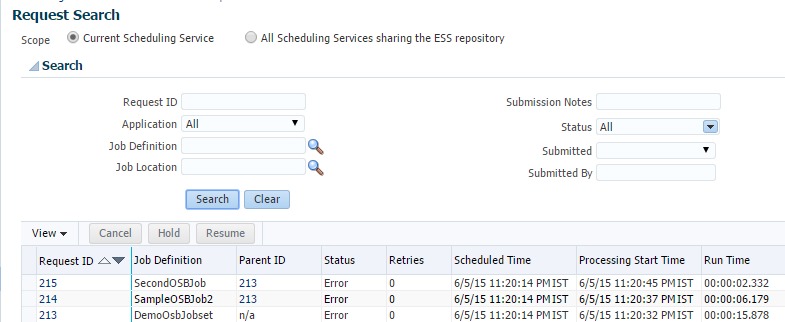
And Search Job Requests page shows these requests as below where each step is executed as child request and we can also observe the serial execution by looking at Processing Start Time and Run Time.

jobstatus1

Now modify Step1 to Stop on occurrence of error. Now save you changes and deploy your application to ESS server.

step1stop

Submit request using this Job Set and observe the Job Status as shown below. Now you can clearly observe that only Step1 has been executed because of the above changes.

step1stop1

step1stop2

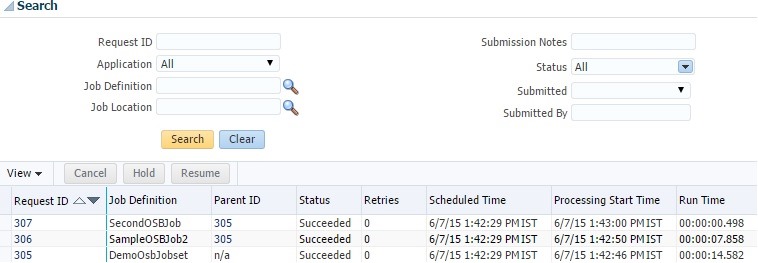
Now bring up service and submit the Job Set to observe both of the steps are successful.

stepsuccess

By default, each step status does determine the terminal state of Job Set. To override this behavior you can define the system property SYS_selectState at step level as shown below and set value to false.

sysprop1

sysprop2

ss

parallel1

parallel2

parallel3

parallel1step1

parallel1step2

parallel4

In Parallel job set, all steps execution will start at same time hence we can’t define relationships among steps based on step execution status similar to Serial job set. However, you can still define the step level system parameter SYS_selectState to override default behavior.

Now save changes and deploy application to ESS server. Submit a request using this new Job Set and observe the parallel runtime behavior as shown below.

jobsetparallel

parallestatus

You can find more information about Job Sets in ESS documentation here and sample project used in this blog can be downloaded from here.

Using EM Console to Create Job Set

We can also create a Job Set in EM console as shown below and the steps look similar to above.

emjobset

emcreate1

emcreate2

emcreatestep

emcreate3

SOA 12c–Creating ESS Incompatibility metadata

We often come across following restrictions when we use ESS jobs because of data corruption issue or for some other functional reason.

  • Only single instance of Job definition should run at particular time.
  • Some jobs should not be run during the run of other jobs irrespective of parameters.
  • Some jobs should not be run during the run of other jobs when acting on same object i.e. having same value for a particular parameter.

In ESS, all of above requirements are addressed by using Incompatibility definition. The first requirement is addressed by using Self Incompatible option. Second and third requirements are addressed by using Global and Domain type incompatibility definitions. In this blog post, we will learn how to create Incompatibility catering to above requirements.

To create Incompatibility metadata, select File –> New –> Enterprise Scheduler Metadata –> Incompatibility.

incomp

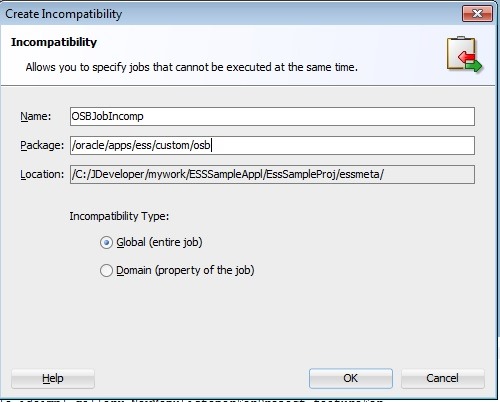
Give a meaningful name and use the same package as used in previous post. Here we are creating Global type.

incompdef

Click OK and you can observe the new Incompatibility file shown in the project explorer and a new tab is opened.

projexpl

incomptab

Click + icon in Entities section to start adding the jobs.

joblist

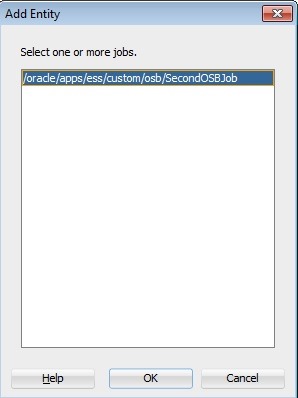
Select the required jobs and click OK. If we try to save , we will get an error as shown below. As shown below, aAn Incompatibility definition mandates us to select Self Incompatible option when we are adding just single job (entity).

error

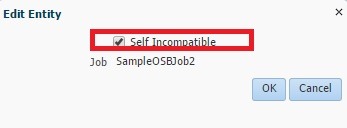
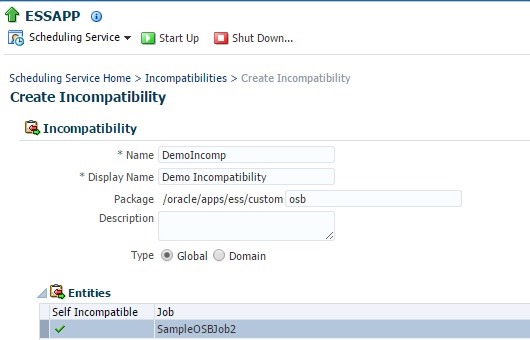
To set this option, double click job in Entities section and choose the option as shown below and click OK. This would make ESS request processor run only single instance of this job at a particular time.

selfincomp

Now save your changes and deploy to ESS server using the steps mentioned in previous post.

To view newly created Incompatibility in EM console, navigate to ESSAPP –> Job Metadata–> Incompatibilities and do search for EssNativeHostingApp as shown below.

deployedincomp

To verify the effect of incompatibility, let us submit 2 instances of the same job and schedule them to run at same time as shown below.

submitted

On the scheduled time, we can observe that one of the requests is blocked as shown below because of our incompatibility definition.

blocked

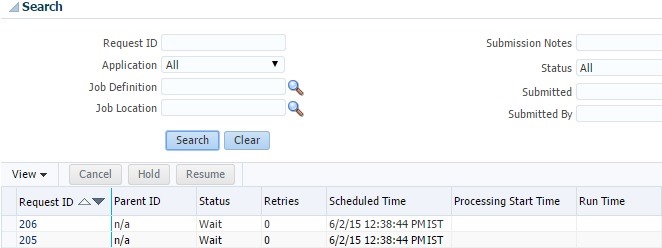
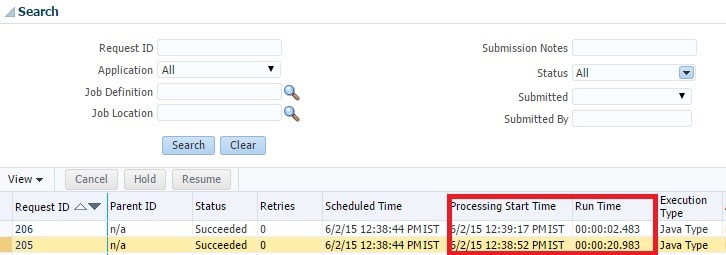
Once the job with request id 205 is completed, 206 will be kick started by request processor which is evident from the start times shown in the below screenshot.

starttime

If you want to make 2 job incompatible with each other, add the other job in the incompatibility definition as shown below.

secondjob

secondjob1

Similar to above, you can observe the same blocked behavior for these 2 jobs in following screenshots when submitted in EM console at the same scheduled time.

schedule2jobs

sucess2jobs

Domain type Incompatibility

You can create incompatibility definition of Domain type using the following screenshots.

domainincomp

domainincomp1

Double click on each job in Entities section to select the property to be used for defining the incompatibility. Note that, we can have different property names to define the incompatibility definition.

1stjobprop

2ndprop

Now your incompatibility definition should look like below.

2ndincomp

Now deploy your ESS project to verify effect of new incompatibility definition. Note that you have to remove SecondOSBJob from previous incompatibility definition before deployment as that is of Global type and is necessary to see effect of this domain type incompatibility which is based on properties.

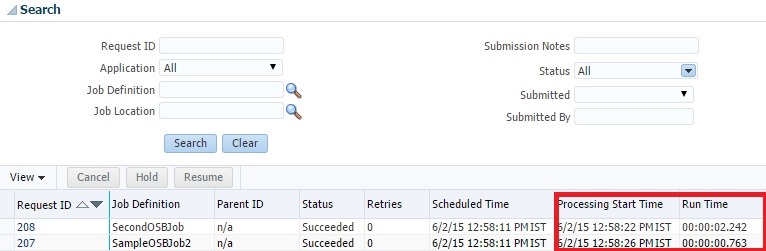
When used different values for the parameters, you can observe that both jobs started execution at same time which is evident from the date values shown below.

sametime

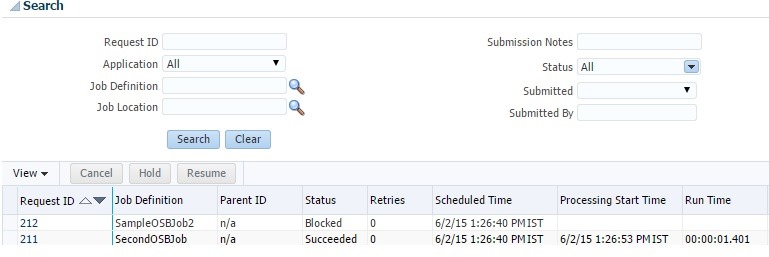
When used same values for the parameters, you can observe that one of the requests is blocked which is evident from the following screenshots.

samevalues

samevalues1

Using EM Console to Create Schedule

We can also create a Incompatibility in EM console as shown below  and the steps look similar to above.

emincomp

emincompcreate

createincomp

entitylist

selfincompem

defn

You can find more information in the documentation here and sample project used in this blog can be downloaded from here.

SOA 12c–Creating ESS Schedule metadata

The real strength of ESS comes from the ability of scheduling a job which is a common use case. ESS provides Schedule as the job metadata to enable the user to schedule job either based on recurrence or on explicit dates. In this post, we will see how to create this Schedule metadata and use it for our ESS job created in the previous post.

To create Schedule metadata, select File –> New –> Enterprise Scheduler Metadata –> Schedule.

newsch1

Give a meaningful name for the schedule and use the same package as used in previous post.

newsch2

Click OK and you can observe the new schedule in project explorer.

schprojexplore

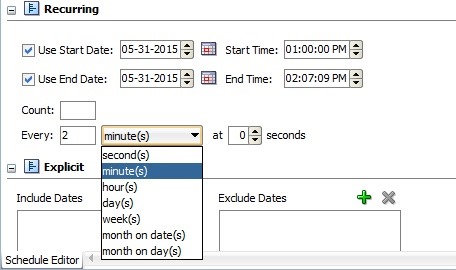
Let us define a schedule so that ESS job runs for every 2 min thrice considering Start and End dates as shown below. You can also give explicit dates to be included regardless of recurring settings in the respective section. Observe that we are not specifying any ESS job while defining the schedule which enables the reuse of schedule and can be used for any ESS jobs.

newsch3

Now save your changes and deploy to ESS server using the steps mentioned in previous post.

To view the newly created Schedule in EM console, navigate to ESSAPP –> Job Requests –> Define Schedule and do search for EssNativeHostingApp as shown below.

emnewsch3

You can also set the recurrence settings using Every field for seconds, Hours, Days, Weeks etc.. as shown below.

recurr

And appropriate selection of days, weeks etc.. will be enabled based on the selected frequency as shown below.

recurr1

Navigate to ESSAPP –> Job Requests –> Submit Job Request and select the job definition as shown below. Go to Schedule section and click search icon for Use existing schedule.

jobsubmission

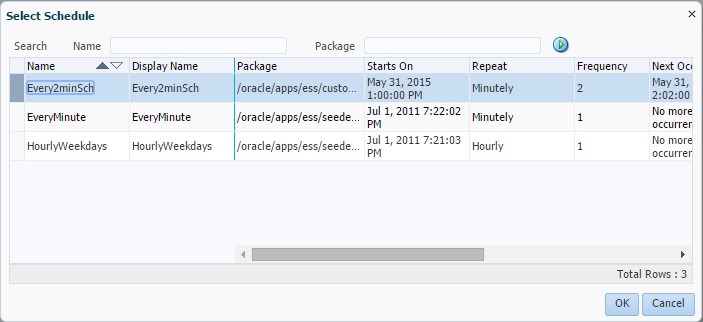
Select the appropriate schedule and click OK.

selectschedule

schsubmission2

To see submitted requests, navigate to ESSAPP->Job Requests –> Search Job Requests and do search for this job.

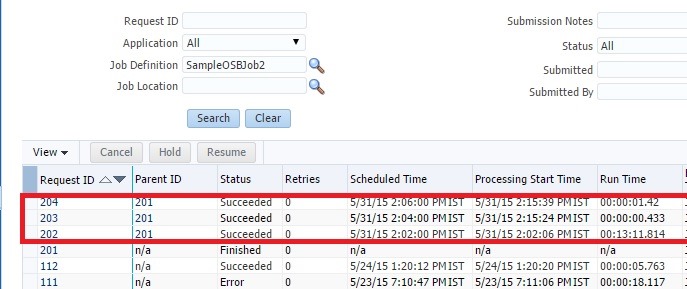
searchjobreq

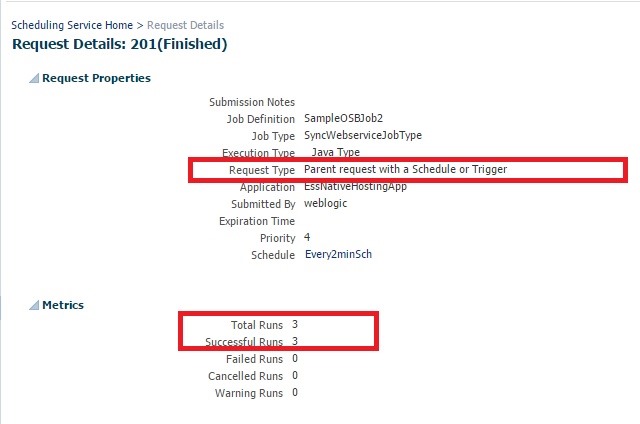
In the above screenshot, you can observe 3 requests (used 3 as the count in Schedule) have been submitted as child jobs. Click on Parent ID and Request ID to see more information on these job requests.

parentreq

childreq

Using EM Console to Create Schedule

We can also create a schedule using EM console directly as shown below.

emnewsch

emnewsch1

emnewsch2

emnewsch3

SOA 12c–Creating ESS Job metadata (JDeveloper)

In the previous post, We have seen how to use EM Console to create the Job metadata. This did not provide the much information about development and deployment details of ESS application. So in this post, we will use JDeveloper to create ESS Job metadata to call the Service Bus proxy services however the steps remain same for BPEL services too.

Before proceeding with actual creation of job metadata, we will know the terms Hosting and Client Applications.

Hosting Application

ESS Jobs always execute in context of hosting application. When we configure domain for ESS, we get EssNativeHostingApp which is pre-deployed native hosting application that is well suited for custom remote jobs like EJB and web service jobs. However, we can’t execute custom Java jobs.

Client Application

Client applications are typically J2EE application used to submit jobs, query job status and optionally perform updates to ESS metadata. We cannot add ESS job metadata (using MAR archive) directly to the pre-deployed native hosting application and have to deploy through a client application or using metadata API.

More information can be found in ESS documentation here

Creating ESS Application

Select File –> New –> Applications –> Custom Application as shown below.

essappl

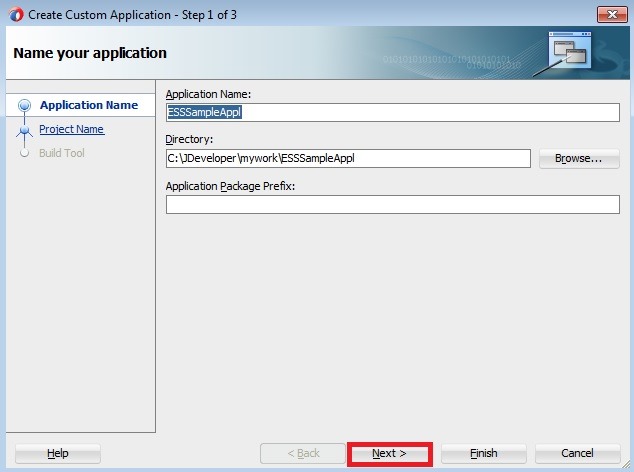
Enter Application Name.

essappl1

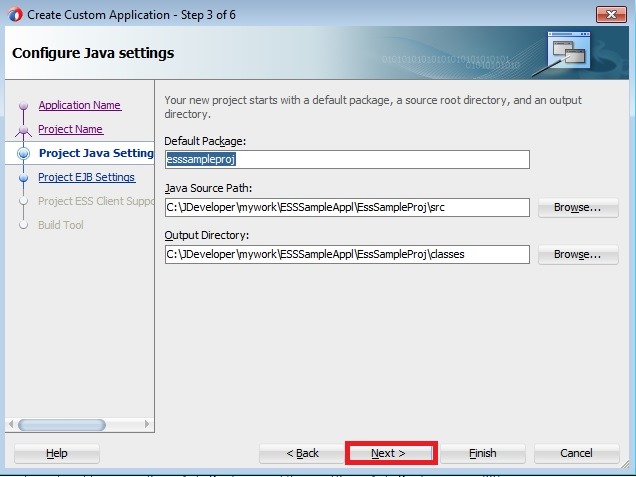
Choose the Project Features as shown below and click Next.

essproj

essproj1

Choose the EJB Version and select Generate ejb-jar.xml as shown below.

essproj2

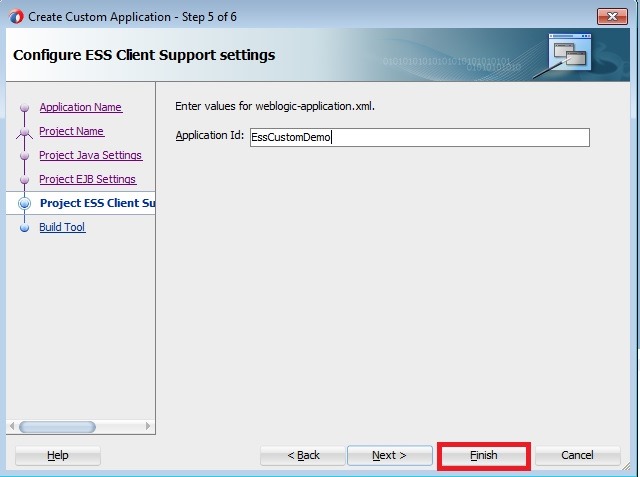
Enter a meaningful value for Application Id.

essproj3

Click Finish and verify that following files got generated in project.

essappl2

Creating Job Metadata – Job Definition

Create Job Definition following the screenshots below. Select File-> New –> Enterprise Scheduler Metadata –> Job Definition.

jobdefn

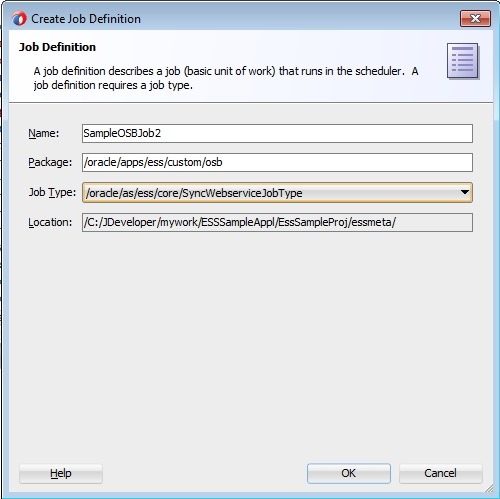
Enter Job name. Since we are going to call a OSB Synchronous service select the corresponding Job type as shown below. Make sure that location includes essmeta directory.

osbtype

Note that MW_HOME env variable has to be set as shown below to be able to see and select Job Type.

envvar

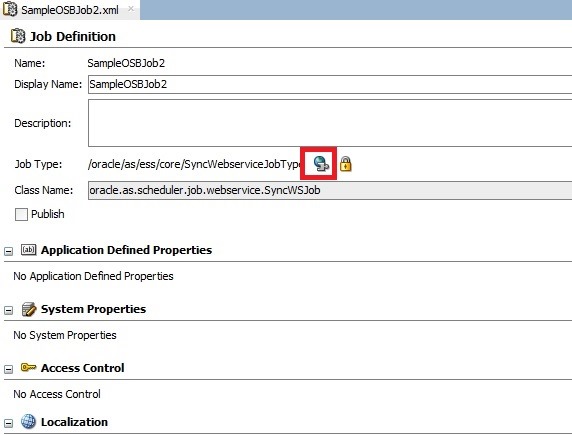
Click Web service icon to select the WSDL.

osbjobdefn

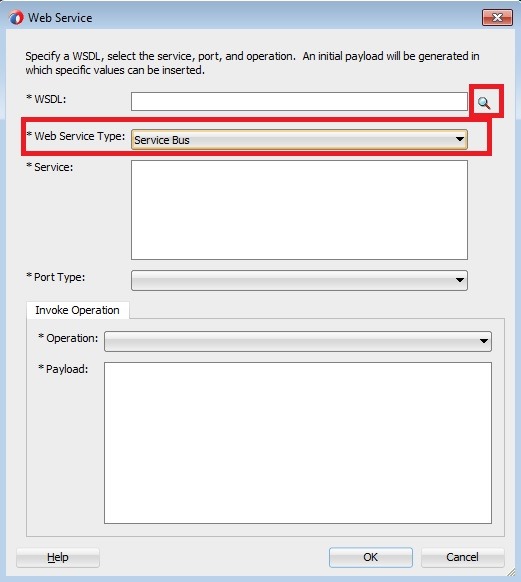
Select Service Bus as web service type and click search icon.

wsdlsel

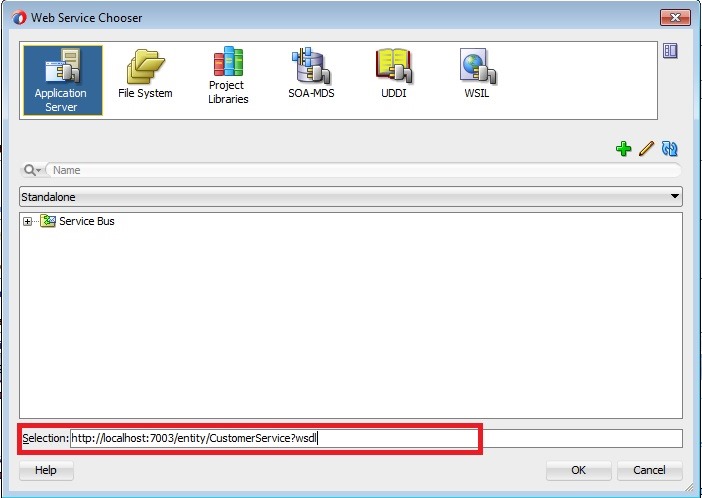
Enter Service Bus Proxy Service WSDL as shown below and click OK. Make sure that you give the URL of concrete WSDL.

wsdlurl

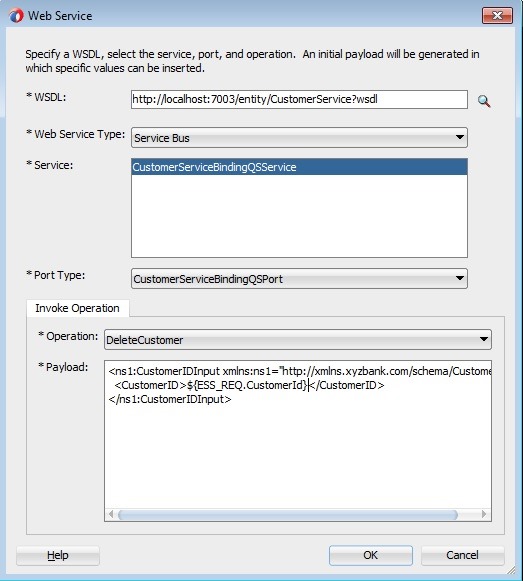
Verify that Service and Port Type are automatically populated. Select the operation and parameterize payload using ESS_REQ as shown below. This context is used to access ESS Parameters defined for Job. Hence we need to create CustomerId parameter. Click OK.

wsdlsel1

Verify that System Properties are populated as shown below.

jobdefnafterwsdl

Click + in Application Defined Properties section and add CustomerId parameter as shown below and click OK.

argument1

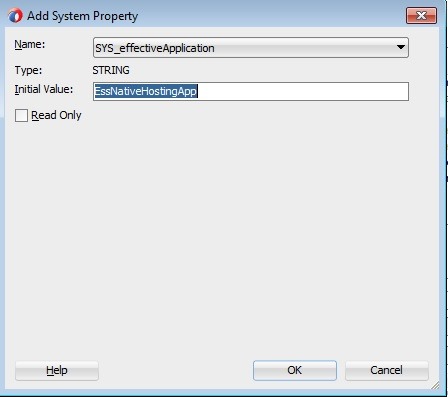
Since our job should run in context of the pre-deployed hosting application EssNativeHostingApp, add parameter SYS_effectiveApplciation in System Properties section as shown below.

sysprop

weblogic-application.xml

Make sure you only have the following library references in this file.

<listener>
   <listener-class>oracle.mds.lcm.weblogic.WLLifecycleListener</listener-class>
</listener>

<library-ref> 
   <library-name>oracle.ess.thin.client</library-name>
</library-ref>
 

ejb-jar.xml

Add following contents in this file (See the Observations section below).

<enterprise-beans>
    <session>
        <description>Runtime Session Bean</description>
        <ejb-name>RuntimeServiceBean</ejb-name>
        <ejb-class>oracle.as.scheduler.ejb.RuntimeServiceBean</ejb-class>
    </session>
    <session>
        <description>Metadata Session Bean</description>
        <ejb-name>MetadataServiceBean</ejb-name>
        <ejb-class>oracle.as.scheduler.ejb.MetadataServiceBean</ejb-class>
    </session>
    <session>
        <description>Async Request Bean</description>
        <ejb-name>AsyncRequestBean</ejb-name>
        <ejb-class>oracle.as.scheduler.ejb.AsyncRequestBean</ejb-class>
    </session>
</enterprise-beans>

adf-config.xml

If the EAR file generated from this application is to be deployed, certain MDS partition entries must be specified in this file, so add the following contents. The data source referenced here is automatically created when we configure the domain to include ESS. The namespace mentioned over here (highlighted below) should match the package structure we used for creating job definition.

<adf-mds-config xmlns="http://xmlns.oracle.com/adf/mds/config">
    <mds-config version="11.1.1.000" xmlns="
http://xmlns.oracle.com/mds/config">
        <persistence-config>
            <metadata-namespaces>
                <namespace path="/oracle/apps/ess/custom/osb" metadata-store-usage="ess_custom_metadata"/>
            </metadata-namespaces>
            <metadata-store-usages>
                <metadata-store-usage id="ess_custom_metadata" deploy-target="true" default-cust-store="false">
                    <metadata-store class-name="oracle.mds.persistence.stores.db.DBMetadataStore">
                        <property name="jndi-datasource" value="jdbc/mds-ESS_MDS_DS"/>
                        <property name="repository-name" value="mds-ESS_MDS_DS"/>
                        <property name="partition-name" value="essUserMetadata"/>
                    </metadata-store>
                </metadata-store-usage>
            </metadata-store-usages>
        </persistence-config>
    </mds-config>
</adf-mds-config>

Deployment

We have to create the following deployment profiles to be able to deploy:

  • Project level EJB JAR deployment profile.
  • Application level MAR deployment profile.
  • Application level EAR deployment profile

EJB JAR Deployment Profile

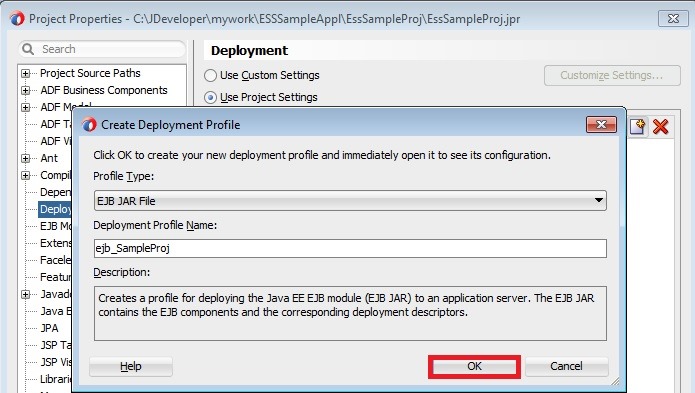
Use the following screen shots to create project level EJB JAR profile.

ejbjar1

ejbjar2

ejbsource

ejbjar3

ejbjar4

MAR Deployment Profile

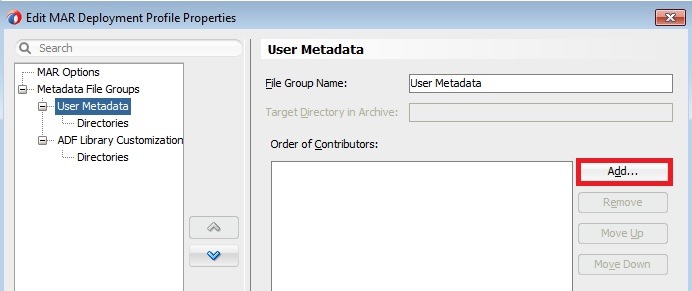
Use the following screen shots to create application level MAR profile.

mar1

marcontent

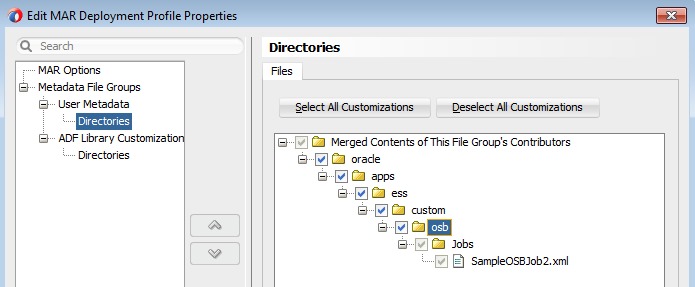
maressmeta

maressmeta1

maressmeta2

EAR Deployment Profile

Use the following screen shots to create application level EAR profile.

earprofile

earprofile1

earmanifest

earlib

Deployment

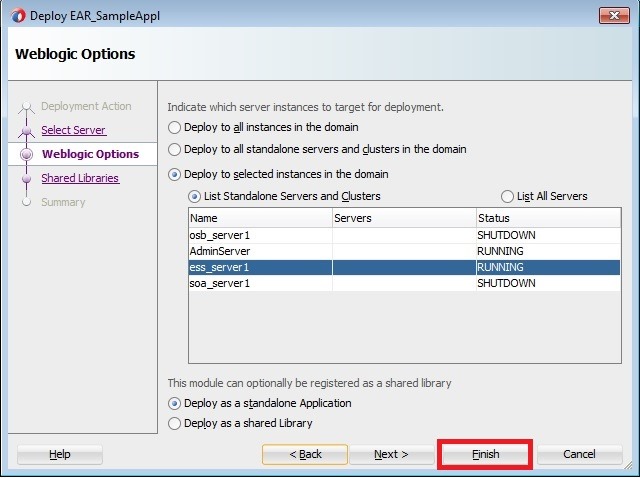
Deploy the EAR file of ESS application as shown in following screenshots.

deployess1

deployess2

deployess3

deployess4

deployess5

Here, essUserMetadata is partition used by EssNativeHostingApp. We can observe deployment log as shown below.

deploylog

Submitting the request

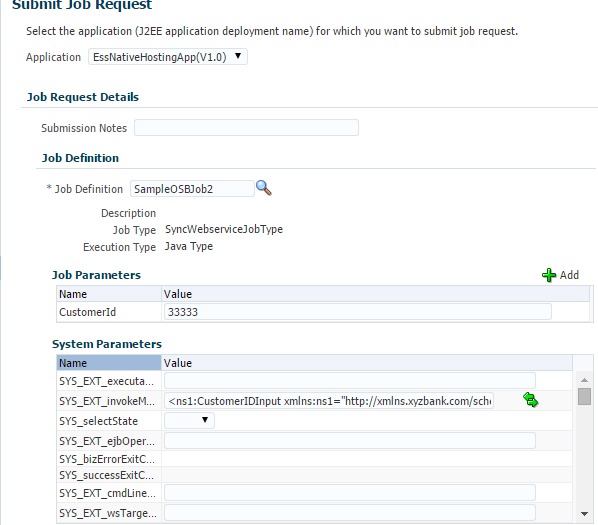
In EM Console, navigate to Scheduling Services –> ESSAPP-> Job Requests –> Submit Job Request. Select application as EssNativeHostingApp and choose the job definition as below and select OK.

jobdefnsub

jobdefnsub1

Once the job run is successful, you can see the status as shown below.

reqsuccess

The sample application can be downloaded from here.

Observations

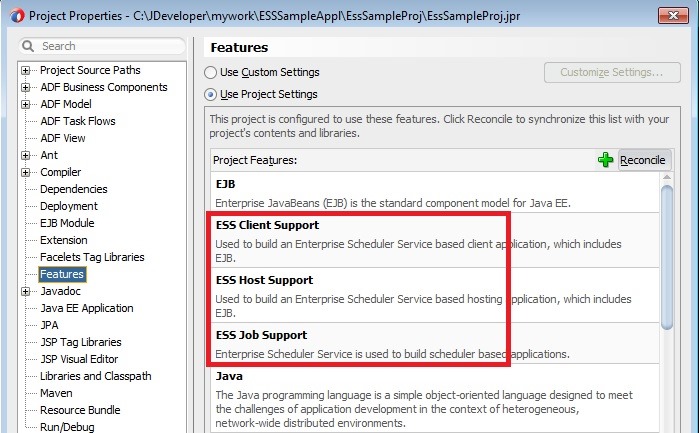
  • Though we add only ESS Job Support and ESS Client Support features during application creation, we see ESS Host Support as well in Project feature section as shown below.

projfeatures

  • Unable to see the Job definitions in ESS while submitting requests, when used package structure (which is effectively a namespace) that does not contain /oracle/apps/ess. Section 1.2.10 of this documentation clearly mentioning that the  job definition must be created in  the namespace /oracle/apps/ess/custom.
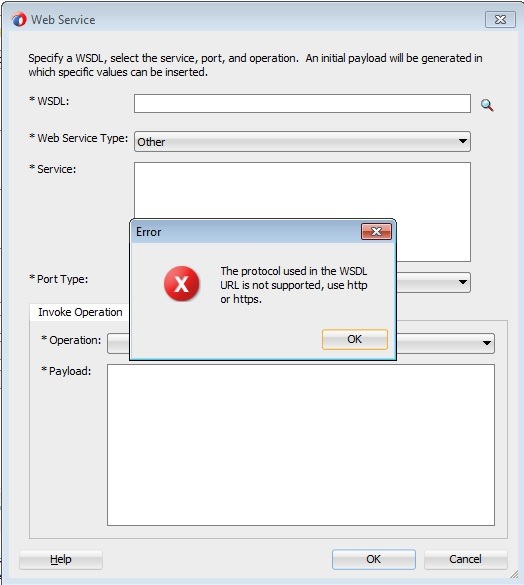
  • Unable to refer the WSDL from SOA_MDS or File System in the Web Service chooser during Job definition creation and is resulting into the following error as shown below.

mdswsdl

mdswsdl1

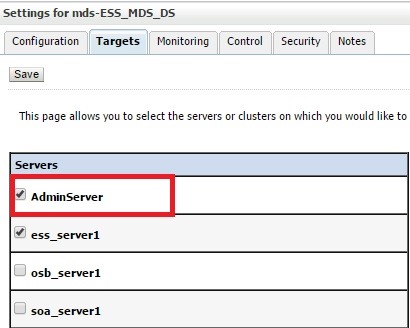
  • The data source mds-ESS_MDS_DS is to be  targeted to AdminServer as shown below, so that we will be able to select data source during deployment.

    essds

  • Initially thought, there is no need of ejb-jar.xml in this ESS application as it’s used predominantly to specify Application Name. But was getting following error during deployment when this file is not present in application or the file has empty contents. So at minimum, this file should have the contents as mentioned above.

         <May 19, 2015 8:47:48 PM IST> <Error> <Deployer> <BEA-149205> <Failed to initialize the application "Ear_EssSampleAppl" due  to error weblogic.management.DeploymentException: Error parsing META-INF/application.xml weblogic.management.DeploymentException: Error parsing META-INF/application.xml

SOA 12c–Creating ESS Job metadata (EM Console)

In this post, We will use the EM Console to create ESS Job metadata  to call the Service Bus proxy services however the steps remain same for calling BPEL service too.

Configuration

During domain creation, we should select the following options to create ESS Managed Server and EM Plugin for ESS. EM Plugin for ESS enable us to monitor and manage submitted ESS jobs.

essemplugin

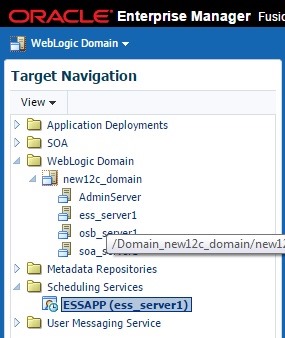
You should see the EM Console as shown below on successful domain creation and starting the Admin and ESS servers. Observe that Scheduling Services is shown having ESSAPP.

emwithessapp

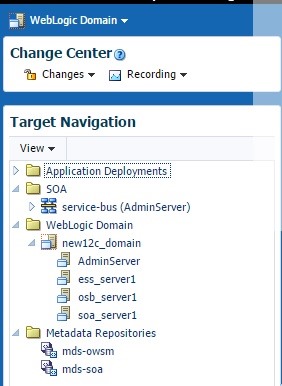
If you don’t select EM plugin for ESS option during domain creation, your EM console will look like below with no Scheduling Services.

emwithoutess

You can do ESS health check using >:>/ess">>:>/ess">>:>/ess">http://<<hostname>>:<<port>>/ess which brings up the following screen.

esshealth

Click Check Health for this ESS Server which submits a sample job and give us back the status of ESS server as shown below.

esshealth1

You can verify status of this sample job from Search Job Requests as shown below. The navigation to this page is given later in this post.

esshealthcheck

You can find more information inn ESS documentation here.

Creating Job Definition

First, we need to create Job Metadata so that we can execute the ESS job or schedule as and when required. Job Definition contains all required metadata to run the job. We can use JDevloper or EM Console to create job definition. In this post, we will demonstrate usin EM Console.

Right click on ESSAPP and select Job Definitions as shown below.

emjobdefn

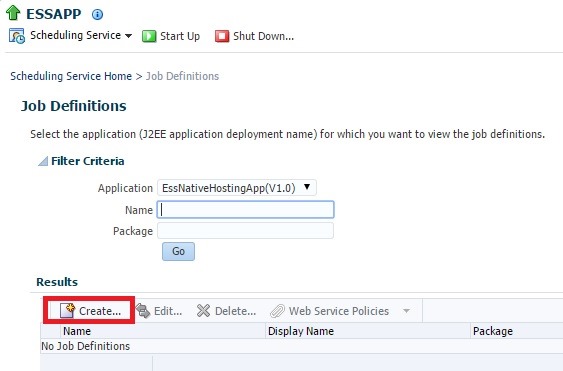
Click Create to proceed with creation of new ESS Job Definition.

emjobdefncreate

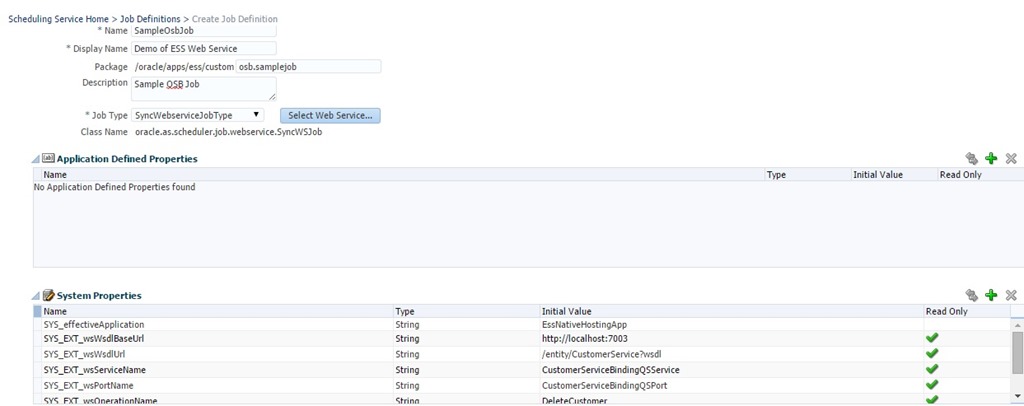
Provide Job name and other information as shown below. We need to select Job Type as SyncWebserviceJobType as we want to call a service bus Proxy Service. Click Select Web Service to select the WSDL of service.

emsyncws

Provide WSDL URL and choose Web Service Type as Service Bus. Click OK.

emjobdefnwsdl

Observe that the services listed in WSDL are shown. Select the Port Type and Operation as required which shows up the sample payload as shown below. Since we want to allow user to enter Customer ID, we have to parameterize payload using ESS_REQ token which is used to access request arguments. So in our case, we need to define an argument with name CustomerId.

empayload

Click OK and observe lot of System Properties are populated automatically as shown below.

emsysprop

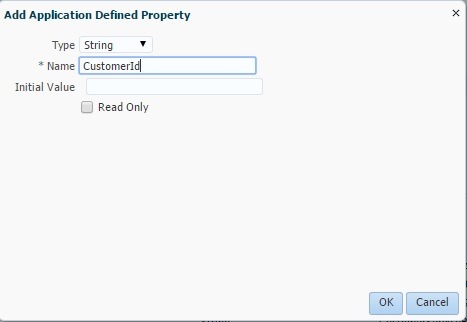
To define argument for ESS job, click + icon in Application Defined Properties section to bring up following Popup. Given name as CustomerId and Type as String as shown below and click OK.

emargs

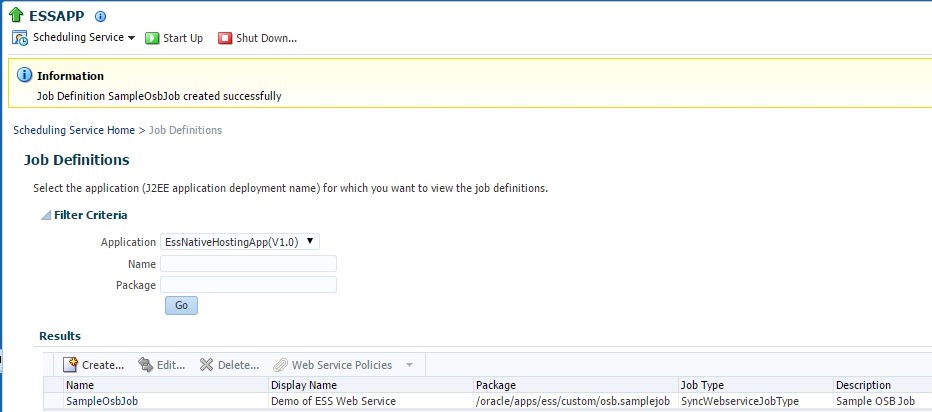
Now observe that a new Job Definition is created as shown below.

emjobcreate

Submitting Job

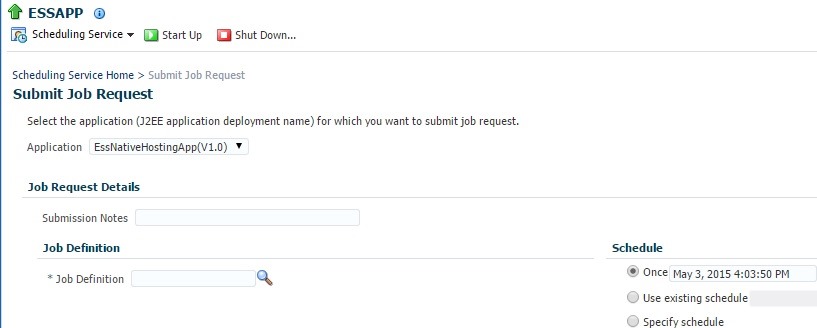
We can manually submit ESS job or use a schedule to run it programmatically. For now, let us proceed with manual submission so right click ESSAPP and choose Submit Job Request as shown below.

emsubmit

Choose Job Definition by clicking search icon as shown below.

submit0

submit2

Click OK and enter value for CustomerID Job Parameter as shown below.

submit1

Click OK to submit ESS job and observe the status and log as shown below. Since it’s a simple service call, the ESS job did not take much time.

emreqsuccess

You can open log file shown above and verify the output as expected.  Since it’s a sync call, we have received service response and same is logged.

emreqlog

To manage the submitted jobs, we can navigate to the Search Job Requests page using navigation shown below.

emjobsearch

Here, you can search for submitted jobs using different search criteria and also can do Cancel, Hold and Resume of job depending on current status of Job.

emreqsuccess1

Note: The use case considered here does not actually qualify as ESS job and not of batch job nature and used just for demonstration purpose. ESS is more suitable for batch jobs as you can schedule and run asynchronously in it’s own JVM.

Service Bus 12c– Outbound SSL

In the last 2 posts, we have seen how to configure Service Bus to use 1-Way SSL and 2-Way SSL. In both of these scenarios, our Service Bus managed server is acting as Server but our server can also become a Client when talking to external services using the Business Services having SSL enabled. So we will discuss about Outbound SSL in this post.

1-Way SSL

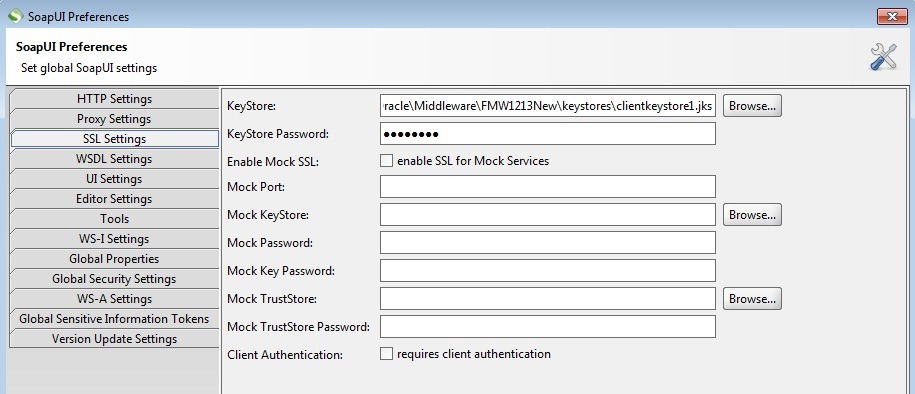
Before getting into the required OSB setup, enable our SOAP UI mock service to use SSL. Go to File –> Preferences –> SSL Settings and set properties as shown below.

soapuissl

Access your mock service as shown below to confirm that SSL is enabled.

mockssl

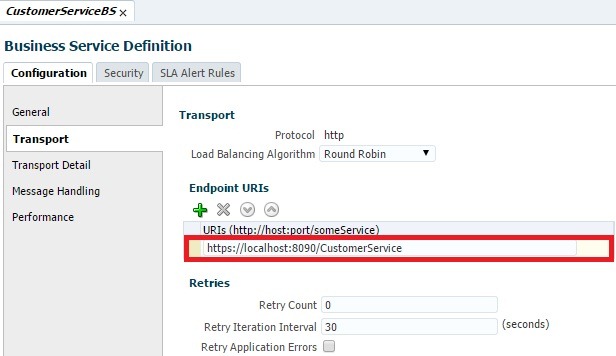
Now update the business service endpoint URI with this URL in the Service Bus Console as shown below.

bsendpoint

Now test your business service and you can observe following error in server logs. This is because you have not yet updated the OSB server trust store with the certificate of SOAP UI mock service.

sslerror

sslbserror

So now export the Public Certificate from the keystore used for mock service and import into OSB trust store using following commands.

keytool –exportcert -alias localclient -keystore clientkeystore.jks -file localclient.cer

keytool -importcert -alias localclient -keystore osbkeystore.jks -file localclient.cer

Now test your Business Service to see the response as given below.

bstestsucc

2-Way SSL

In case of 2-way SSL, our Proxy Service acts as client and need to send the corresponding Public Certificate when server requests(in our case, it’s SOAP UI Mock Service).

In Service Bus, the resource Service Key Provider is used to retrieve the required PKI credentials that  includes Private key paired with a certificate. Proxy services use this key-pair to authenticate when acting as a client during an outbound SSL i.e. during routing a message to HTTPS business service or proxy service requiring Client Certificate authentication. You can find more information in Service Bus documentation here.

Service Key Provider makes use of PKI credential mapper  to retrieve the PKI credentials which has to be created first.

PKI Credential Mapper

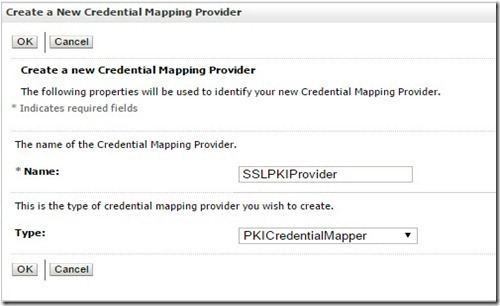
In WLS admin console, navigate to Security Realms –> myrealm –> Providers –> Credential Mapping. Click New.

pkiprovider1_thumb2_thumb_thumb_thum

Give name and select Type as PKICredentialMapper and Click OK.

pkiprovider2_thumb2_thumb_thumb_thum

Verify that new credential mapping provider is created.

pkiprovider4_thumb3_thumb_thumb_thum

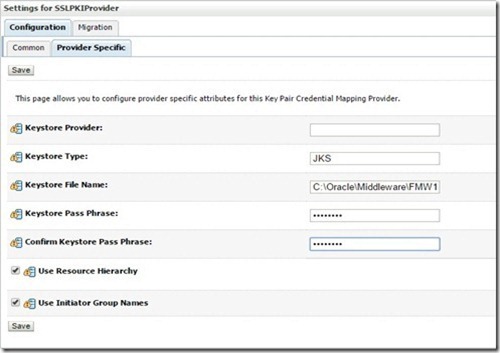
Now click SSLPKIProvider and navigate to Provider Specific tab. Mention the Keystore and Pass Phrase specific to OSB managed server and click Save.

pkiprovider3_thumb3_thumb_thumb_thum

Service Key Provider

We will directly use the sbconsole for creating the Service Key Provider and to make other required changes for Business and Proxy Services.

Create a OSB session and select Service Key Provider from drop down menu as shown below once you select the Service Bus Project.

skp1_thumb[2]

Provide the name and click Create.

skp2_thumb[2]

Now the Service Provider Definition look like as below. Since we are using this for SSL purpose click search icon for SSL Client Authentication Key.

skp4_thumb[3]

Choose the Key Alias as shown below and provide the password.

skp5_thumb[3]

Click OK to bring up following screen and Save your changes done for Service Key Provider. Do activate Service Bus session.

skp6_thumb[3]

Soap UI Settings

Before proceeding with Proxy and Business service changes, you have to enable the SOAP UI mock service to request for Client Certificate.

To do this, navigate to File –> Preferences –> SSL Settings and choose Client Authentication as shown below.

soapuiclient_thumb[2]

Now test your Proxy Service to observe the following errors in response tab, jetty log and Service Bus logs respectively. This happens as we have not yet imported OSB server Public Certificate into clientkeystore.jks and also did not configure our Proxy/Business Service to send the client Certificate.

soapuibadcert_thumb[2]

soapuibadcert1_thumb[2]

osberror_thumb[2]

Export OSB server public certificate and import into clientkeystore.jks using following commands.

keytool -exportcert -alias localosb –keystore osbkeystore.jks –file osbcert.cer

keytool -importcert -alias localosb -keystore clientkeystore.jks –file osbcert.cer

keystoreimport_thumb[2]

With this, we are done with the SOAP UI settings and let us proceed  with the changes required for Proxy and Business Services.

Proxy and Business Service changes

Open business service and navigate to Transport Detail tab. Select Client Certificate as shown below for Authentication and save changes.

bsclientcert_thumb[3]

Open proxy service and navigate to Security –> Security Settings tab. Click search icon for Service Key Provider.

proxyskp_thumb[3]

Click Search and select the one that we have created earlier as shown below and click OK.

psskp1_thumb[3]

Now Security tab should show your selection as below.

psskp2_thumb[2]

Remember that you have to create OSB session before making changes and need to activate it once your changes are done.

You should see successful response as shown below, if you test your proxy service now.

success_thumb[3]

Please note that above logs are generated when following JVM options are set in setDomainEnv.cmd file for EXTRA_JAVA_PROPERTIES.

           -Dssl.debug=true -Dweblogic.StdoutDebugEnabled=true

Service Bus 12c– Two way SSL

In this post, we will see how to enable two-way SSL in Service Bus 12c. The steps mentioned here have to be performed in addition to steps mentioned in the previous post.

Navigate to Servers –> osb_server1 –> SSL in WLS Admin Console. Expand Advanced section and set Two Way Client Cert Behavior as shown below. This would enforce WLS to request the Client certificate during SSL handshake and will result into an error if the client certificate is not present in trust store.

2ssl

Now create a keystore clientkeystore1.jks using following command and will  be used in SOAP UI.

keytool -genkeypair -keyalg RSA -alias localclient1 -keystore clientkeystore1.jks -storepass cljks123 -validity 360 -keysize 2048

Set global SSL Settings in SOAP UI as shown below by navigating to File –> Preferences. Specify the above created keystore and  password.

soapui

Restart OSB managed server. Now if you test your Proxy Service from SOAP UI, you would see an error like below in the server log as the trust store does not have the client certificate.

sslerror

So export and import corresponding Client Certificate into the OSB trust store using following commands.

keytool -exportcert -alias localclient1 -keystore clientkeystore1.jks -file localclient1.cer

keytool -importcert -alias localclient1 -keystore osbkeystore.jks -file localclient1.cer

clientstore

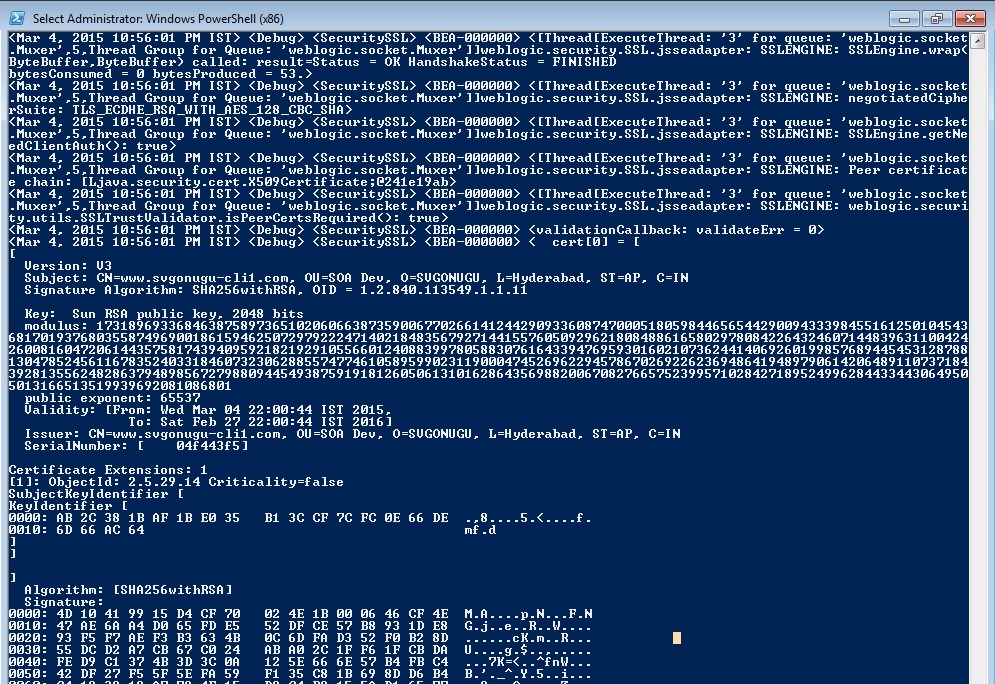
Now test your Proxy Service from SOAP UI and you would see the response as expected without any error. And now the server log will be shown like below.

sslsuccess

Please note that above logs are generated when following JVM options are set in setDomainEnv.cmd file for EXTRA_JAVA_PROPERTIES.

           -Dssl.debug=true -Dweblogic.StdoutDebugEnabled=true

Service Bus 12c– One way SSL

In this post, we will see how to configure Service Bus to use One way SSL.

Here, we are not discussing about the SSL concepts and people who want to go through quick introduction of SSL can go through this.

In Summary, following are the steps to be followed:

  • Generate Custom Identity and Trust stores.
  • Enable SSL port.
  • Setting up the keystores.
  • Configure private keys for SSL

Please note that, JSSE (Java Secure Socket Extension)  is the only supported SSL implementation. The Certicom-based SSL implementation is removed and is no longer supported in WebLogic Server.

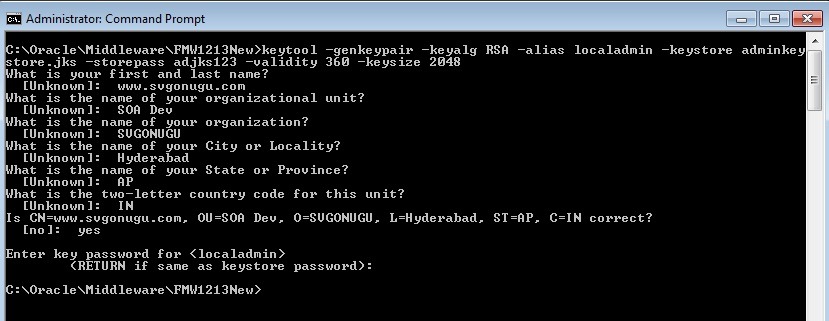
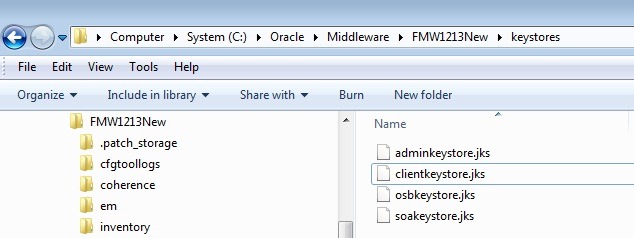
Create a folder keystores %FMW_HOME% to store all of your keystores used and issue the following command to generate a keystore for Admin server use as shown below.

keytool -genkeypair -keyalg RSA -alias localadmin -keystore adminkeystore.jks -storepass adjks123 -validity 360 -keysize 2048

createks

This creates keystore adminkeystore.jks having both public and the private keys with alias localadmin. You can observe the contents of keystore using the following command.

keytool -list -v -keystore adminkeystore.jks

jkscontents

Similarly, create other keystores to use for OSB and SOA managed servers and also a keystore to use for the client as shown below.

keystores

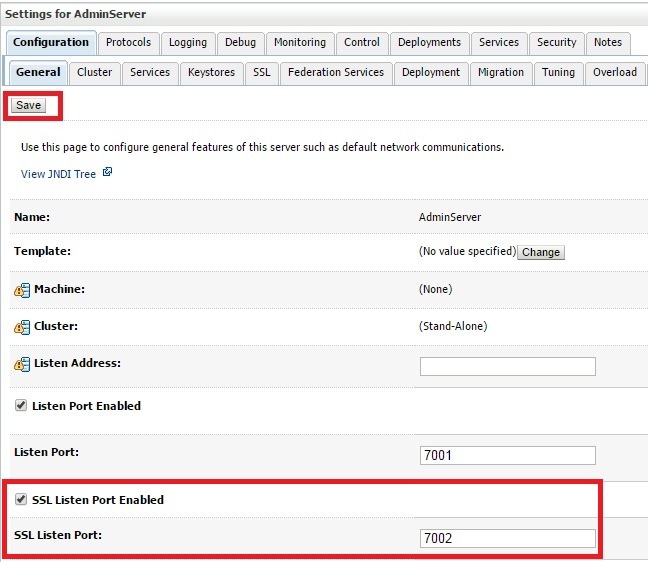
Enable SSL port by navigating to Environment –> Severs-> Admin Sever –> General.
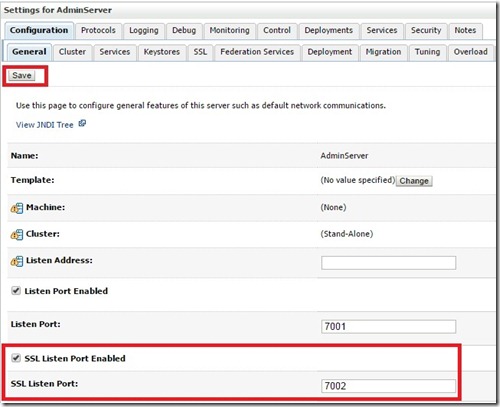
sslenable

By Default, WLS uses the Demo Identity and Trust keystores and you can find them in %DOMAIN_HOME/security and %WLS_HOME%/server/lib. Oracle strictly recommends to use the Custom keystores at least for the Production environments. Hence we will use the custom keystores in this post.

Go to Keystores tab and click Change.
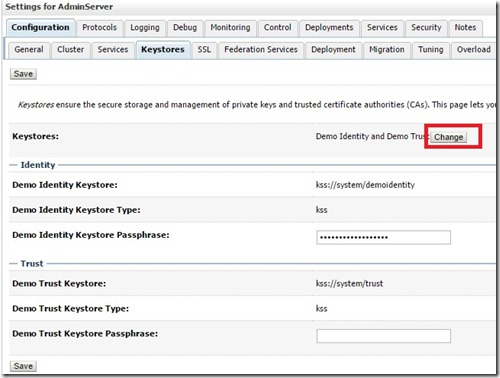
demoks

Select Custom Identity and Custom  Trust as shown below and click Save.
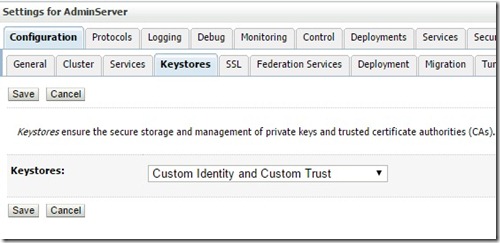
customks

Modify Custom Identity and Trust stores as shown below and here you also need to give keystore password. Click Save.
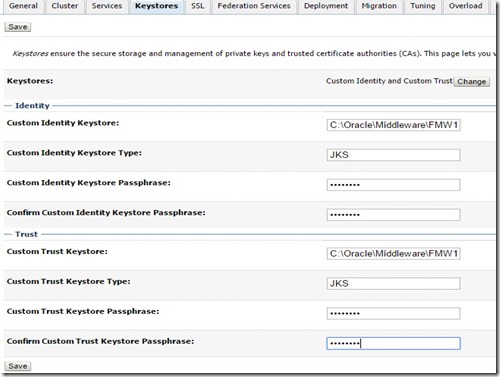
customks1

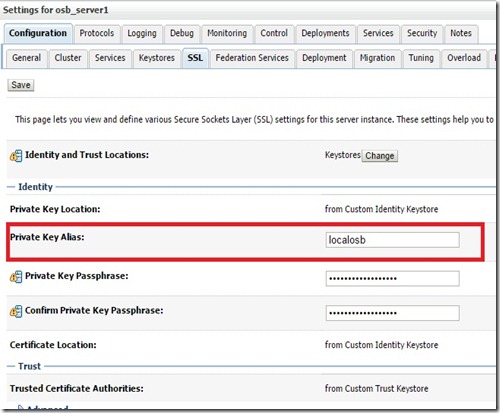
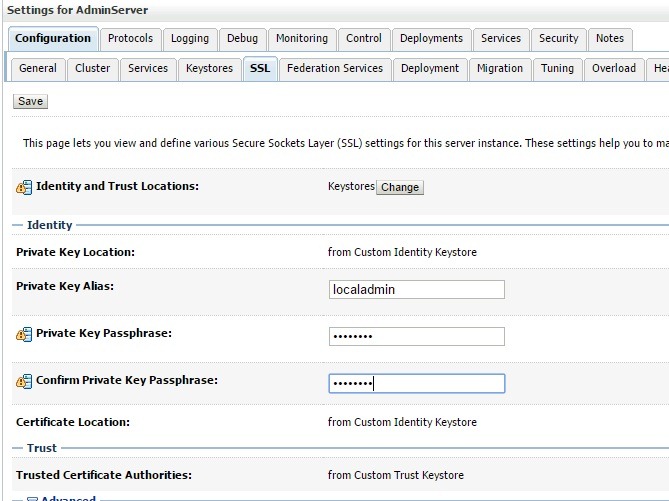
Go to SSL tab and give the Private key alias as shown below.

sslsetup

Go to Advanced settings and set Hostname verification to None and also set Two way Client Cert Behavior to Clients Certs not Required as we are doing setup for 1-way SSL. This setting will enforce WLS server not to request client certificates.

sslsetup1

Modify EXTRA_JAVA_PROPERTIES  in setDomainEnv.cmd to use following parameters and restart the admin server. This is required as to instruct WLS server to load trusted certificates.

-Dweblogic.security.SSL.trustedCAkeystore=C:\Oracle\Middleware\FMW1213New \keystores\adminkeystore.jks -Djavax.net.ssl.trustStorePassword=adjks123

Now you should be able to access WLS admin console using following URL and this confirm the SSL is configured on your admin server.

http://localhost:7002/console

You can refer to WLS documentation here for more information on this.

The following error is observed when we use a keystore as Trust store with zero trust certificates.

<[Thread[DynamicJSSEListenThread[DefaultSecure3]],9,WebLogicServer]weblogic.security.SSL.jsseadapter: TRUSTSTORE_MANAGER: No certs to
copy.>
<[Thread[DynamicJSSEListenThread[DefaultSecure3]],9,WebLogicServer]weblogic.security.SSL.jsseadapter: TRUSTSTORE_MANAGER: No trusted
CAs available to populate trust anchors.>
<[Thread[DynamicJSSEListenThread[DefaultSecure3]],9,WebLogicServer]weblogic.security.SSL.jsseadapter: TRUSTSTORE_MANAGER: Error initi
alizing trust manager factory: the trustAnchors parameter must be non-empty.
java.security.InvalidAlgorithmParameterException: the trustAnchors parameter must be non-empty
at java.security.cert.PKIXParameters.setTrustAnchors(PKIXParameters.java:200)
at java.security.cert.PKIXParameters.<init>(PKIXParameters.java:120)
at java.security.cert.PKIXBuilderParameters.<init>(PKIXBuilderParameters.java:104)
at weblogic.security.SSL.jsseadapter.JaTrustManager.<init>(JaTrustManager.java:57)
at weblogic.security.SSL.jsseadapter.JaSSLContextImpl.initializeContext(JaSSLContextImpl.java:654)

To debug SSL, modify EXTRA_JAVA_PROPERTIES  in setDomainEnv.cmd to include the following parameters.

-Dssl.debug=true -Dweblogic.StdoutDebugEnabled=true

To enable javax.net debugging include the following parameter.

-Djavax.net.debug=all

To eliminate this error, you can install any trust certificate into localadmin.jks or use cacerts keystore (available in %WLS_HOME%/server/lib) as Trust store. Here i have exported Public Certificate from clientkeystore.jks and got that imported into localadmin.jks.

Use the following command to export:

            keytool -exportcert -alias localclient -keystore clientkeystore.jks -file localclient.cer

Use the following command to import:

             keytool -importcert -alias localclient -keystore adminkeystore.jks -file localclient.cer

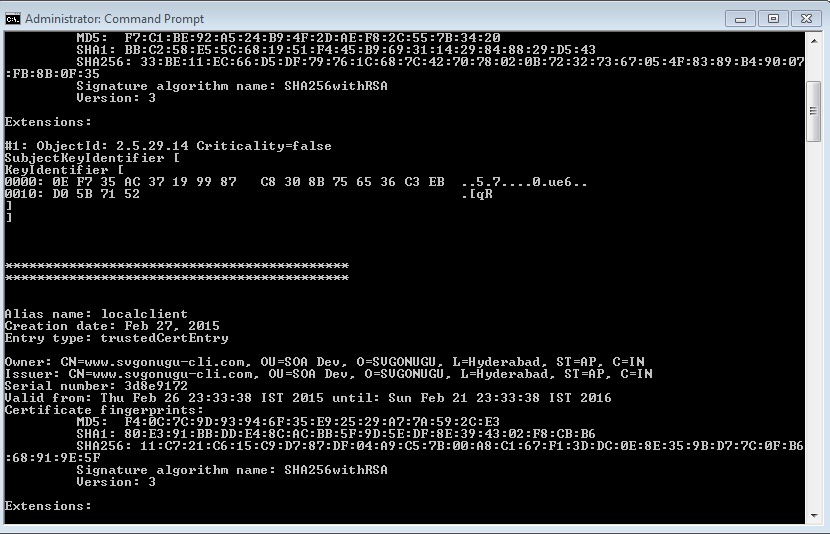
Now verify the contents of your keystore as below.

              keytool -list -v -keystore adminkeystore.jks

localcer

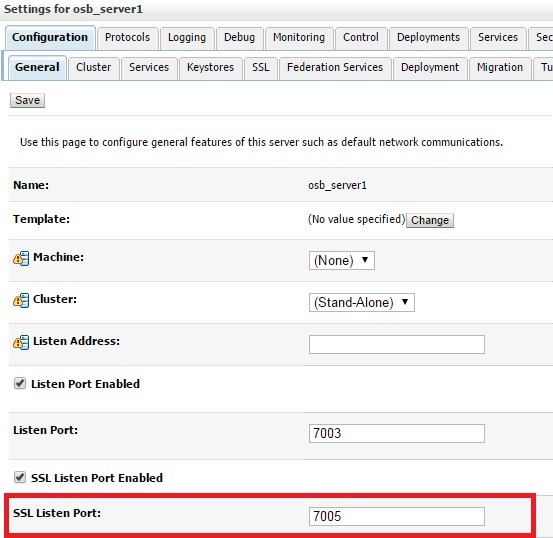
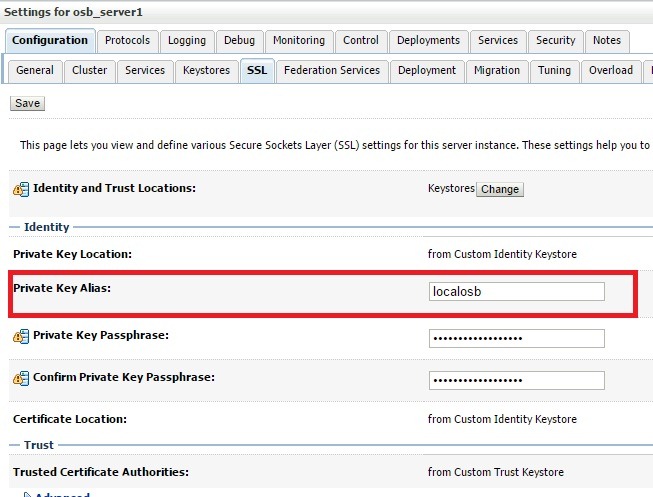
Similarly, configure OSB managed server using keystore osbkeystore.jks and use 7005 as the SSL port. Restart the OSB server after your changes.
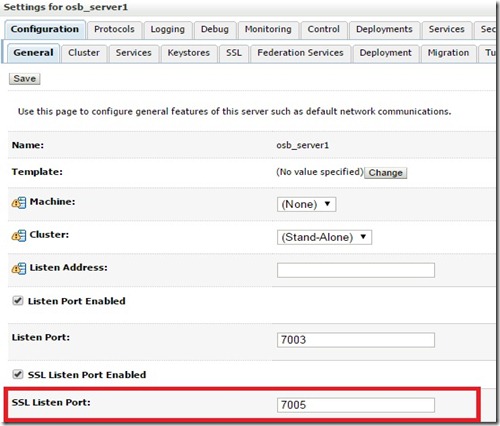
osbsslport

osbsslks

osbsslks1

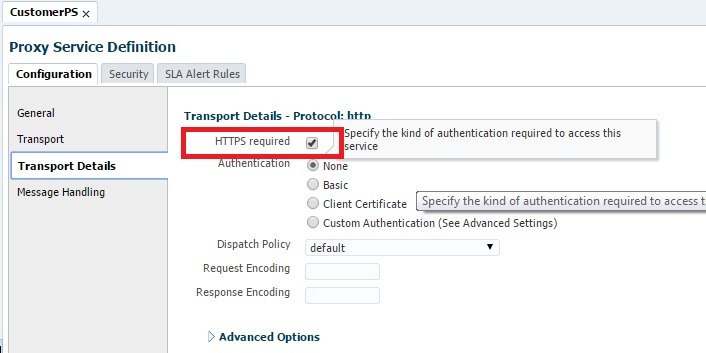
To enable your proxy services to be accessed only by SSL, you have to enable HTTPS option as below.

osbsslps

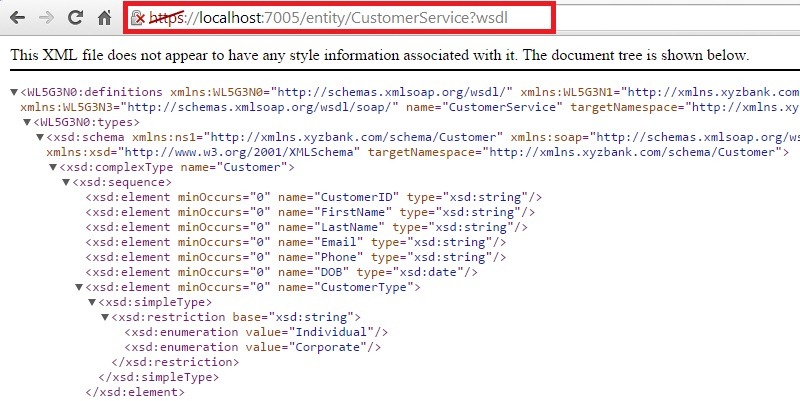
Now if you try to access your Proxy Service WSDL from browser, it will be automatically uses SSL as shown below.
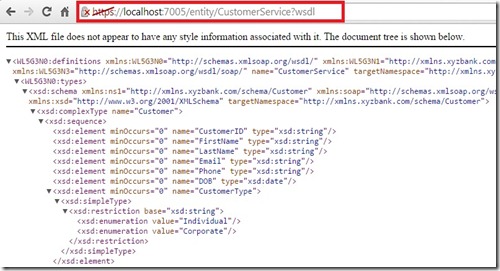
osbwsdl

Most of the people uses SOAP UI to test their webservices. If you try to access this WSDL, you will be able to access from SOAP UI even without adding the required certificates to trust store. This is because SOAP UI trusts all by default as per this forum post.

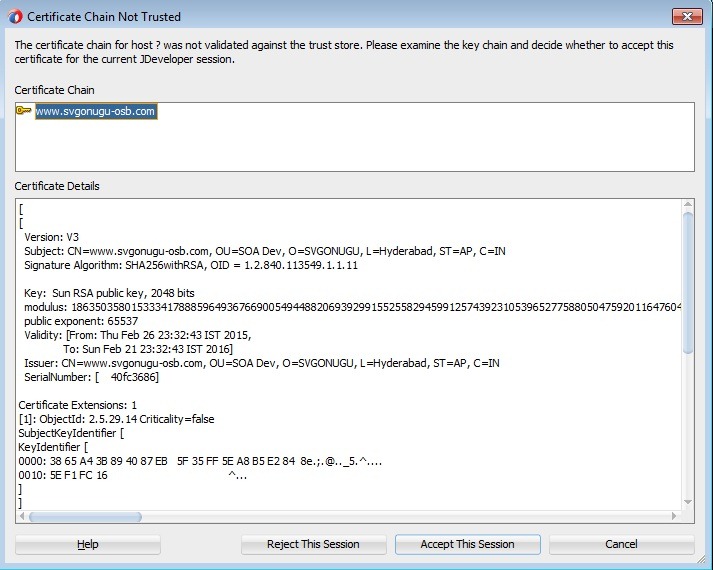
To confirm the enablement of SSL on the Proxy Service, let us try to create a Webservice Proxy in JDeveloper that prompts to accept/trust the certificate.

jdevcert

Observation:

When you enable SSL debugging, you might observe the following exception in server log though your 1-way SSL works as expected. As per Oracle Support note 1606295.1, this is not a harmful exception.

<1425221899641> <BEA-000000> <Exception processing certificates: peer not authenticated javax.net.ssl.SSLPeerUnverifiedException: peer not authenticated
at sun.security.ssl.SSLSessionImpl.getPeerCertificates(SSLSessionImpl.java:397)
at weblogic.servlet.provider.WlsSecurityProvider.getSSLAttributes(WlsSecurityProvider.java:222)
at weblogic.servlet.internal.VirtualConnection.initSSLAttributes(VirtualConnection.java:165)
at weblogic.servlet.internal.VirtualConnection.init(VirtualConnection.java:75)
at weblogic.servlet.internal.ServletRequestImpl.initFromRequestParser(ServletRequestImpl.java:312)
at weblogic.servlet.internal.HttpConnectionHandler.dispatch(HttpConnectionHandler.java:577)
at weblogic.servlet.internal.MuxableSocketHTTP.dispatch(MuxableSocketHTTP.java:131)
at weblogic.socket.JSSEFilterImpl.dispatch(JSSEFilterImpl.java:216)
at weblogic.socket.MuxableSocketDiscriminator.dispatch(MuxableSocketDiscriminator.java:186)
at weblogic.socket.JSSEFilterImpl.dispatch(JSSEFilterImpl.java:216)
at weblogic.socket.SocketMuxer.readReadySocketOnce(SocketMuxer.java:970)
at weblogic.socket.SocketMuxer.readReadySocket(SocketMuxer.java:907)
at weblogic.socket.NIOSocketMuxer.process(NIOSocketMuxer.java:495)
at weblogic.socket.NIOSocketMuxer.processSockets(NIOSocketMuxer.java:461)
at weblogic.socket.SocketReaderRequest.run(SocketReaderRequest.java:30)
at weblogic.socket.SocketReaderRequest.execute(SocketReaderRequest.java:43)
at weblogic.kernel.ExecuteThread.execute(ExecuteThread.java:147)
at weblogic.kernel.ExecuteThread.run(ExecuteThread.java:119)
SOA 12c – Using Maven for Service Bus deployment

In this post, we will see creation of Service Bus application and projects using maven archetypes. And we will use local Maven Repository for demonstration.

Generate Service Bus Application and Project as shown below.

mvn archetype:generate -DarchetypeGroupId=com.oracle.servicebus.archetype -DarchetypeArtifactId=oracle-servicebus-application -DarchetypeVersion=12.1.3-0-0 -DgroupId=org.my.test -DartifactId=test-servicebus-application -DprojectName=test-servicebus-project -Dversion=1.0-SNAPSHOT

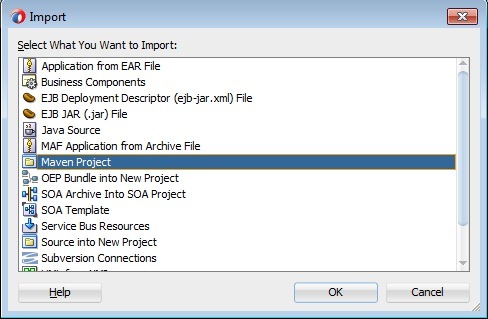
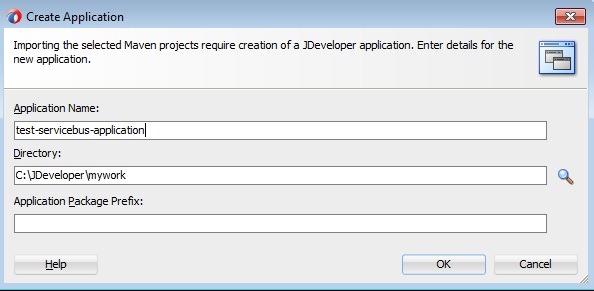
Import this maven project in JDeveloper using the steps mentioned below. Select File –> Import and select Maven Project option and click OK.

import1

osbimport

osbappl

osbimported

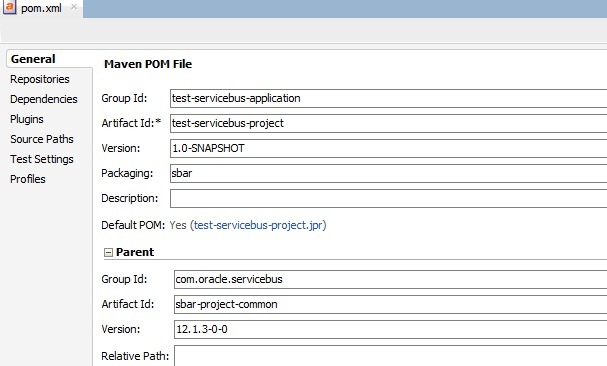
Open application level POM file in Application Resources directory as shown below and observe the details.

osbapplpom

osbapplpom1

Open project level POM file and observe the details.

osbprojpom

Open System level POM file and observe the details.

osbsyspom

Add plugin and other server details in project level POM files (both System and Service Bus Project) as shown below. Remember using the Admin Server port as the server url.

<build>
<plugins>
<plugin>
<groupId>com.oracle.servicebus.plugin</groupId>
<artifactId>oracle-servicebus-plugin</artifactId>
<version>12.1.3-0-0</version>
<configuration>
<oracleServerUrl>
http://localhost:7001</oracleServerUrl>
<oracleUsername>weblogic</oracleUsername>
<oraclePassword>weblogic1</oraclePassword>
</configuration>
</plugin>
</plugins>
</build>

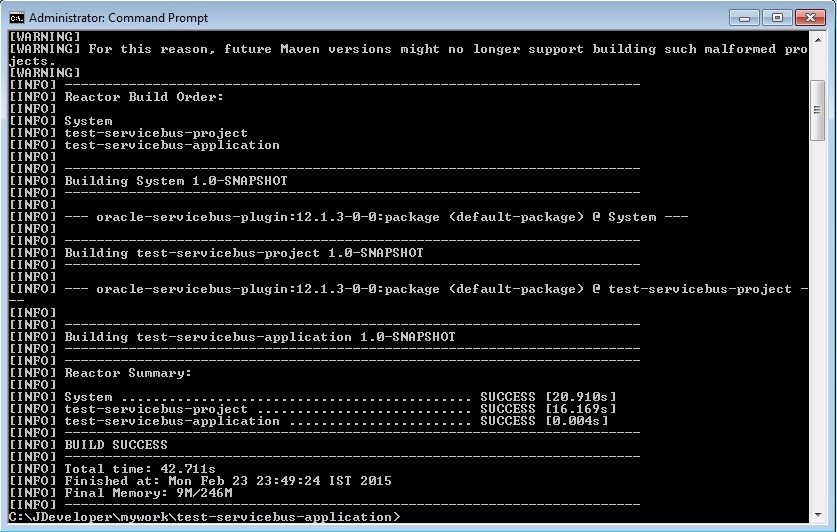
You can generate the sbar file for your Service Bus Projects using mvn package (from directory of Service Bus Application) and can be found in <<project>>/.data/ maven.
sbuspackage

Deploy your Service Bus projects using mvn pre-integration-test (from Service Bus application directory).

sbuspinttest

You can execute Service Bus Plugin goals in following manner from directory containing project POM file.

mvn com.oracle.servicebus.plugin:oracle-servicebus-plugin:package

mvn com.oracle.servicebus.plugin:oracle-servicebus-plugin:deploy**

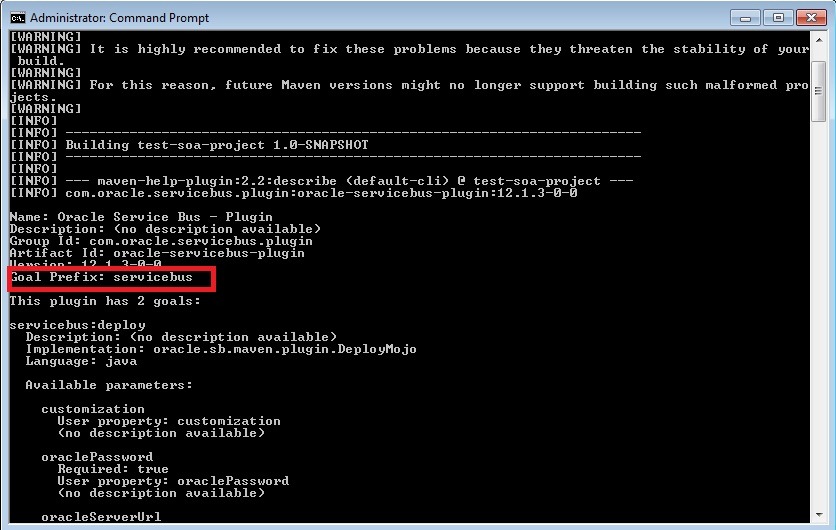
You can observe goal prefix as servicebus, when you describe Service Bus Plugin as shown below.

osbgoalprefix

so you can execute all goals simply using this goal prefix as below.

mvn servicebus:package

mvn servicebus:deploy**


**Currently facing issue with deploy goal.


Notes:

  • Use double quotes in the maven commands like below if you are seeing the error mentioned in think link.

mvn install:install-file “-DpomFile=oracle-maven-sync-12.1.3.pom” “-Dfile=oracle-maven-sync-12.1.3.jar” “-DoracleHome=C:/Oracle/Middleware/FMW1213New”

  • Seems to be OSB maven functionality is broken in 12.2.1. Refer to following blog talking about this.

https://rhpatrickblog.wordpress.com/2015/11/11/restoring-osb-12-2-1-maven-functionality/

http://www.avioconsulting.com/blog/osb-12212-maven-fixes


Pages

Enter your email address to subscribe to this blog and receive notifications of new posts by email.

Join 196 other subscribers

Enter your email address to follow this blog and receive notifications of new posts by email.