Archive for the 'OSB' Category


Fault Handling in OSB

As we know, service provider can send the error back to the consumer in the following ways:

  • As a normal response, by populating the fields like “ErrorNumber” and “ErrorMesssage”. Assuming that these fields are defined in the response message structure in WSDL.
  • As a SOAP fault

Typically when OSB is mediating between service consumer and service provider, we might have to transform this error response or fault response to the response structure defined in the proxy WSDL. So we need to understand on what message context variables can be used for this transformation.

As per WS-I BP, the service provider should send the HTTP response code as 200 when the error is being sent back as normal response and 500 should be sent when the error being sent back in form of the SOAP fault.

When HTTP response code 200 is received, OSB treats it as a normal response and $body will have the received response. And when response code 500 is received, the OSB runtime control goes  to the ‘Service Error Handler’ if present or to ‘System Error Handler’. That means OSB considers the fault response also as a normal response and populates $body, when response code is 200 is received for fault response.

And OSB populates different message context variables in case of fault response with 500 code depending on whether Routing or Service Callout are used to call the business service. When routing is used, the variable $body will have the fault response. When service callout is used, the variable $fault will have the fault response in ‘ReceivedFaultDetail’ structure.

For demonstrating the same, the following SOAP fault structure is used as a response in SOAP UI mock service.

<SOAP-ENV:Envelope xmlns:SOAP-ENV="http://schemas.xmlsoap.org/soap/envelope/" xmlns:xsi="http://www.w3.org/1999/XMLSchema-instance" xmlns:xsd="http://www.w3.org/1999/XMLSchema">
   <SOAP-ENV:Body>
      <SOAP-ENV:Fault>
         <faultcode>SOAP-ENV:Client</faultcode>
         <faultstring>Failed to locate method (ValidateCreditCard) in class</faultstring>
         <detail>
              <ValidationError>
                   <ErrorCode>78970989</ErrorCode>
                   <ErrorMessage>Validation failed.Credit Card Expired.</ErrorMessage>
              </ValidationError>
     </detail>
      </SOAP-ENV:Fault>
   </SOAP-ENV:Body>
</SOAP-ENV:Envelope>

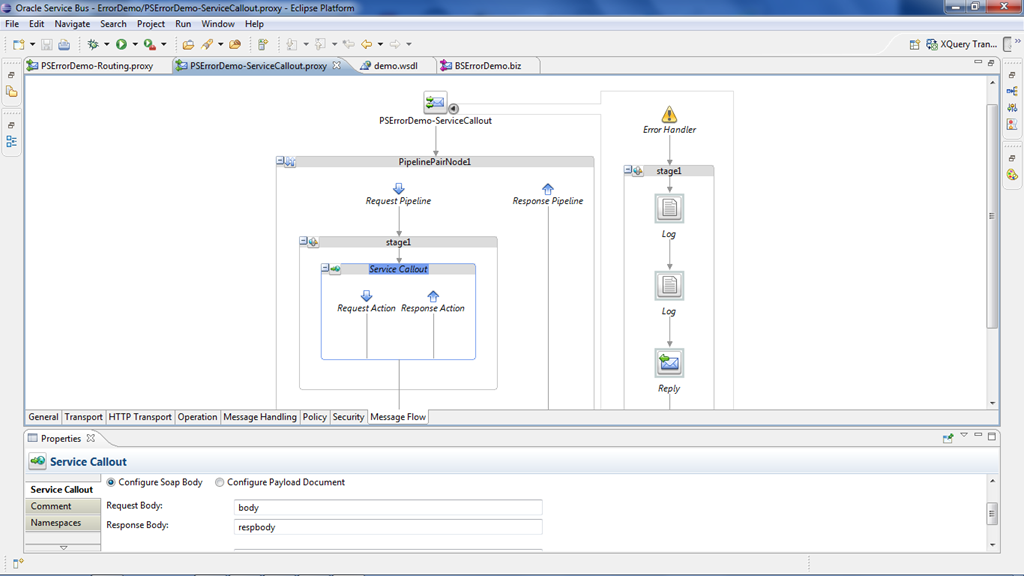
Create 2 proxy services with routing and service callout as shown below.

Proxy with Routing

                      image

Proxy with Service Callout

                      image

The log activities in the error handler are used to log the contents of $body and $fault variable for demonstration purpose.

Create a business service by giving the mock service endpoint which returns a SOAP fault as shown below.

                      image

In case of routing, the following screenshot confirms that $body has the received fault response. So the expression fn:empty($body/soap-env:Fault) can be used to find out whether we have received the fault or not.
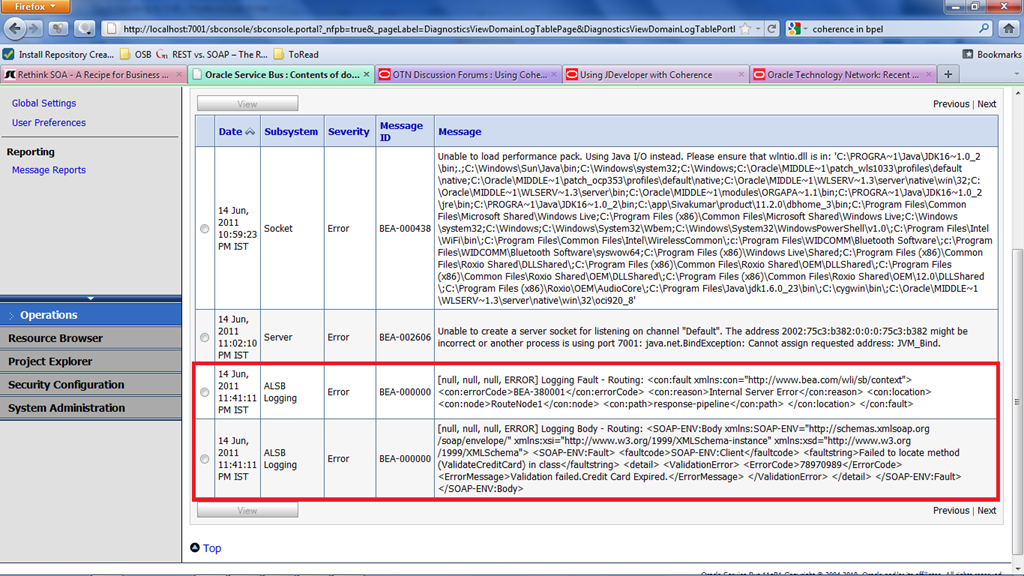
                     Routing

In case of service callout, the following screenshot confirms that $fault has the received fault response. So the expression fn:empty($fault/ctx:details/con1:ReceivedFaultDetail) can be used to find out whether we have received the fault or not. We can come up with similar kind of expressions for all other OSB faults that are described in the link.

                    Service Callout

In case where both service callout and routing are used in single proxy service, a combination of both of above expressions has to be used.

Also look at the note given here that talks about fault handling in OSB.
Regression Issue in OSB 11.1.1.4

Observed a regression issue in OSB 11.1.1.4 when we recently upgraded from version 11.1.1.3.

The issue is that when the proxy service receives the error BEA-380001-Internal Server Error, the control is not going to proxy level service error handler. The message flow is only showing the system error handler which is unexpected. We are using the routing to call the business service.

The issue is resolved by using the workaround of having error handler at routing level. No specific solution is provided by Oracle for the time being. Have not verified this issue in recent release of 11.1.1.5.

XSLT issue in OSB 11.1.1.3

In one of my proxies message flow, I have come across the following error with one of the assign activities, when I use the XSLT to do some processing on the payload.

javax.xml.transform.TransformerException: com.sun.org.apache.xml.internal.utils.WrappedRuntimeException: Content is not allowed in prolog.

When I add/delete a single character in the payload, the XSLT will work without any problem. I observed this issue in OSB 11.1.1.3 on Linux platform.

On searching the internet, found several workarounds:

         – Adding <?xml version=’1.0′ encoding=’utf-8′?> to the payload

         – Verifying for malformed characters at the beginning of XML payload

         – Rewriting the XSLT etc..etc..

None of the above options had really worked for my case. Finally found a patch#10086559 in oracle support site and applying this patch resolved the issue.

Have seen the same issue in OSB 11.1.1.4 and resolved after the patch application. Have not verified this issue in recently released OSB 11.1.1.5.

WLS Domain Configuration Wizard

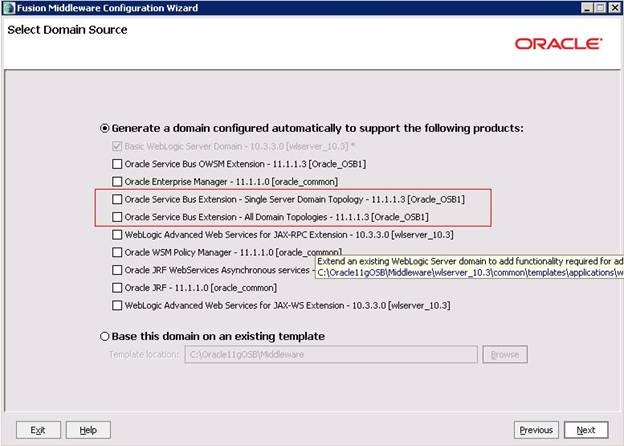
In 11.1.1.3, while creating the OSB domain we have the option of selecting ‘Single Server Domain Topology’ and ‘All Domain Topologies’ as shown below. These options will create single Admin server and Admin+OSB managed server respectively in the domain.

           clip_image002

In 11.1.1.4, these options ‘Single Server Domain Topology’ and ‘All Domain Topologies’ are modified to ‘Oracle Service Bus for Developers’ and ‘Oracle Service Bus’ respectively as shown below.

           clip_image002[4]

Using XQuery expression to get the Proxy Service Name

In the last post, we have seen that calling proxies send the proxy name as a payload to CommonPS as shown below.

<Payload>
    <ProxyName>PS_A</ProxyName>
    <AuditPayload>
        <Date>2011-05-23</Date>
        <Description>Audit Data</Description>
    </AuditPayload>
</Payload>

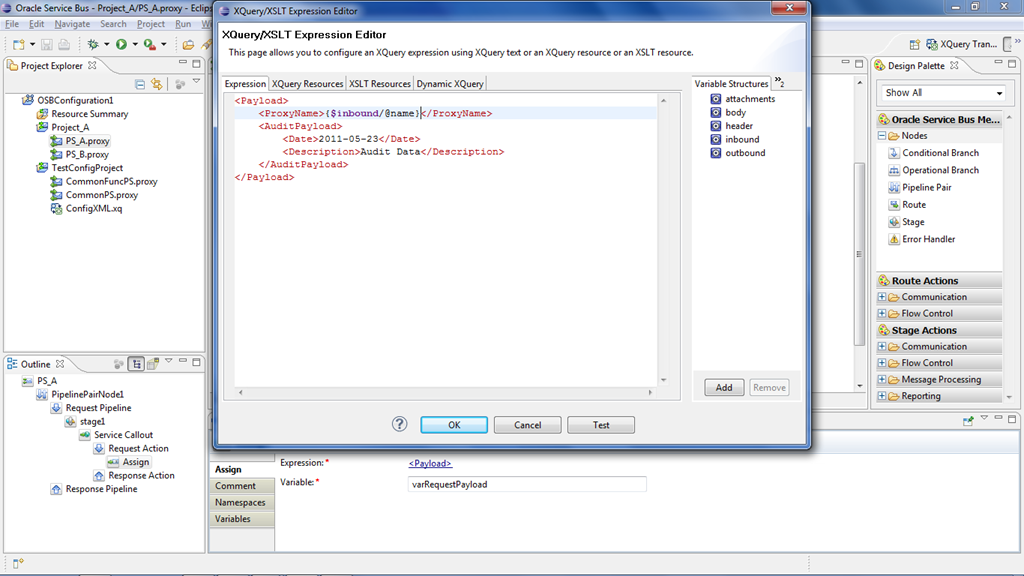
This approach has a problem that we have to manually change the ProxyName element in the payload every time we rename the proxy service. To overcome this problem we can use the XQuery expression $inbound/@name to get the proxy name. This would give the proxy name in the following format.

ProxyService$<fully qualified path of project separated by $>

So in PS_A, modify the assign activity that is present in the request pipeline as shown below.

               image

Using the expression $inbound/@name in the above payload will be converted into the following once it reaches the CommonPS.

<Payload>
    <ProxyName name="ProxyService$TestConfigProject$PS_A"/>   

<AuditPayload>
        <Date>2011-05-23</Date>
        <Description>Audit Data</Description>
    </AuditPayload>
</Payload>

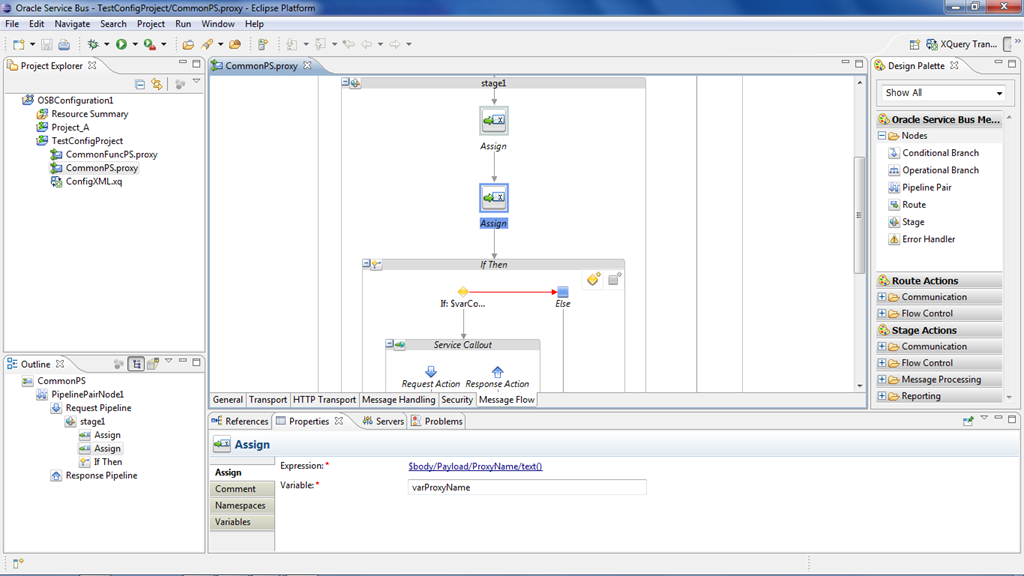
This triggers a change in the message flow of CommonPS as well. So modify the assign activity which is shown below with a new expression to get the proxy name.

                 image

Modify the expression in this assign activity to the following.

                 fn:tokenize($body/Payload/ProxyName/@name, ‘\$’)[last()]

Now deploy both of the OSB projects(TestConfigProject and Project_A) and run PS_A and PS_B once by setting the Flag value as ‘Y’ and once with value ‘N’. Observe that the auditing is happening only when the Flag value is set to ‘Y’ as observed in earlier scenario.

Using XQuery Resource in OSB for Configurable Properties

We often see the following scenarios in any typical software application development or deployment and OSB is also not an exception from this perspective.

– There will be few things or parameters that have to be modified depending on the environment that we are deploying to.

– Provision for switching on and off of the some functionality based on the requirement. For example, a service that logs some information into database should be configured to switch on and off when required.

In these scenarios, We can leverage the XQuery resources in OSB to put all of our configurable properties. This post explains the following things to achieve this functionality:

         – Creating the XQuery Resource with configurable properties.

         – Using the XQuery Resource in Proxy Service Message Flow

Creating the XQuery Resource

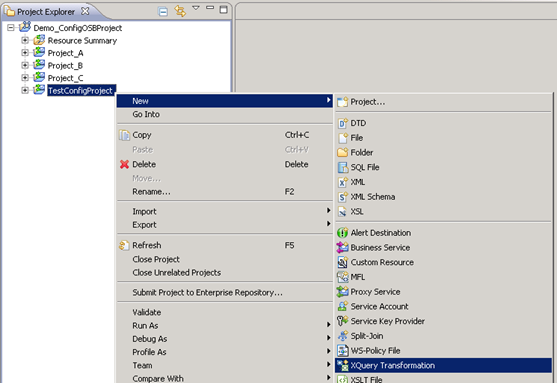
Create any OSB project (TestConfigProject), right click on the TestConfigProject and select New –> XQuery Transformation as shown below.

                 image

Give the filename as ‘ConfigXML’ and click on Next.

                  image

Select anytype, add it and click on Next.

                  image

Again select anytype, add it and click on Finish.

                  image

Following screen will appear after clicking on the ‘Finish’ button.

                  image

Go to ‘Source’ tab on clicking and delete all the contents.  Assume that we want to specify the configurable property for each and every proxy service present in our OSB configuration project. So we could paste the following contents in our XQuery resource. This XML structure allows us to add as many properties we want for each proxy service.

<ProxyServiceList>
    <ProxyService name="PS_A">
        <Flag>Y</Flag>
    </ProxyService>
    <ProxyService name="PS_B">
        <Flag>N</Flag>
    </ProxyService>
</ProxyServiceList>

Using the XQuery Resource in OSB Proxy Service

Consider a scenario where the proxies PS_A and PS_B have to call some other proxy CommonFuncPS which does the actual activity of inserting some auditing information in database. And this functionality should be configurable so that we can enable/disable the auditing whenever required.

We can use the above XQuery resource for configuring this functionality. The flag value ’Ý’ indicates that the auditing should happen and the value ‘N’ indicates that auditing should not happen.

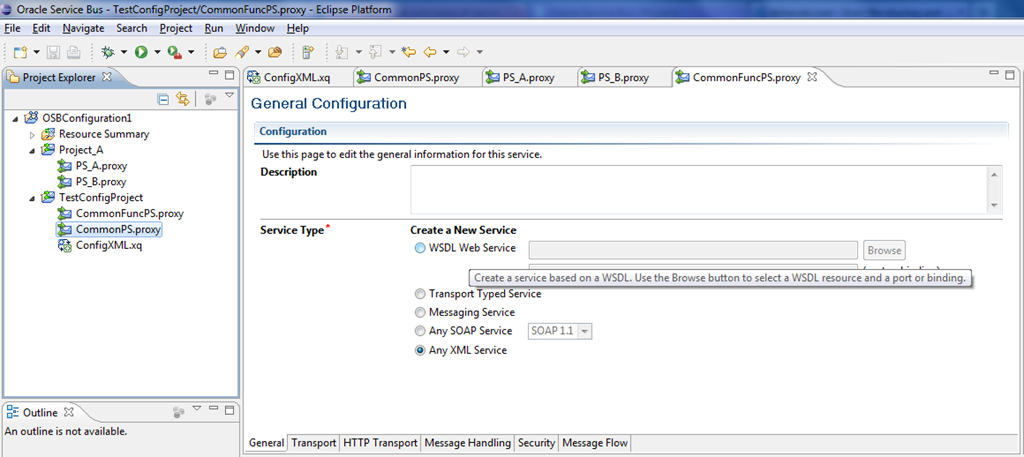
To achieve this, let’s create another proxy service CommonPS that checks for this configuration property value and calls CommonFuncPS based on the value given in the XQuery resource. The following screenshot shows all the proxy services that are involved in this exercise and let’s create all proxy services as ‘Any XML Service’ for simplicity.

                     image

CommonPS Message Flow

Since this proxy has to determine the calling proxy, all other proxy services has to send its name along with the payload that has to be inserted into database. So assume that following is the structure of the request message that we agreed on

<Payload>
    <ProxyName>PS_A</ProxyName>
    <AuditPayload>
        <Date>2011-05-23</Date>
        <Description>Audit Data</Description>
    </AuditPayload>
</Payload>

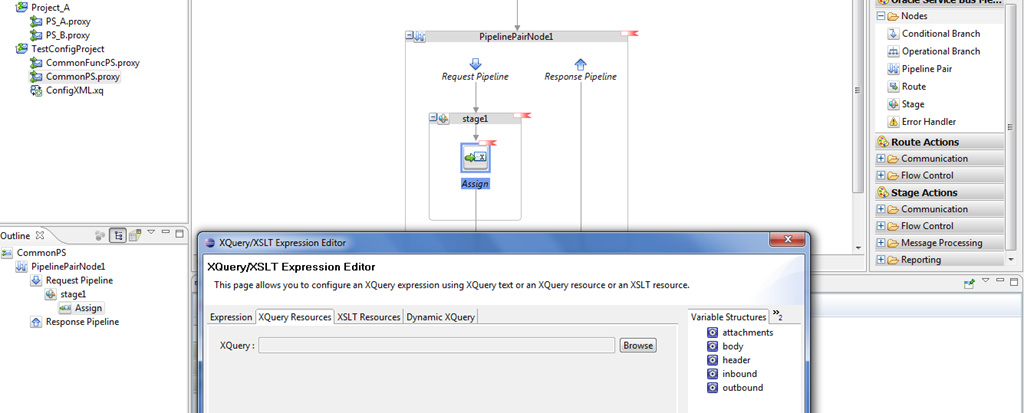
Go to the message flow of the proxy service and insert a pipelinepair Node and Stage and insert an assign activity. Click on the ’Éxpression’ in the properties and select XQuery resource as shown below.

                        image

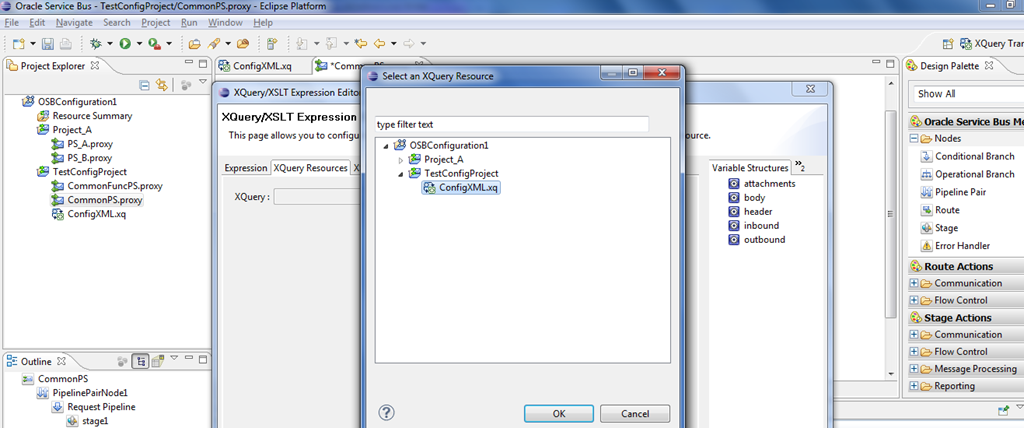
Select the XQuery resource by clicking on Browse button as shown below.

                         image

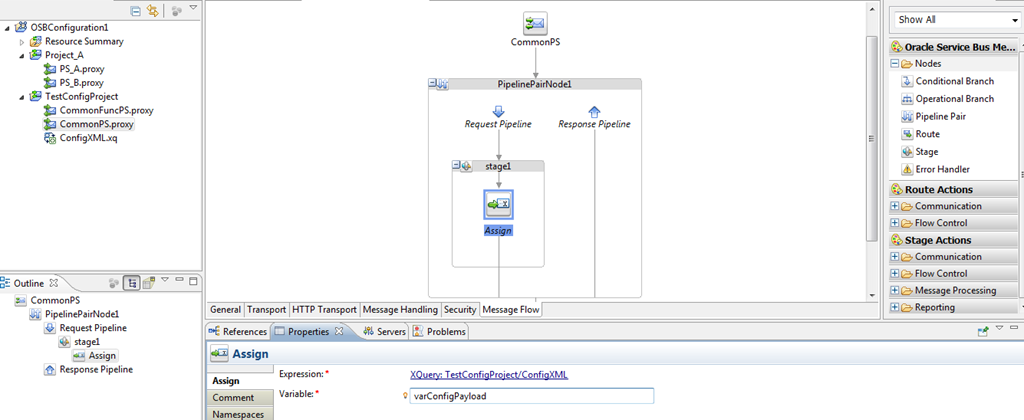
Click on OK button after selecting ConfigXML.xq resource in the popup window and give the assign variable as varConfigPayload.

                       image

Create another assign activity to get the proxy name that is been passed in the input and use the expression as shown below and assign this value to a variable varProxyName.

                        image

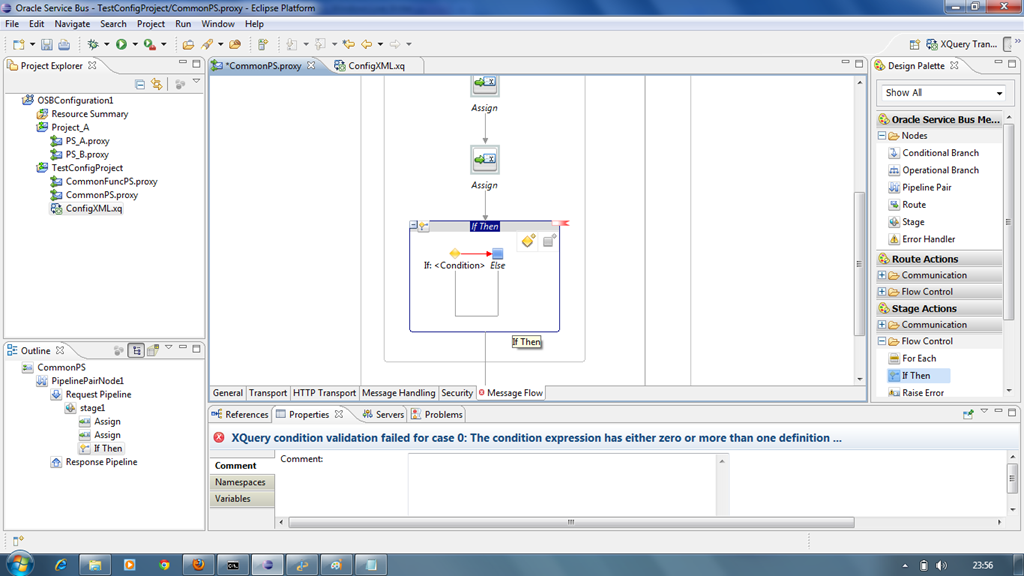
We have a variable where the configuration information is stored for all the proxies and also we have a variable which gives the information about calling proxy. Now we need to check whether audit flag is enabled or not before calling the CommonFuncPS. So insert If-Then activity from Stage Actions –> Flow Control as shown below.

                          image

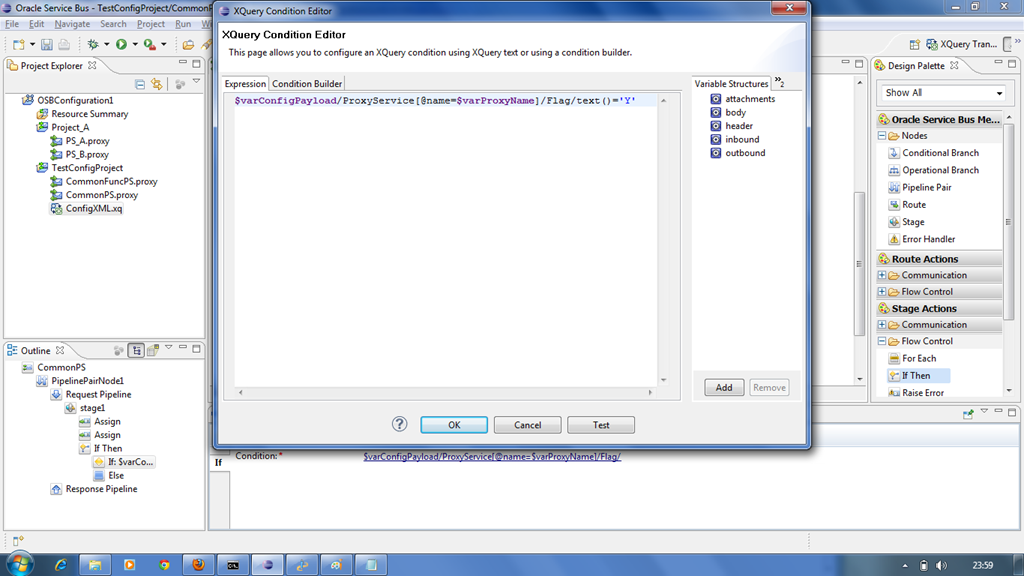
Enter the expression for if condition as shown below.

                         image

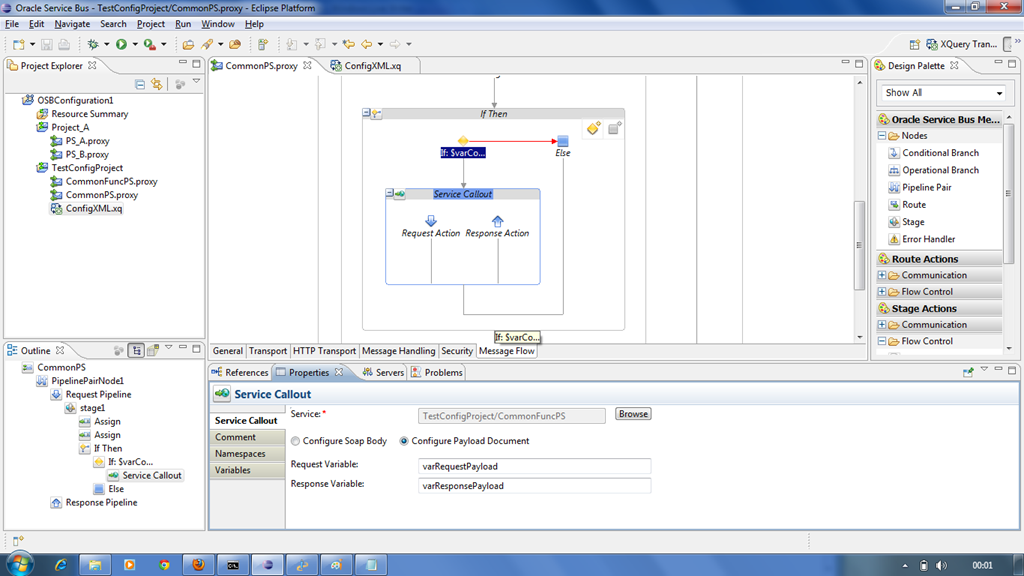
Now insert a service callout to call the CommonFuncPS and set the variables as shown below. Since this article is about the configurable properties we will not look at the actual message flow of CommonFuncPS.

                         image

Insert another assign activity in the request pipeline of the service callout and populate the variable varRequestPayload by extracting the auditing payload from the body variable as shown below:

                        image

We have done with the message flow of CommonPS and we will see the message flow of the calling proxies.

Calling Proxies (PS_A or PS_B) Message Flow

Calling proxies message flow is very simple which will have just service callout to CommonPS proxy service as shown below.

                      image

Insert an assign activity in the request pipeline to populate the request variable of above service callout and pass the actual proxy name for ProxyName element as shown below.

                    image


Now deploy both of these OSB projects and run PS_A and PS_B once by setting the Flag value as ‘Y’ and once with value ‘N’. Observe that the auditing is happening only when the Flag value is set to ‘Y’.

This way an XQuery resource can be used to define all the configurable properties for individual proxies existing in your OSB configuration project. The XML used in this demonstration is also extensible and number of properties can be added as and when required.

Using JMS transport (Contd..)

In previous post, you have seen using the JMS transport in business service to enqueue messages into JMS queue. In this post, you will use JMS Transport in proxy service to read/poll messages from JMS queue. The OSB project used for demonstration can be downloaded from this link.

Since DemoQueue has enqueued message (seen in previous post), you will read the same message using a proxy service and route it to another business service which enqueues into DemoQueue1. So create another JMS queue and required JMS resources and create new business service in similar fashion as described in previous post. Set endpoint URI to point to DemoQueue1.

Create Proxy Service and select JMS as Transport Protocol. Set endpoint URI to point to DemoQueue and Connection Factory.

image

Go to JMS Transport tab. Select Queue  as destination type and uncheck Is Response Required as you are not expecting response from business service.

image

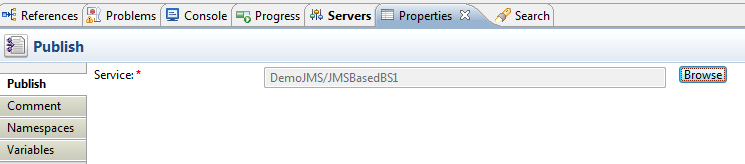
Go to Message Flow tab. Drag Publish activity and select new business service in properties. The Publish activity is used for one-way communication and here it routes the JMS message to business service.

image

image

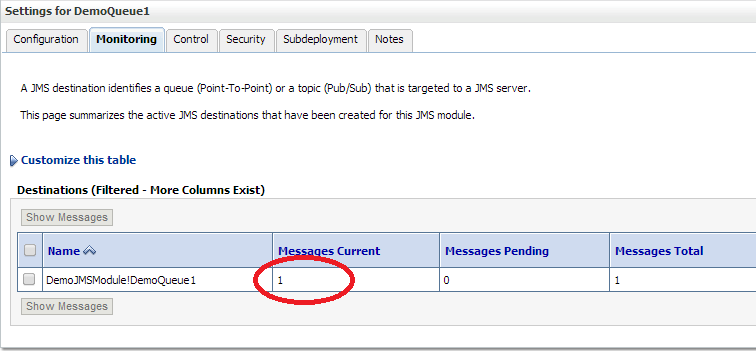
Deploy OSB project and observe that proxy service read the message from DemoQueue and enqueued into DemoQueue. Here your proxy service acts as a MDB that polls your JMS queue for the messages.

image

image

image

Using JMS transport in OSB

We use JMS queues for reliable messaging or for asynchronous communication with other legacy systems or third party systems. The JMS queues can reside in local WLS or in remote server. Here, in this post we discuss about using JMS transport in OSB and demonstrates the same using queues in local WLS. You can refer to this link for more explanation on different JMS Resources. And the OSB project used for demonstration can be downloaded from this link.

JMS queues are always referred in context of a Connection Factory, so you need to create Connection Factory first and then actual JMS queues.

In OSB, JMS transport is used to either enqueue or read messages(poll) from JMS queues. To enqueue the messages, use JMS transport in business service and to poll/read messages from JMS queue, use JMS transport in proxy service.

Setup:

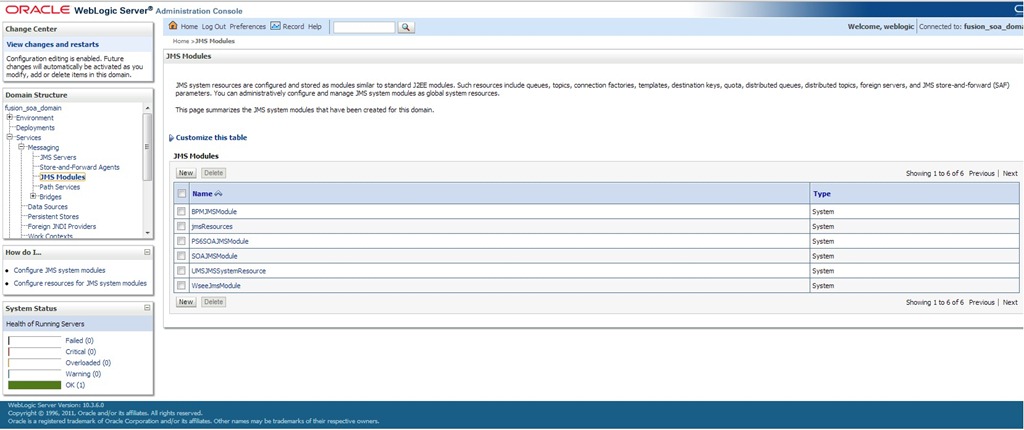
  • Open WLS Admin console and navigate to Home -> Messaging -> JMS Modules. Click ‘New’ to create new JMS module.

jmsmodule

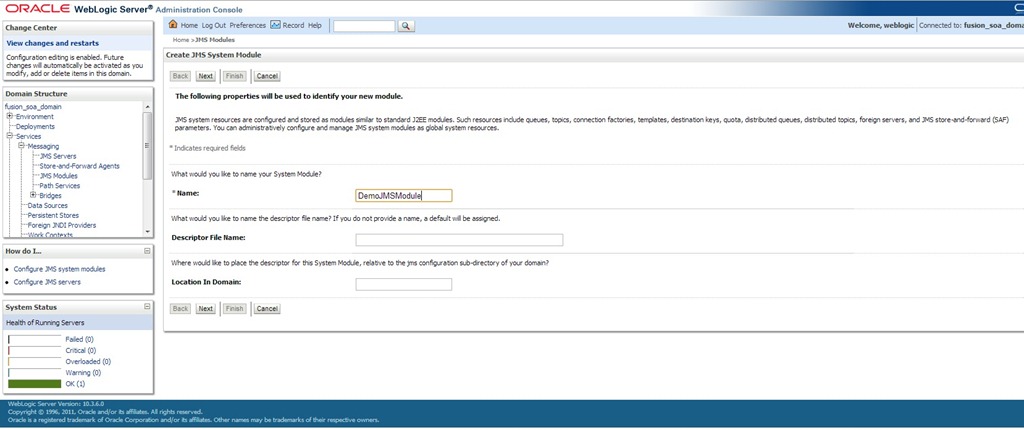
  • Enter name for this new JMS module and click ‘Next’.

jmsmodule1

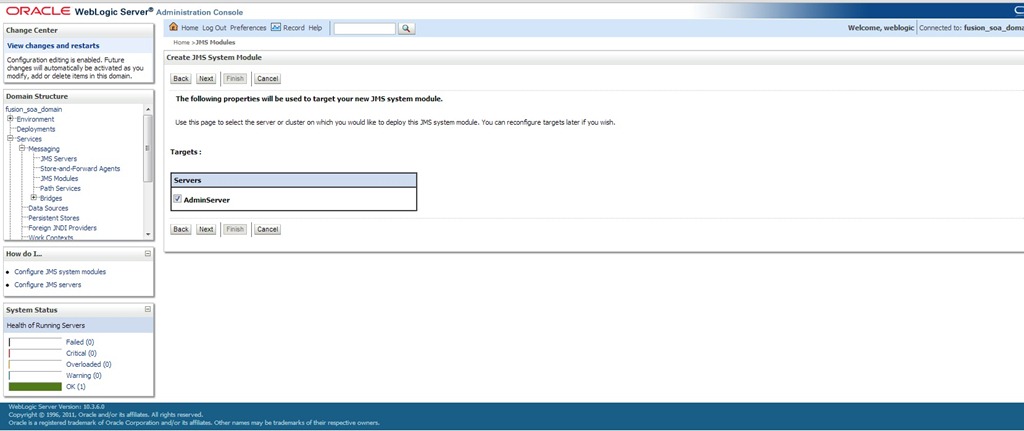
  • Select all target servers and click Next.

jmsmodule2

  • Click Finish and verify new JMS module has been created successfully.

jmsmodule3

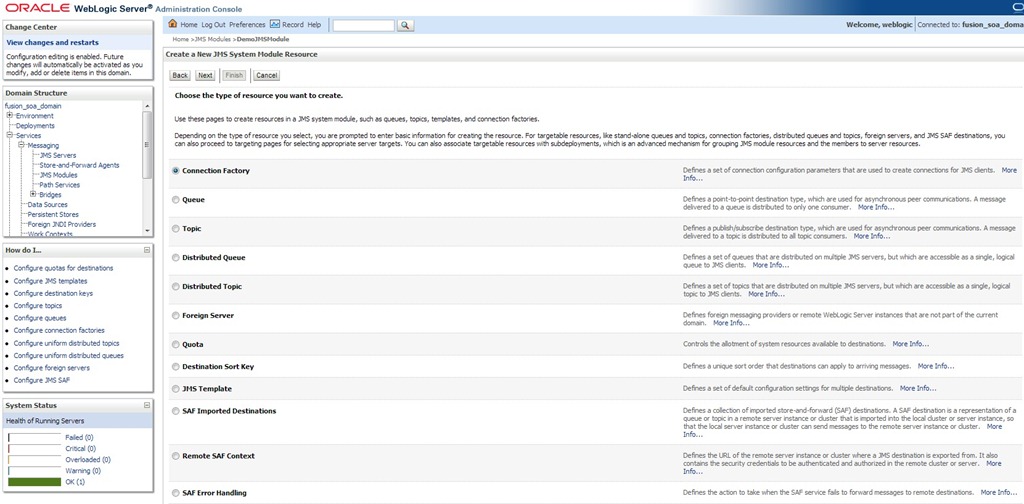
  • Now you can proceed to create Connection Factory and JMS Queue. Navigate to DemoJMSModule–> New and select Connection Factory.

connfactory1

  • Click Next and give name for both Connection Factory and JNDI.

connfactory1

  • Click Next. The target server will be selected automatically for connection factory. Click Finish.

connfactory2

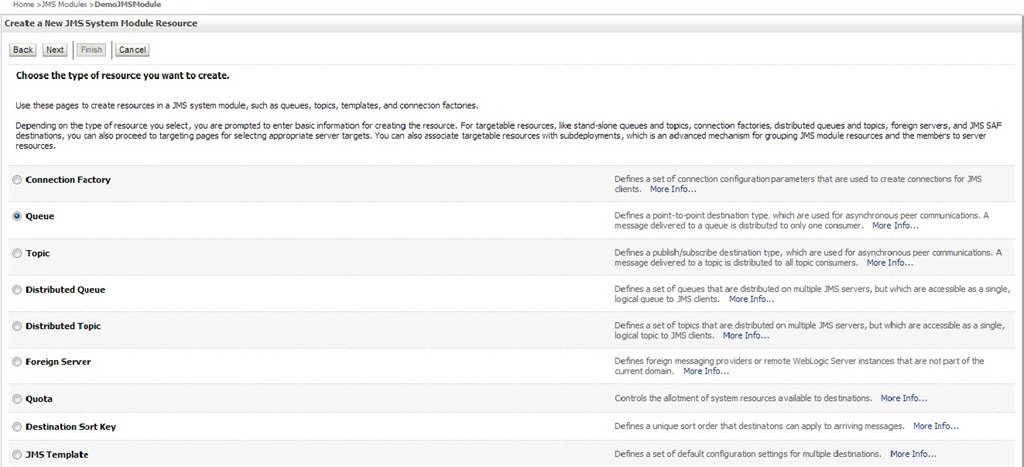
  • Click New and select type of resource as Queue.

queue1

  • Click Next and give name for Queue and JNDI.

queue2

  • Click Next and proceed to create new Sub Deployment.

queue3

  • Provide name for this new sub deployment and click OK.

queue4

  • Select an existing target JMS server and click Finish.

queue5

  • Verify that JMS queue is created in DemoJMSModule.

queue6

Using JMS Transport at Business Service:

  • Create a XML based business service.

bs1

  • Go to Transport tab and select protocol as JMS. Observe that endpoint URI pattern:

          jms://<hostname>:<port>/<JNDI of connection factory>/<JNDI of queue>

  • If JNDI name has ‘/’, then it should be replaced with ‘.’, while specifying endpoint URI in business service.

bs2

  • Navigate to JMS Transport tab. Select Queue  as destination type, Text as message type and None as response queue.

bs3

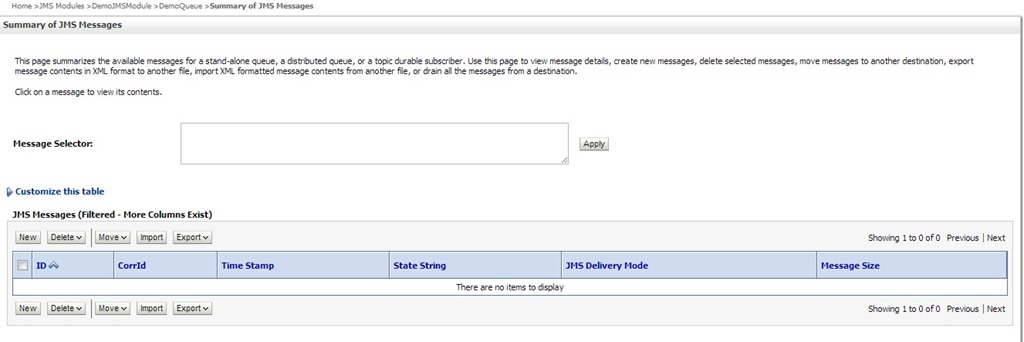
  • Now you are done with business service. So deploy OSB project and test by giving any sample XML or text message in test console. To view messages in queue, navigate to Home->Messaging->JMS Modules-> DemoJMSModule->DemoQueue-> Monitoring. Select the queue and click on Show Messages to see all messages.

jms1

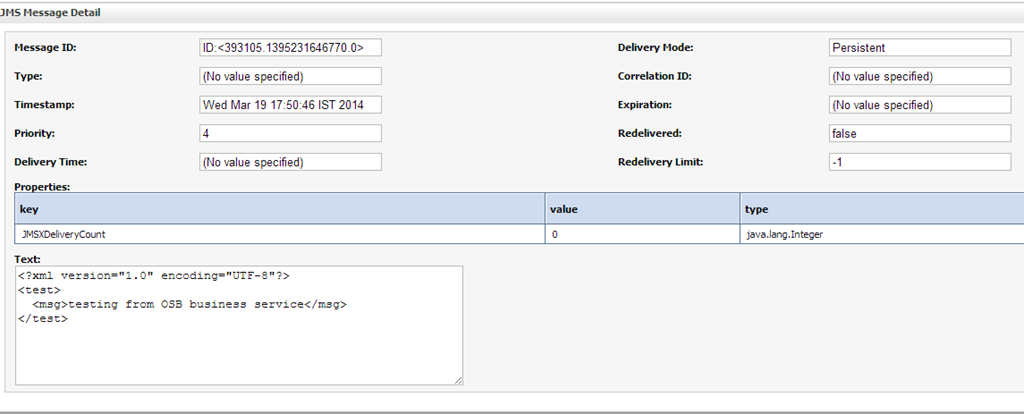
  • Click on specific message to verify.

image

Test Console issue in OSB

Sometimes, when we are running the proxy or business service from OSB test console we might see the following error:

"Test Console" service is not running.Contact Administrator to start this service.

This error can be resolved by making the following change in alsbdebug.xml file:

Go to the location $DOMAIN_HOME and in the file alsbdebug.xml file, make sure that value for following property is set to true.

<java:alsb-test-console-debug>true</java:alsb-test-console-debug>

Once the value is modified to ‘true’ restart the osb server and try. Now test console should work without any issues.

Testing OSB based REST Services using SOAP UI

This post assumes the basic working knowledge of SOAP UI testing tool, Oracle Service Bus11g and developing the REST based services.

Primer on REST

REST stands for ‘Representational State Transfer’ and it was first introduced by ‘Roy Fielding’ in his 2000 doctoral dissertation. REST is another architectural style of creating the web services that is different from SOAP based web services. REST based architectures communicate primarily through the transfer of representation of resources (information) and it uses simple XML over HTTP.

RESTful services adhere to certain set of constraints and architectural principles that include the following:

    · REST based architectures are built from resources that are uniquely identified by URIs and the only allowed operations are the HTTP operations: GET, POST, PUT and DELETE.

   · REST components manipulate resources by exchanging the representations of the resources. For example, a trading account can be represented by a XML document. In RESTful architecture a trading account might be updated by posting a XML document containing the modified trading account information to its URI.

Creating New REST Project

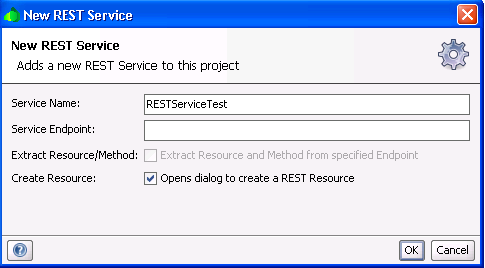
Open the SOAP UI and click on File -> New SOAP UI Project. Enter the project name and select the option ‘Add REST Service’ and click on OK.

          image

In the next dialog window, Enter the Service Endpoint as :port">http://<hostname>:port where OSB runs and do not include the proxy service endpoint in this and check the option ‘Create Resource’.

         image

In the next dialog window, Enter any value for the resource name to identify the resource and give the actual Proxy Service endpoint for Resource Path and click OK.

         image

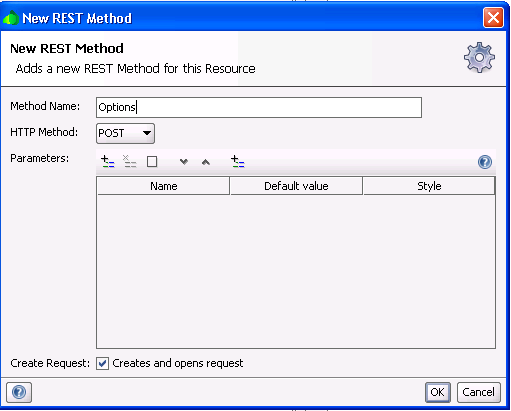
In the next dialog window, Enter any value for method name and select the HTTP method as your Proxy Service supports. Since my OSB proxy service supports only POST I am selecting the method as POST as shown below and click on OK.

         image

Now verify that new REST project has been created and Request1 window is opened. To test your REST based proxy, modify the Media Type to ‘text/xml’, copy the request into request window and run by clicking on green arrow icon on the top.

Adding New Request to Existing Project

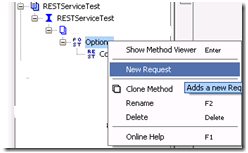
Right click and select the New Request as shown below:

         AddRequest

Enter the Request Name as you need and click Ok to open the request editor. Once the request editor opens, copy the request into the request window and run as explained earlier.

           image

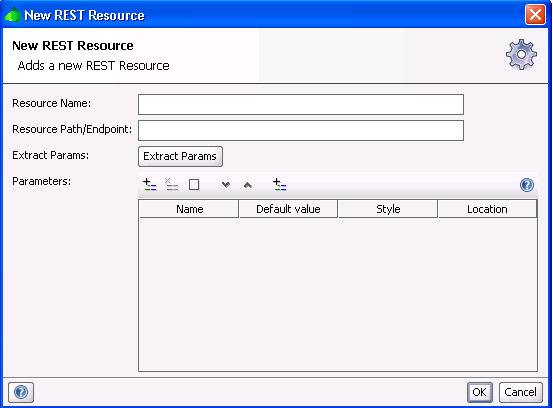
Adding New Resource to Existing Project

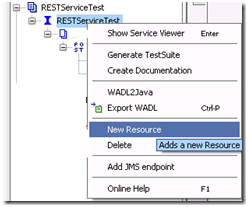
Right click and select New Resource as shown in the below screenshot.

         AddResource

Enter the Resource Name and End point as explained in previous section to add another resource (proxy in our case) and click on OK.

           image

Verify that another resource is added to the project that we have created and enter the Method Name and select POST method as explained earlier and click on OK. And run the request after pasting it in request window.


Pages

Enter your email address to subscribe to this blog and receive notifications of new posts by email.

Join 196 other subscribers

Enter your email address to follow this blog and receive notifications of new posts by email.